> For the complete documentation index, see [llms.txt](https://help.rbsgo.com/llms.txt). Markdown versions of documentation pages are available by appending `.md` to page URLs; this page is available as [Markdown](https://help.rbsgo.com/dineplan/backoffice/settings/program-settings.md).

# Program Settings

### **Overview** <a href="#overview" id="overview"></a>

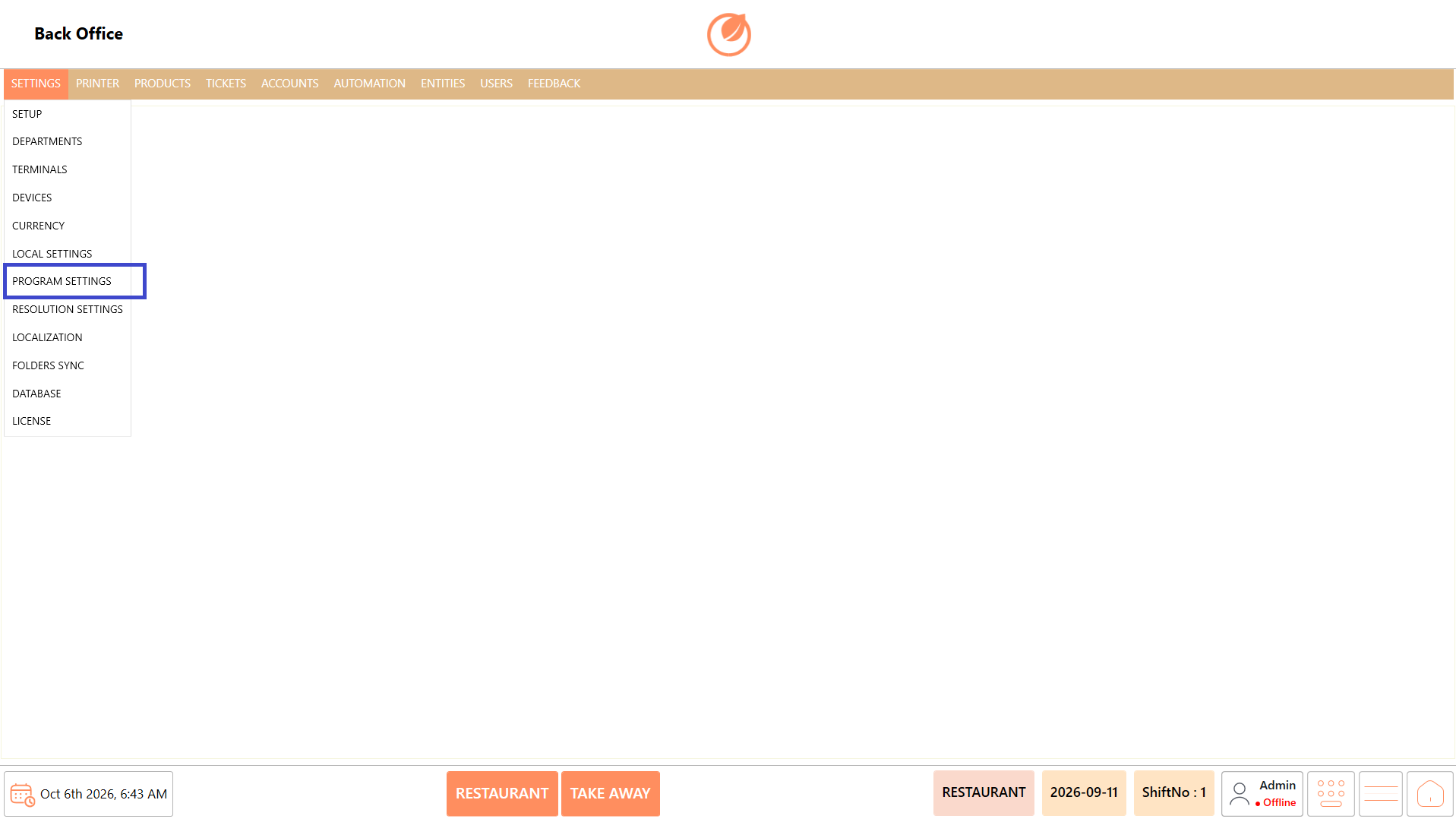
The Program Settings section allows administrators to configure application settings based on the customer's operational requirements. It includes general application settings, report settings, and configuration options for supported integrations.

Administrators can configure the required settings and integration details based on the features enabled for the customer.

<figure><img src="https://3400173661-files.gitbook.io/~/files/v0/b/gitbook-x-prod.appspot.com/o/spaces%2F0EE0WqKESoD8hlEpFQQL%2Fuploads%2Fgit-blob-5b1ff07adb97e5813807993762155a09b7ca9a3c%2Fatt_0_for_3425272189.png?alt=media" alt=""><figcaption></figcaption></figure>

### **Screen Elements** <a href="#screen-elements" id="screen-elements"></a>

| **Screen Element** | **Description**                                                                                                            |
| ------------------ | -------------------------------------------------------------------------------------------------------------------------- |
| General            | Allows administrators to configure general application settings according to the customer's requirements.                  |
| Barcode            | Allows configuration of barcode-related settings such as quantity separators and weight barcode parameters.                |
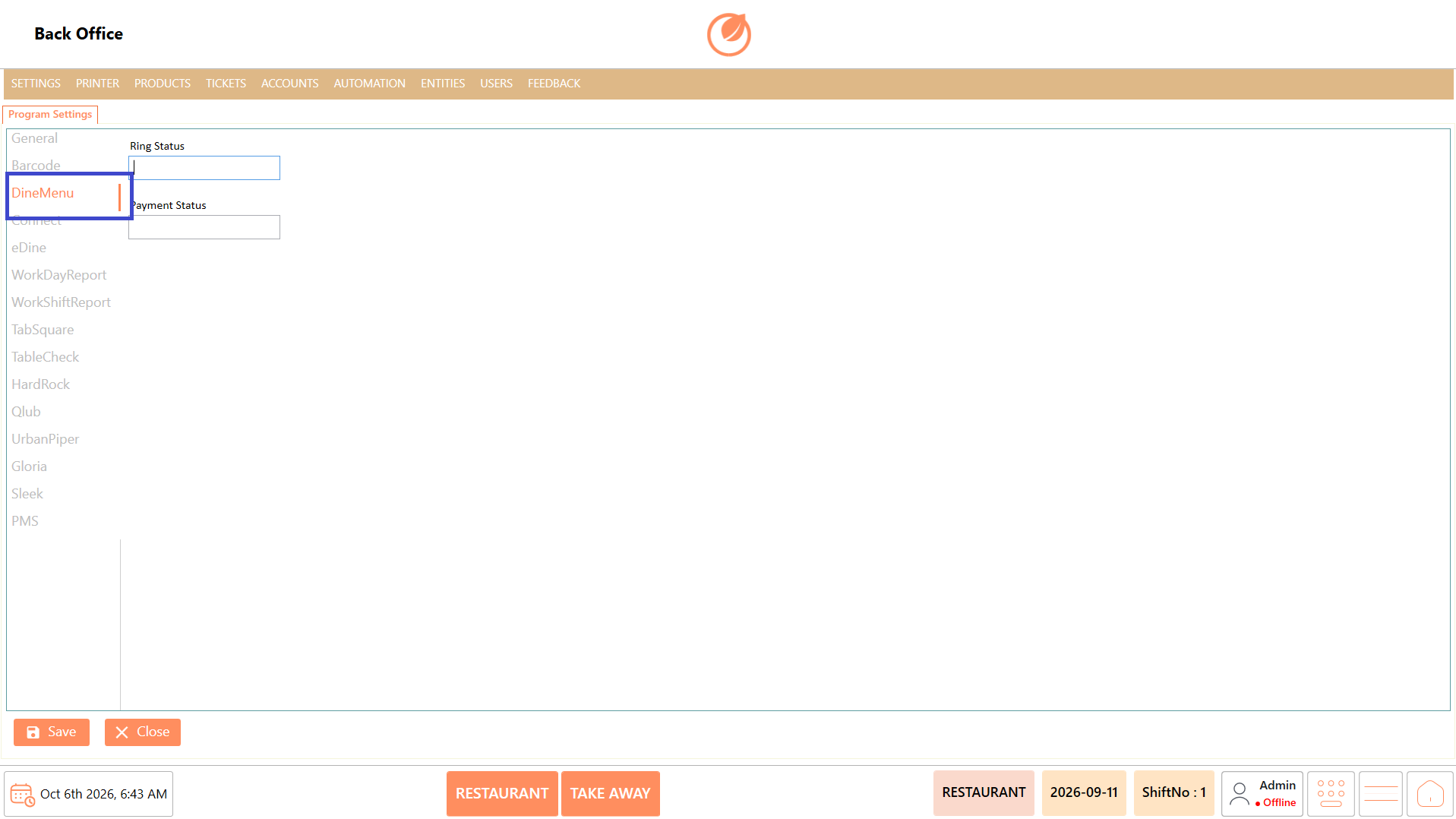
| DineMenu           | Contains settings required for DineMenu-related configuration.                                                             |
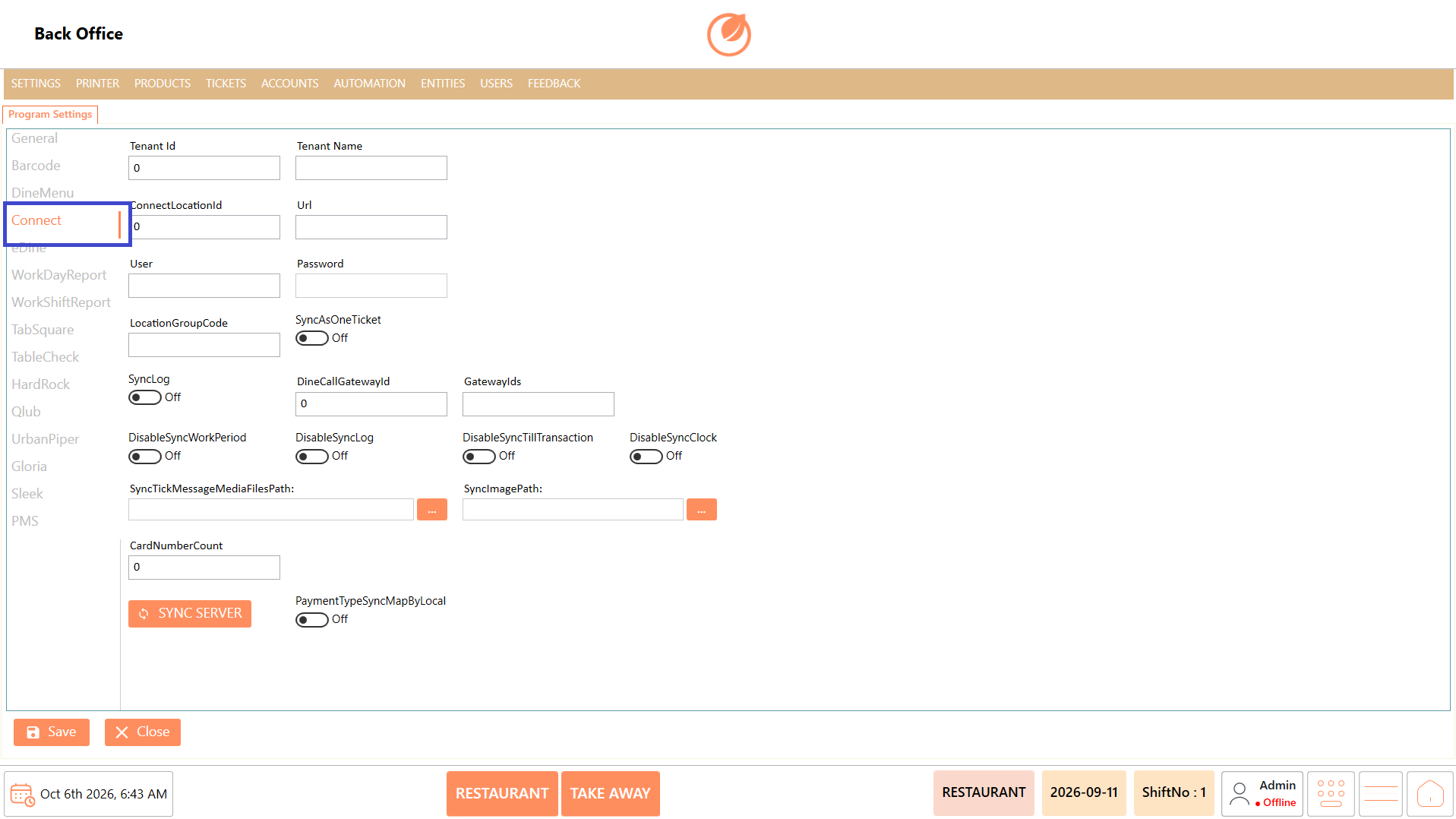
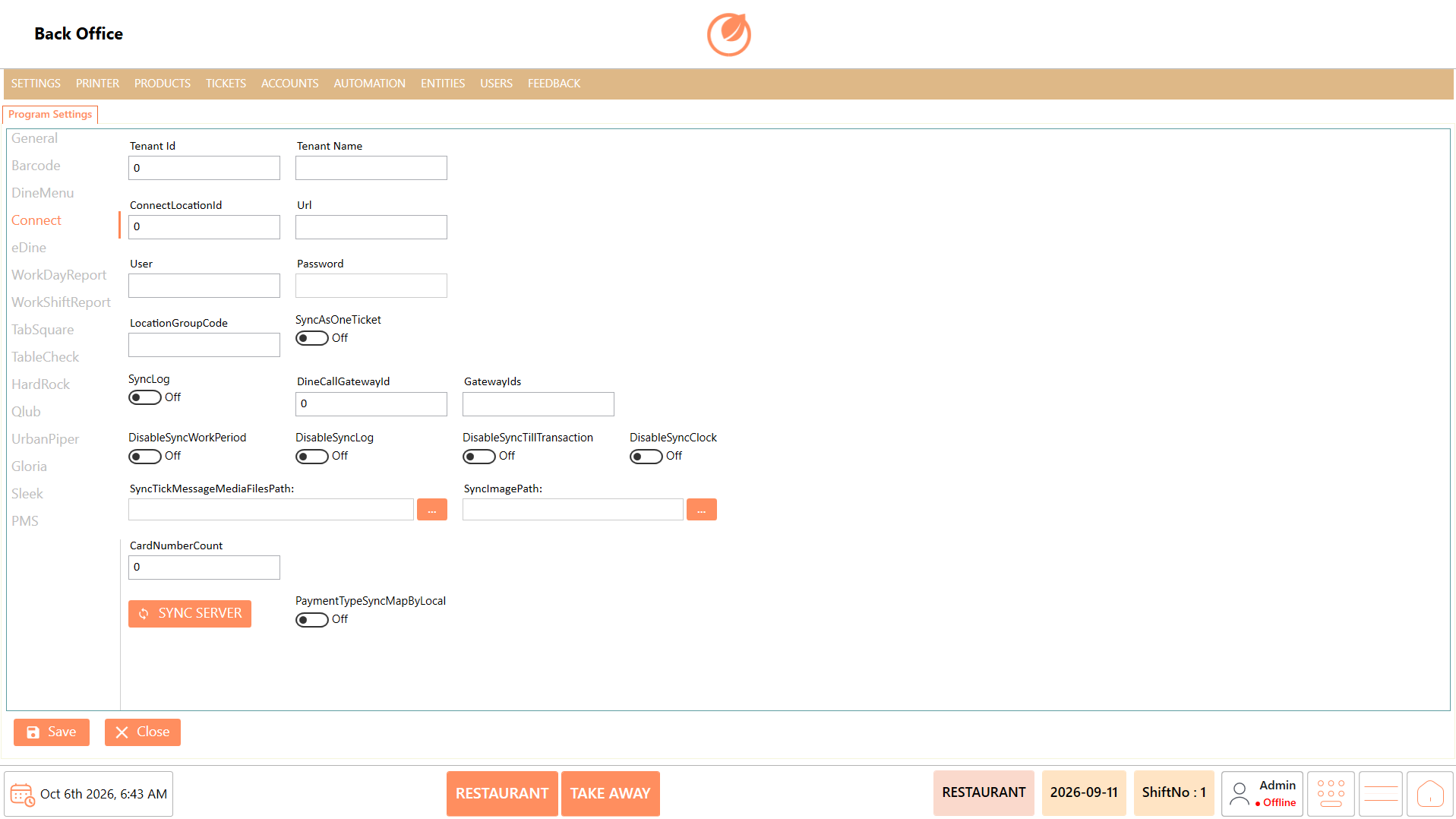
| Connect            | Allows administrators to configure connection and synchronization details, including tenant and server information.        |
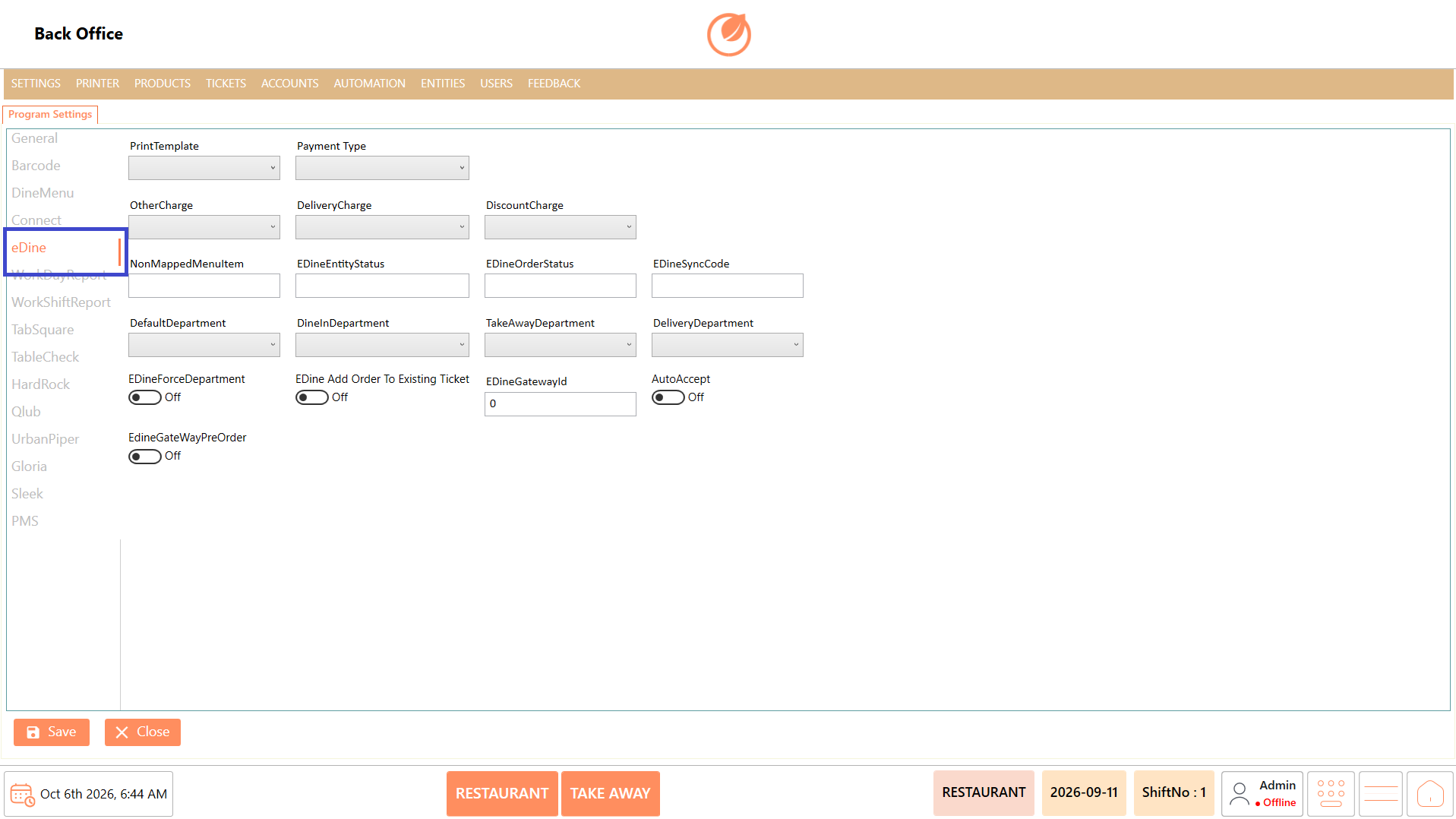
| eDine              | Contains configuration settings required for eDine integration, including payment, department, and order-related settings. |
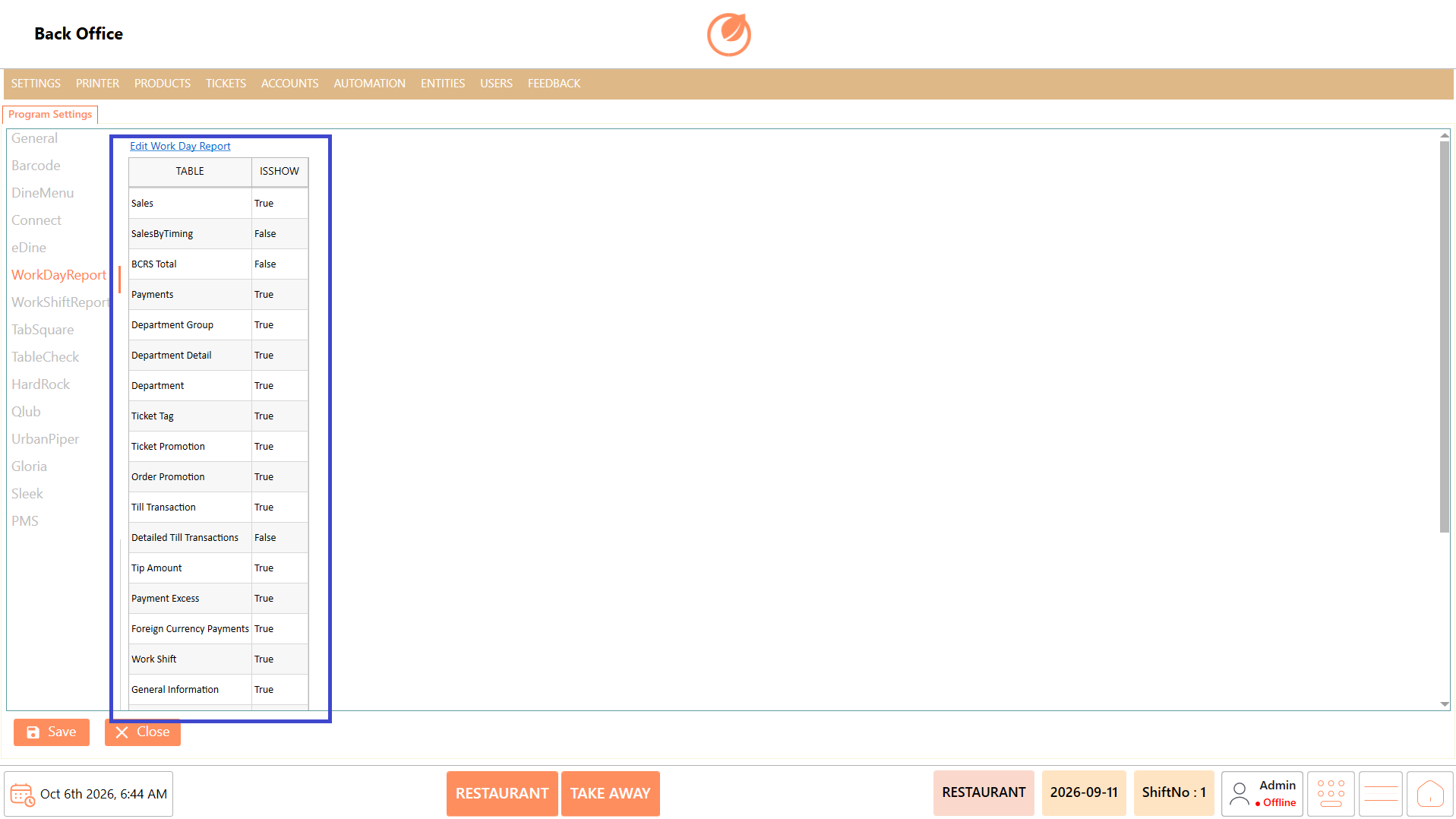
| WorkDayReport      | Allows administrators to control which sections are displayed in the Work Day Report.                                      |
| WorkShiftReport    | Allows administrators to control which sections are displayed in the Work Shift Report.                                    |
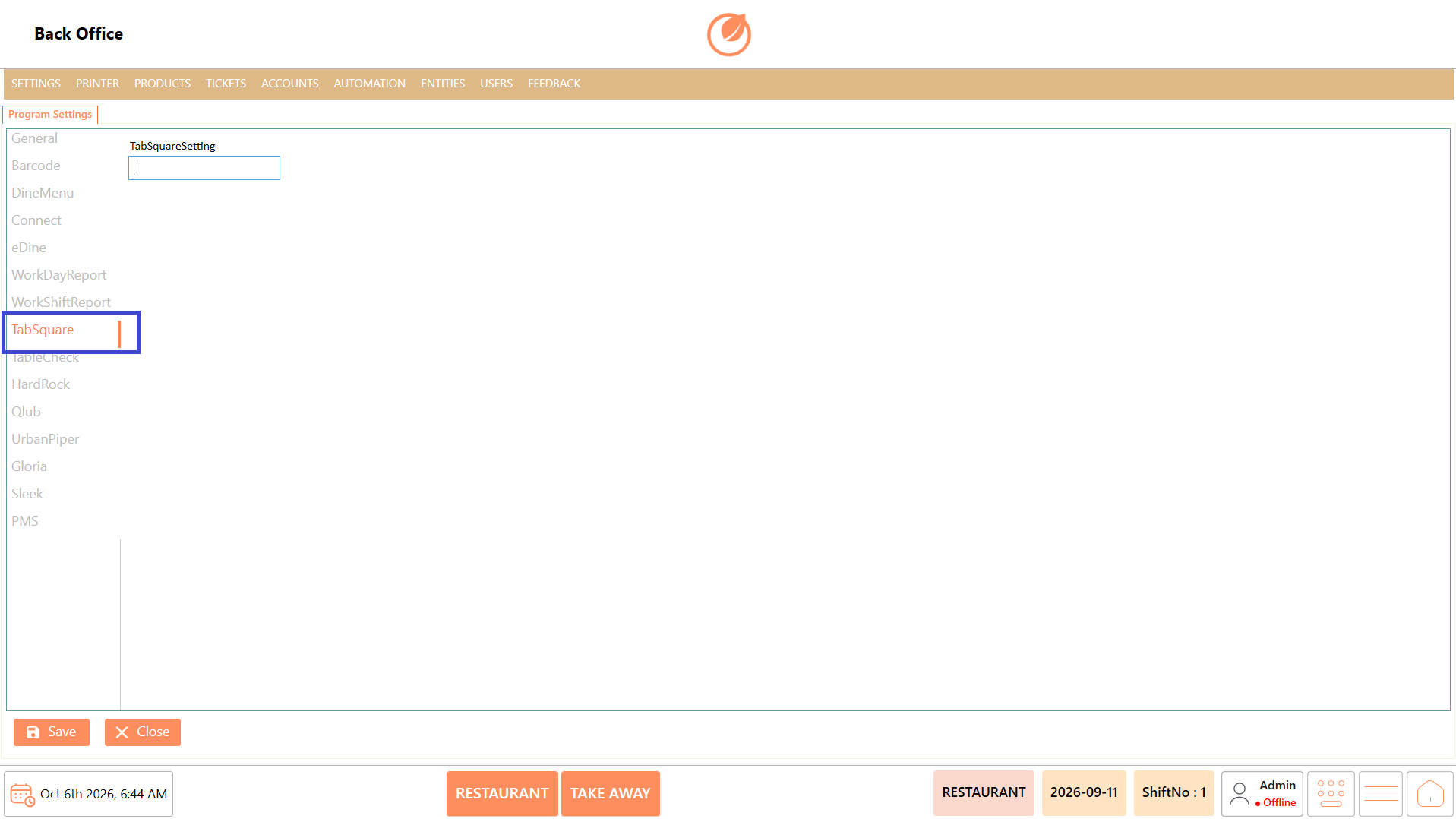
| TabSquare          | Allows configuration of TabSquare integration settings.                                                                    |
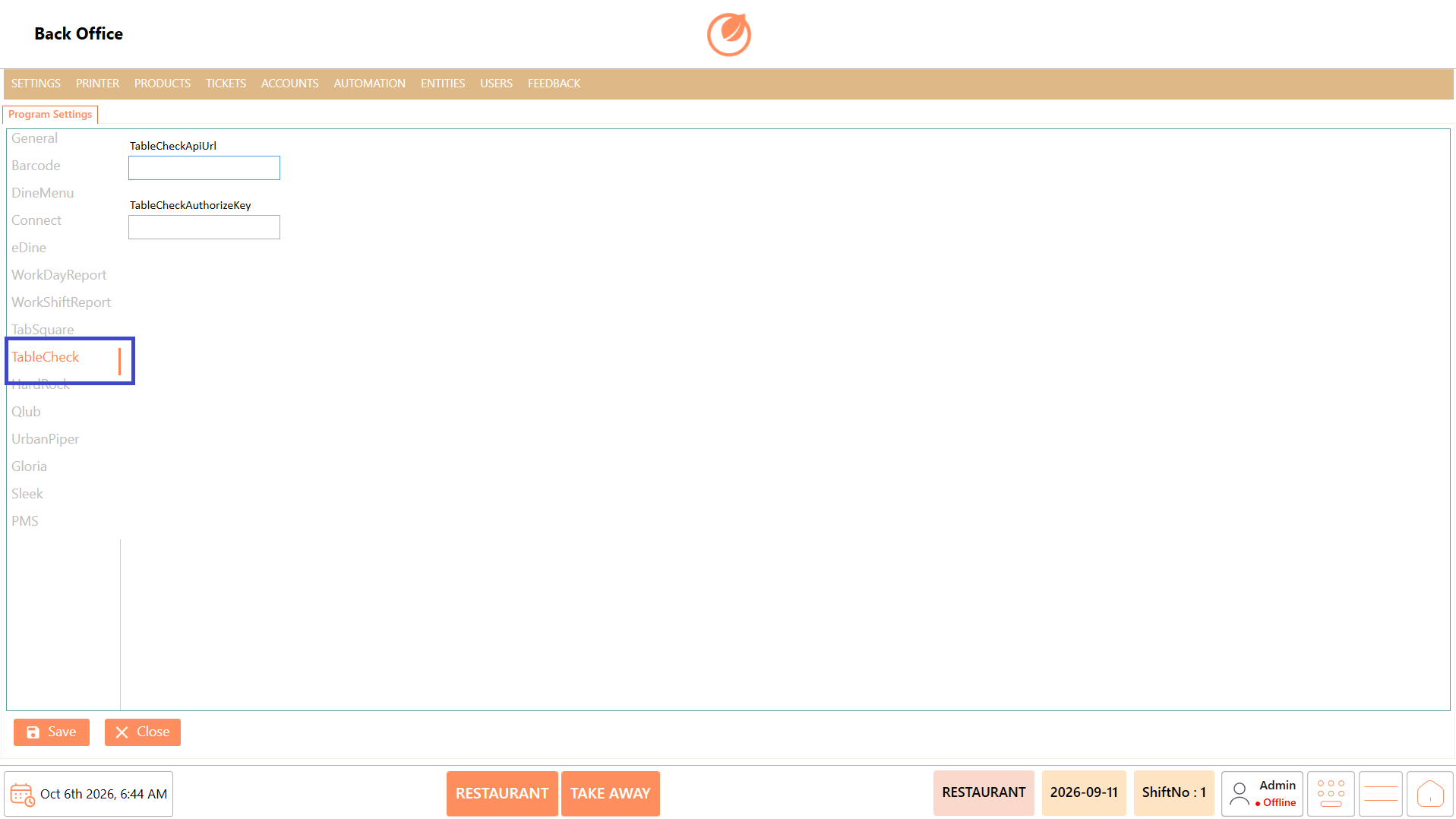
| TableCheck         | Allows configuration of TableCheck integration details, such as the API URL and authorization key.                         |
| HardRock           | Allows configuration of HardRock-related integration details.                                                              |
| Qlub               | Allows configuration of Qlub integration details such as Outlet ID, URL, token, and payment type.                          |
| Urban Piper        | Allows configuration of Urban Piper integration details such as menu, location, platform, key, and secret.                 |
| Gloria             | Allows configuration of Gloria integration settings, including menu, department, and online payment details.               |
| Sleek              | Allows configuration of Sleek integration details such as URL and location.                                                |
| PMS                | Allows administrators to configure the PMS provider, URL, and related synchronization options.                             |
| SSO                | Allows configuration of Single Sign-On settings, including tenant ID, client ID, authentication URL, and redirect URL.     |
| Save               | Saves the configured settings.                                                                                             |
| Close              | Closes the Program Settings screen.                                                                                        |

### **Working** <a href="#working" id="working"></a>

#### **Configure General Settings** <a href="#configure-general-settings" id="configure-general-settings"></a>

1. Click on "Program Settings" to configure the general behavior and default settings of the POS application.
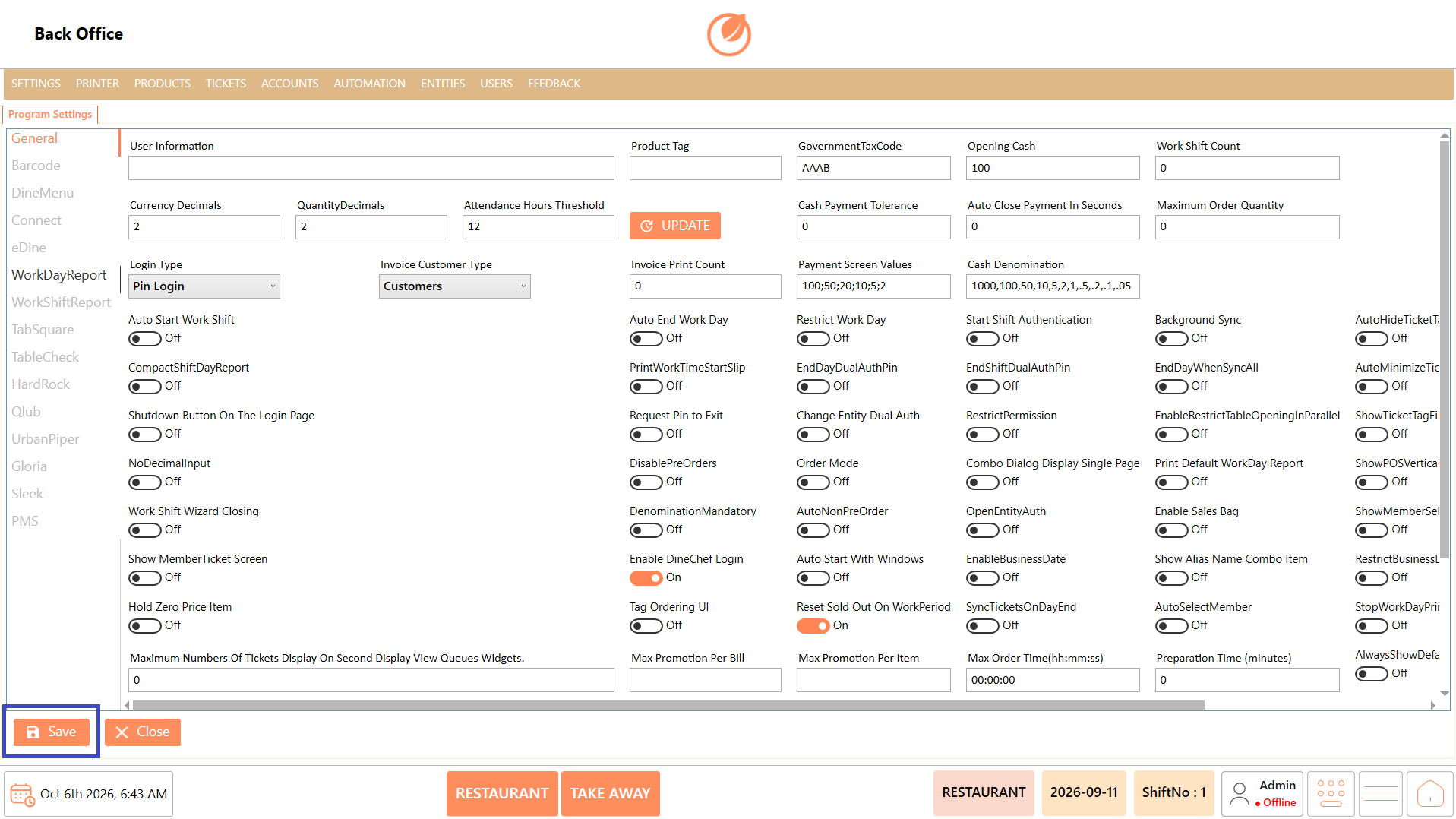
2. Enter the required details

<figure><img src="https://3400173661-files.gitbook.io/~/files/v0/b/gitbook-x-prod.appspot.com/o/spaces%2F0EE0WqKESoD8hlEpFQQL%2Fuploads%2Fgit-blob-083902ac62805bf32549e133df1a776e9e453acd%2Fatt_1_for_3425272189.png?alt=media" alt=""><figcaption></figcaption></figure>

| **Setting**                   | **Description**                                                         |
| ----------------------------- | ----------------------------------------------------------------------- |
| User Information              | Displays or stores information about the current user or organization.  |
| Product Tag                   | Specifies the default tag assigned to products.                         |
| Government Tax Code           | Defines the government tax code used for tax calculations.              |
| Opening Cash                  | Sets the default opening cash amount when a work shift begins.          |
| Work Shift Count              | Specifies the number of work shifts configured for the business.        |
| Currency Decimals             | Sets the number of decimal places used for currency values.             |
| Quantity Decimals             | Sets the number of decimal places allowed for item quantities.          |
| Attendance Hours Threshold    | Defines the minimum working hours required for attendance calculations. |
| Cash Payment Tolerance        | Specifies the allowed cash difference during payment.                   |
| Auto Close Payment in Seconds | Automatically closes the payment screen after the specified time.       |
| Maximum Order Quantity        | Sets the maximum quantity allowed for a single order.                   |
| Login Type                    | Selects the authentication method used to log into the POS.             |
| Invoice Customer Type         | Specifies the default customer type used for invoices.                  |
| Invoice Print Count           | Defines the default number of invoice copies to print.                  |
| Payment Screen Values         | Specifies the quick amount buttons displayed on the payment screen.     |
| Cash Denomination             | Defines the currency denominations used during cash counting.           |

3. Configure the required program options by enabling or disabling the switches:

| **Program Option**                | **Description**                                                      |
| --------------------------------- | -------------------------------------------------------------------- |
| Auto Start Work Shift             | Automatically starts a work shift when the user logs in.             |
| Auto End Work Day                 | Automatically ends the workday based on the configured rules.        |
| Restrict Work Day                 | Prevents unauthorized workday operations.                            |
| Start Shift Authentication        | Requires authentication before starting a work shift.                |
| Background Sync                   | Synchronizes data automatically in the background.                   |
| Compact Shift Day Report          | Generates a compact shift report.                                    |
| Print Work Time Start Slip        | Prints a slip when a work shift begins.                              |
| End Day Dual Auth PIN             | Requires dual authorization to end the day.                          |
| End Shift Dual Auth PIN           | Requires dual authorization to end a shift.                          |
| End Day When Sync All             | Ends the day only after all data has been synchronized.              |
| Shutdown Button on the Login Page | Displays a shutdown option on the login screen.                      |
| Request PIN to Exit               | Requires a PIN to exit the application.                              |
| Change Entity Dual Auth           | Requires dual authorization when changing entities.                  |
| Restrict Permission               | Restricts access based on user permissions.                          |
| Enable Restrict Table Open        | Restricts opening tables without permission.                         |
| No Decimal Input                  | Disables decimal value entry.                                        |
| Disable Pre Orders                | Prevents users from creating pre-orders.                             |
| Order Mode                        | Enables or configures different order processing modes.              |
| Combo Dialog Display Single Page  | Displays combo item selection on a single page.                      |
| Print Default Work Day Report     | Automatically prints the default workday report.                     |
| Work Shift Wizard Closing         | Uses a guided process when closing a work shift.                     |
| Denomination Mandatory            | Makes cash denomination entry mandatory during shift closing.        |
| Auto Non PreOrder                 | Automatically treats orders as regular orders instead of pre-orders. |
| Open Entity Auth                  | Requires authentication before opening an entity.                    |
| Enable Sales Bag                  | Enables the sales bag feature in the POS.                            |
| Show Member Ticket Screen         | Displays the member ticket screen during billing.                    |
| Enable DineChef Login             | Enables login for DineChef users.                                    |
| Auto Start with Windows           | Launches the application automatically when Windows starts.          |
| Enable Business Date              | Allows business date management.                                     |
| Show Alias Name Combo Item        | Displays alias names while selecting combo items.                    |
| Hold Zero Price Item              | Allows zero-priced items to be placed on hold.                       |
| Tag Ordering UI                   | Displays products grouped or ordered by tags.                        |
| Reset Sold Out on Work Period     | Clears sold-out items when a new work period starts.                 |
| Sync Tickets on Day End           | Synchronizes all tickets at the end of the day.                      |
| Auto Select Member                | Automatically selects the member account when applicable.            |

4. Click "Update" to apply the configured program settings.

<figure><img src="https://3400173661-files.gitbook.io/~/files/v0/b/gitbook-x-prod.appspot.com/o/spaces%2F0EE0WqKESoD8hlEpFQQL%2Fuploads%2Fgit-blob-eb3d90a062a59e8ecc588e232f96d2a4629db113%2Fatt_2_for_3425272189.png?alt=media" alt=""><figcaption></figcaption></figure>

5. Click "Save" to save the changes.

<figure><img src="https://3400173661-files.gitbook.io/~/files/v0/b/gitbook-x-prod.appspot.com/o/spaces%2F0EE0WqKESoD8hlEpFQQL%2Fuploads%2Fgit-blob-c51b273c4487e121c7d82568e524eb2633df554f%2Fatt_3_for_3425272189.png?alt=media" alt=""><figcaption></figcaption></figure>

### **Barcode** <a href="#barcode" id="barcode"></a>

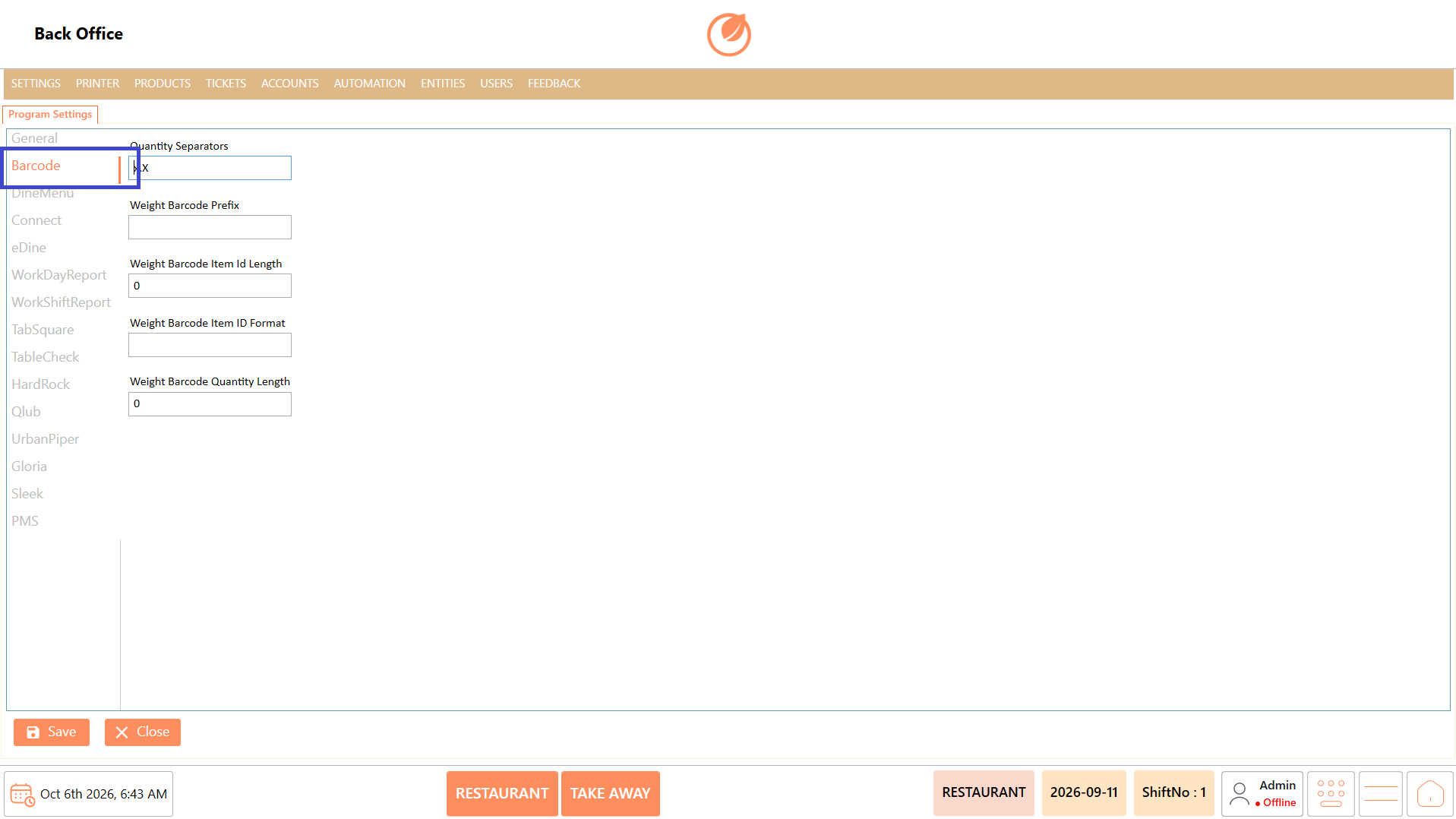
1. Click on "Program Settings".
2. Select "Barcode" from the left panel.

<figure><img src="https://3400173661-files.gitbook.io/~/files/v0/b/gitbook-x-prod.appspot.com/o/spaces%2F0EE0WqKESoD8hlEpFQQL%2Fuploads%2Fgit-blob-d707b546683d8ec0bee93130362cba1d77e60718%2Fatt_4_for_3425272189.png?alt=media" alt=""><figcaption></figcaption></figure>

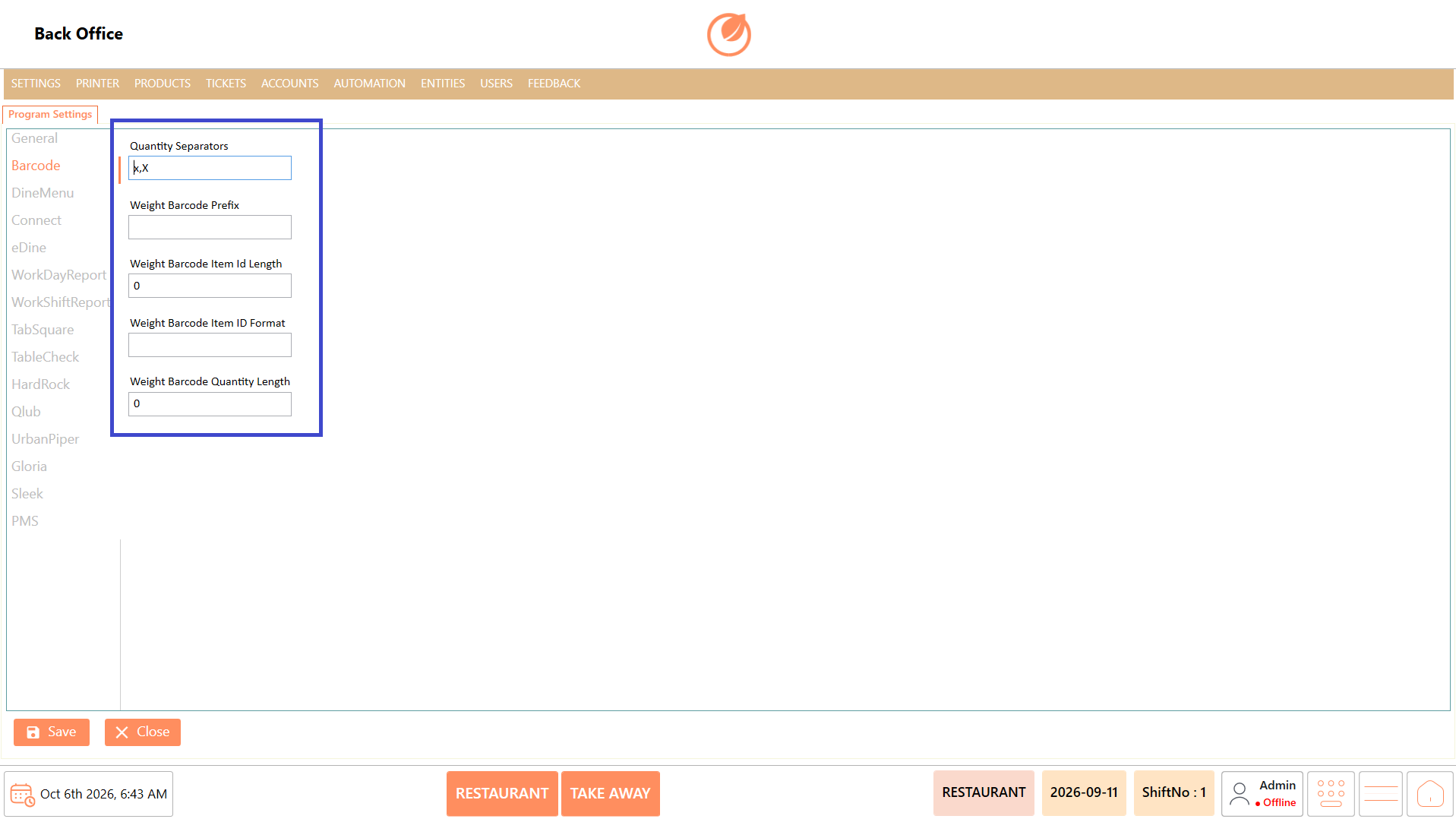
3. Enter the required barcode configuration details:
   1. Quantity Separators
   2. Weight Barcode Prefix
   3. Weight Barcode Item Id Length
   4. Weight Barcode Item ID Format
   5. Weight Barcode Quantity Length

<figure><img src="https://3400173661-files.gitbook.io/~/files/v0/b/gitbook-x-prod.appspot.com/o/spaces%2F0EE0WqKESoD8hlEpFQQL%2Fuploads%2Fgit-blob-dd93fa523cb1c7ce4c504503aa2799cfe3593fae%2Fatt_5_for_3425272189.png?alt=media" alt=""><figcaption></figcaption></figure>

3. Review the entered barcode settings.
4. Click "Save" to save the configuration.

<figure><img src="https://3400173661-files.gitbook.io/~/files/v0/b/gitbook-x-prod.appspot.com/o/spaces%2F0EE0WqKESoD8hlEpFQQL%2Fuploads%2Fgit-blob-1cf3b09742115d33c4a30d0fcd8f7c259462287a%2Fatt_6_for_3425272189.png?alt=media" alt=""><figcaption></figcaption></figure>

### **DineMenu** <a href="#dinemenu" id="dinemenu"></a>

1. Click on "Program Settings".
2. Select "DineMenu" from the left panel.

<figure><img src="https://3400173661-files.gitbook.io/~/files/v0/b/gitbook-x-prod.appspot.com/o/spaces%2F0EE0WqKESoD8hlEpFQQL%2Fuploads%2Fgit-blob-afe110e012777206702328202f927c3aaaecfa80%2Fatt_7_for_3425272189.png?alt=media" alt=""><figcaption></figcaption></figure>

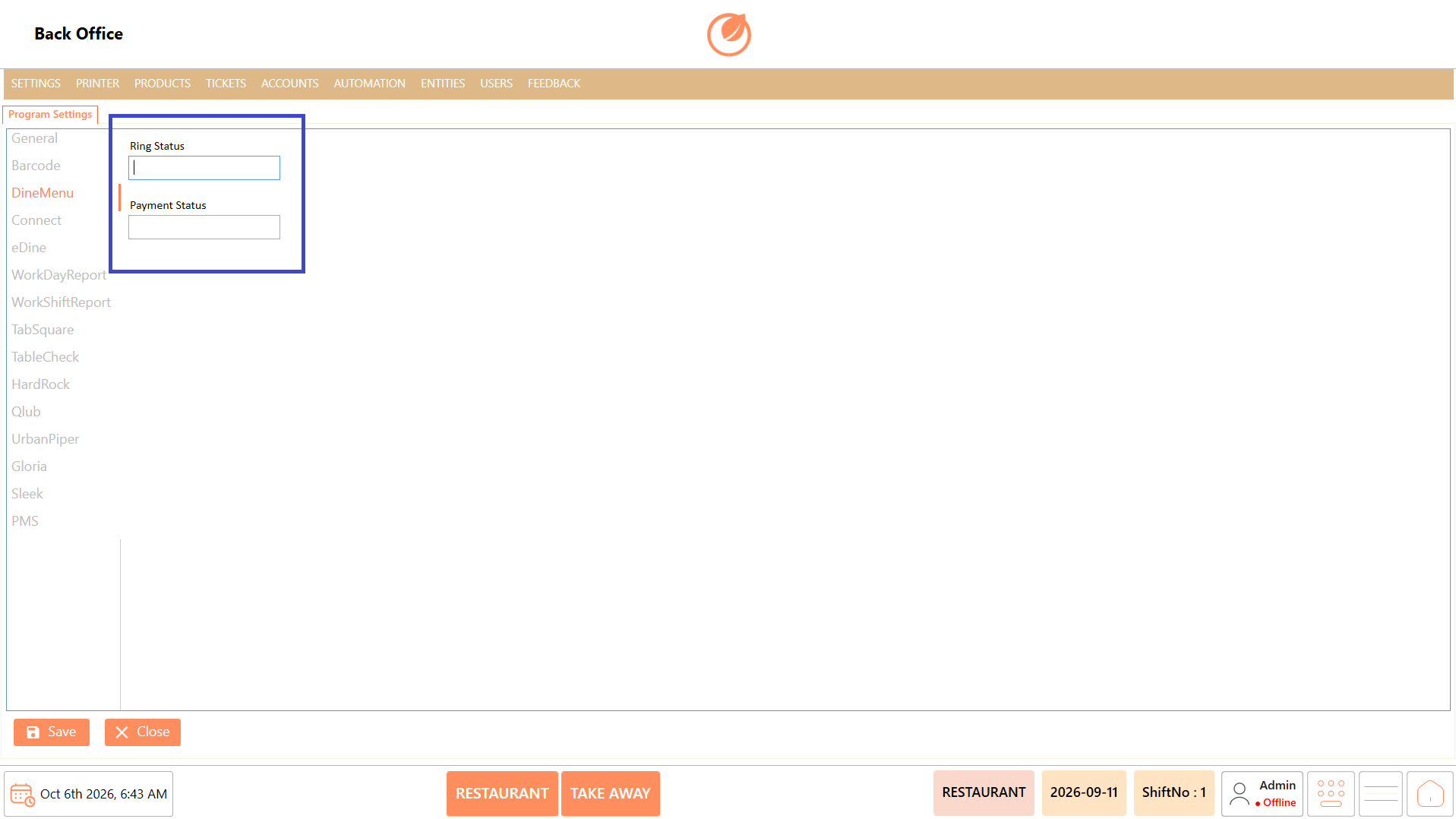
3. Enter the required Ring Status and Payment Status details.

<figure><img src="https://3400173661-files.gitbook.io/~/files/v0/b/gitbook-x-prod.appspot.com/o/spaces%2F0EE0WqKESoD8hlEpFQQL%2Fuploads%2Fgit-blob-11e629d165c3d76813192d84dee43f29aa489e42%2Fatt_8_for_3425272189.png?alt=media" alt=""><figcaption></figcaption></figure>

4. Review the entered configuration.
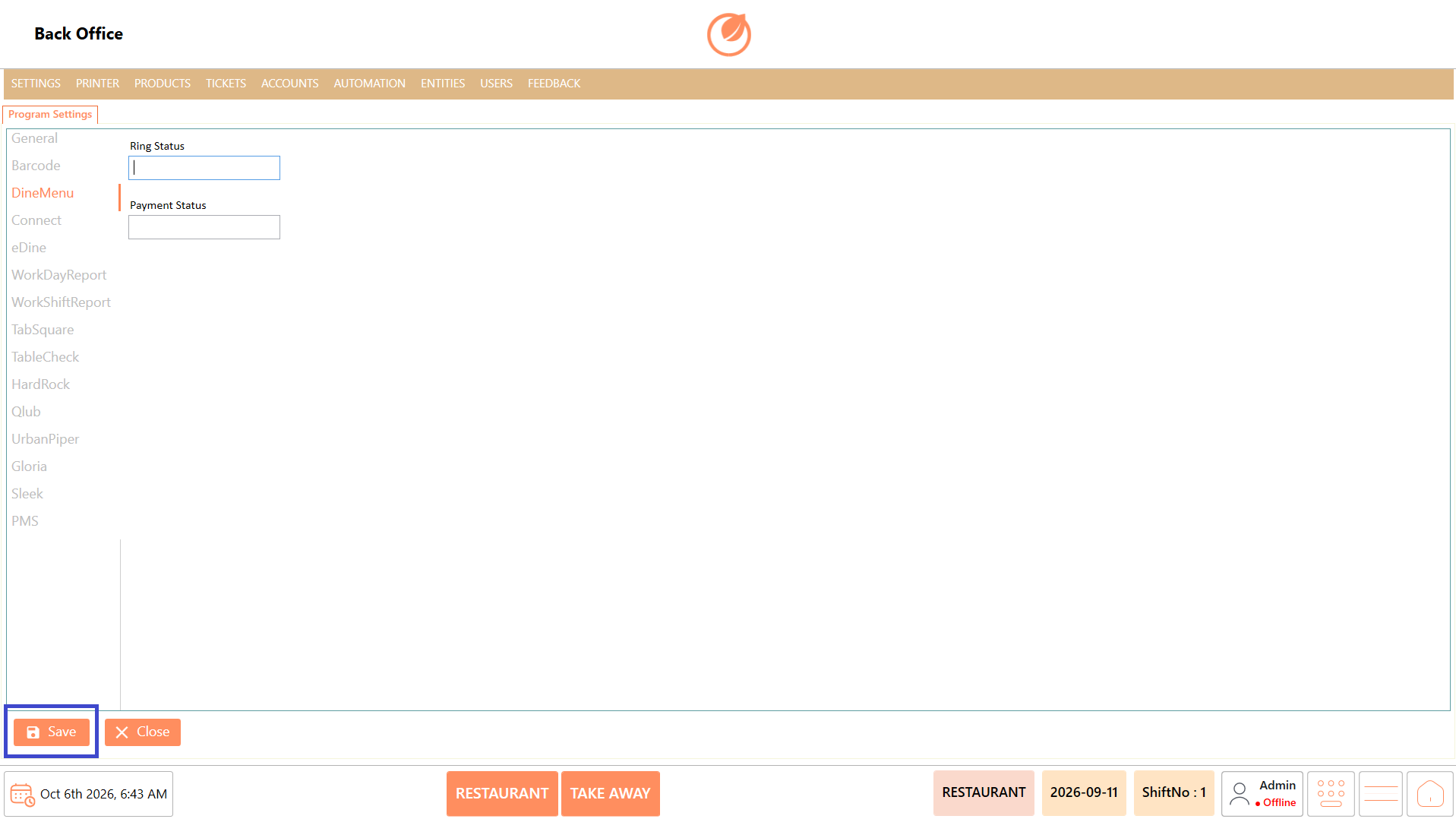
5. Click "Save" to save the configuration.

<figure><img src="https://3400173661-files.gitbook.io/~/files/v0/b/gitbook-x-prod.appspot.com/o/spaces%2F0EE0WqKESoD8hlEpFQQL%2Fuploads%2Fgit-blob-15f8c1d6217e16afed325e188eed29f1dcb56cbe%2Fatt_9_for_3425272189.png?alt=media" alt=""><figcaption></figcaption></figure>

### **Connect** <a href="#connect" id="connect"></a>

1. Click on "Program Settings".
2. Select "Connect" from the left panel.

<figure><img src="https://3400173661-files.gitbook.io/~/files/v0/b/gitbook-x-prod.appspot.com/o/spaces%2F0EE0WqKESoD8hlEpFQQL%2Fuploads%2Fgit-blob-300950f7566bfd025701f9413e0dbb9926501897%2Fatt_10_for_3425272189.png?alt=media" alt=""><figcaption></figcaption></figure>

3. Enter the required connection details:
   1. Tenant Id
   2. Tenant Name
   3. ConnectLocationId
   4. Url
   5. User
   6. Password
   7. LocationGroupCode
   8. DineCallGatewayId
   9. GatewayIds
   10. SyncTickMessageMediaFilesPath
   11. SyncImagePath
   12. CardNumberCount

<figure><img src="https://3400173661-files.gitbook.io/~/files/v0/b/gitbook-x-prod.appspot.com/o/spaces%2F0EE0WqKESoD8hlEpFQQL%2Fuploads%2Fgit-blob-512869afa271e285f9a79564540e8cec49828523%2Fatt_11_for_3425272189.png?alt=media" alt=""><figcaption></figcaption></figure>

4. Enable or disable the required synchronization options.
5. Click "Sync Server" when server synchronization is required.

<figure><img src="https://3400173661-files.gitbook.io/~/files/v0/b/gitbook-x-prod.appspot.com/o/spaces%2F0EE0WqKESoD8hlEpFQQL%2Fuploads%2Fgit-blob-862d95fb33bfb46e54f32d4cb8d306712f082577%2Fatt_12_for_3425272189.png?alt=media" alt=""><figcaption></figcaption></figure>

6. Click "Save" to save the configuration.

<figure><img src="https://3400173661-files.gitbook.io/~/files/v0/b/gitbook-x-prod.appspot.com/o/spaces%2F0EE0WqKESoD8hlEpFQQL%2Fuploads%2Fgit-blob-284bf3f0d97576f6ee369f193d3e0bd93158f3fc%2Fatt_13_for_3425272189.png?alt=media" alt=""><figcaption></figcaption></figure>

### **eDine** <a href="#edine" id="edine"></a>

1. Click on "Program Settings".
2. Select "eDine" from the left panel.

<figure><img src="https://3400173661-files.gitbook.io/~/files/v0/b/gitbook-x-prod.appspot.com/o/spaces%2F0EE0WqKESoD8hlEpFQQL%2Fuploads%2Fgit-blob-0c193d08aa5829c4b395a40e418258e0d8b9540a%2Fatt_14_for_3425272189.png?alt=media" alt=""><figcaption></figcaption></figure>

3. Configure the required eDine settings:
   1. PrintTemplate
   2. Payment Type
   3. OtherCharge
   4. DeliveryCharge
   5. DiscountCharge
   6. NonMappedMenuItem
   7. EDineEntityStatus
   8. EDineOrderStatus
   9. EDineSyncCode
   10. DefaultDepartment
   11. DineInDepartment
   12. TakeAwayDepartment
   13. DeliveryDepartment
   14. EDineGatewayId

<figure><img src="https://3400173661-files.gitbook.io/~/files/v0/b/gitbook-x-prod.appspot.com/o/spaces%2F0EE0WqKESoD8hlEpFQQL%2Fuploads%2Fgit-blob-5de6093011a58c014d980a039c333d8c3be54c9e%2Fatt_15_for_3425272189.png?alt=media" alt=""><figcaption></figcaption></figure>

4. Enable or disable the required options, such as "EDineForceDepartment", "EDine Add Order To Existing Ticket", "AutoAccept", and "EdineGateWayPreOrder".

<figure><img src="https://3400173661-files.gitbook.io/~/files/v0/b/gitbook-x-prod.appspot.com/o/spaces%2F0EE0WqKESoD8hlEpFQQL%2Fuploads%2Fgit-blob-67ab4755498f73f2c661db3308d8f30973762fdb%2Fatt_16_for_3425272189.png?alt=media" alt=""><figcaption></figcaption></figure>

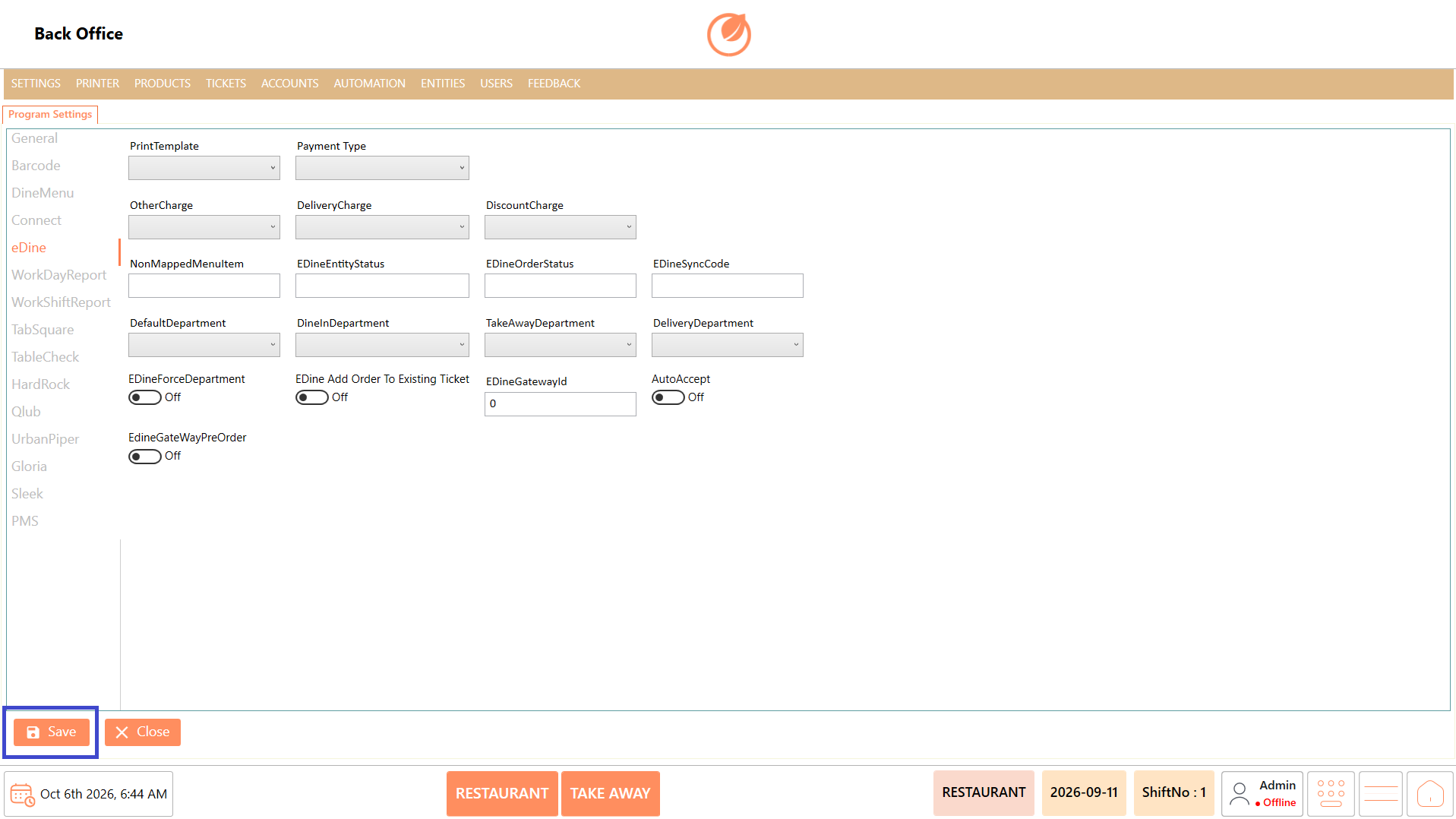
5. Click "Save" to save the configuration.

<figure><img src="https://3400173661-files.gitbook.io/~/files/v0/b/gitbook-x-prod.appspot.com/o/spaces%2F0EE0WqKESoD8hlEpFQQL%2Fuploads%2Fgit-blob-ea566812e3cc273310409215c3796bd7e072b745%2Fatt_17_for_3425272189.png?alt=media" alt=""><figcaption></figcaption></figure>

### **Work Shift Report** <a href="#work-shift-report" id="work-shift-report"></a>

1. Click on "Program Settings".
2. Select "WorkShiftReport" from the left panel.

<figure><img src="https://3400173661-files.gitbook.io/~/files/v0/b/gitbook-x-prod.appspot.com/o/spaces%2F0EE0WqKESoD8hlEpFQQL%2Fuploads%2Fgit-blob-7d8090256e776c45c354c1b93dfb7e0175cff4db%2Fatt_18_for_3425272189.png?alt=media" alt=""><figcaption></figcaption></figure>

3. Review the available report sections in the Edit Work Shift Report table.
4. Configure the ISSHOW value for each required report section.
   1. True – Displays the selected section in the report.
   2. False – Hides the selected section from the report.

<figure><img src="https://3400173661-files.gitbook.io/~/files/v0/b/gitbook-x-prod.appspot.com/o/spaces%2F0EE0WqKESoD8hlEpFQQL%2Fuploads%2Fgit-blob-3fcd10a8f3369ccdb74063c784760f2739bf1ffc%2Fatt_19_for_3425272189.png?alt=media" alt=""><figcaption></figcaption></figure>

5. Click "Save" to save the report configuration.

<figure><img src="https://3400173661-files.gitbook.io/~/files/v0/b/gitbook-x-prod.appspot.com/o/spaces%2F0EE0WqKESoD8hlEpFQQL%2Fuploads%2Fgit-blob-be71d49a75d25d6708ba8184a91deba981af6e84%2Fatt_20_for_3425272189.png?alt=media" alt=""><figcaption></figcaption></figure>

### **Work Day Report** <a href="#work-day-report" id="work-day-report"></a>

1. Click on "Program Settings".
2. Select "WorkDayReport" from the left panel.

<figure><img src="https://3400173661-files.gitbook.io/~/files/v0/b/gitbook-x-prod.appspot.com/o/spaces%2F0EE0WqKESoD8hlEpFQQL%2Fuploads%2Fgit-blob-e623b78e6d0271d5f2efeb5cd5952b52ddcf73ea%2Fatt_21_for_3425272189.png?alt=media" alt=""><figcaption></figcaption></figure>

3. Review the available report sections in the Edit Work Day Report table.
4. Configure the ISSHOW value for each required report section.
   1. True – Displays the selected section in the report.
   2. False – Hides the selected section from the report.

<figure><img src="https://3400173661-files.gitbook.io/~/files/v0/b/gitbook-x-prod.appspot.com/o/spaces%2F0EE0WqKESoD8hlEpFQQL%2Fuploads%2Fgit-blob-e7d1d239665035d450ee46feb683c4bb9a288b2f%2Fatt_22_for_3425272189.png?alt=media" alt=""><figcaption></figcaption></figure>

5. Click "Save" to save the report configuration.

<figure><img src="https://3400173661-files.gitbook.io/~/files/v0/b/gitbook-x-prod.appspot.com/o/spaces%2F0EE0WqKESoD8hlEpFQQL%2Fuploads%2Fgit-blob-fae3d7329c8e1a50cc3facd40b2424fd2d9983b0%2Fatt_23_for_3425272189.png?alt=media" alt=""><figcaption></figcaption></figure>

**Note:** Configure the report sections according to the customer's reporting requirements.

### **Configure Integrations**

Program Settings also provides configuration sections for supported third-party integrations, including:

* TabSquare
* TableCheck
* HardRock
* Qlub
* Urban Piper
* Gloria
* Sleek
* PMS
* SSO

#### **Configure TabSquare** <a href="#configure-tabsquare" id="configure-tabsquare"></a>

1. Open Program Settings.
2. Select "TabSquare" from the left panel.

<figure><img src="https://3400173661-files.gitbook.io/~/files/v0/b/gitbook-x-prod.appspot.com/o/spaces%2F0EE0WqKESoD8hlEpFQQL%2Fuploads%2Fgit-blob-a6fe5255480e3d44e96bb3d420b5cdf12396bd04%2Fatt_24_for_3425272189.png?alt=media" alt=""><figcaption></figcaption></figure>

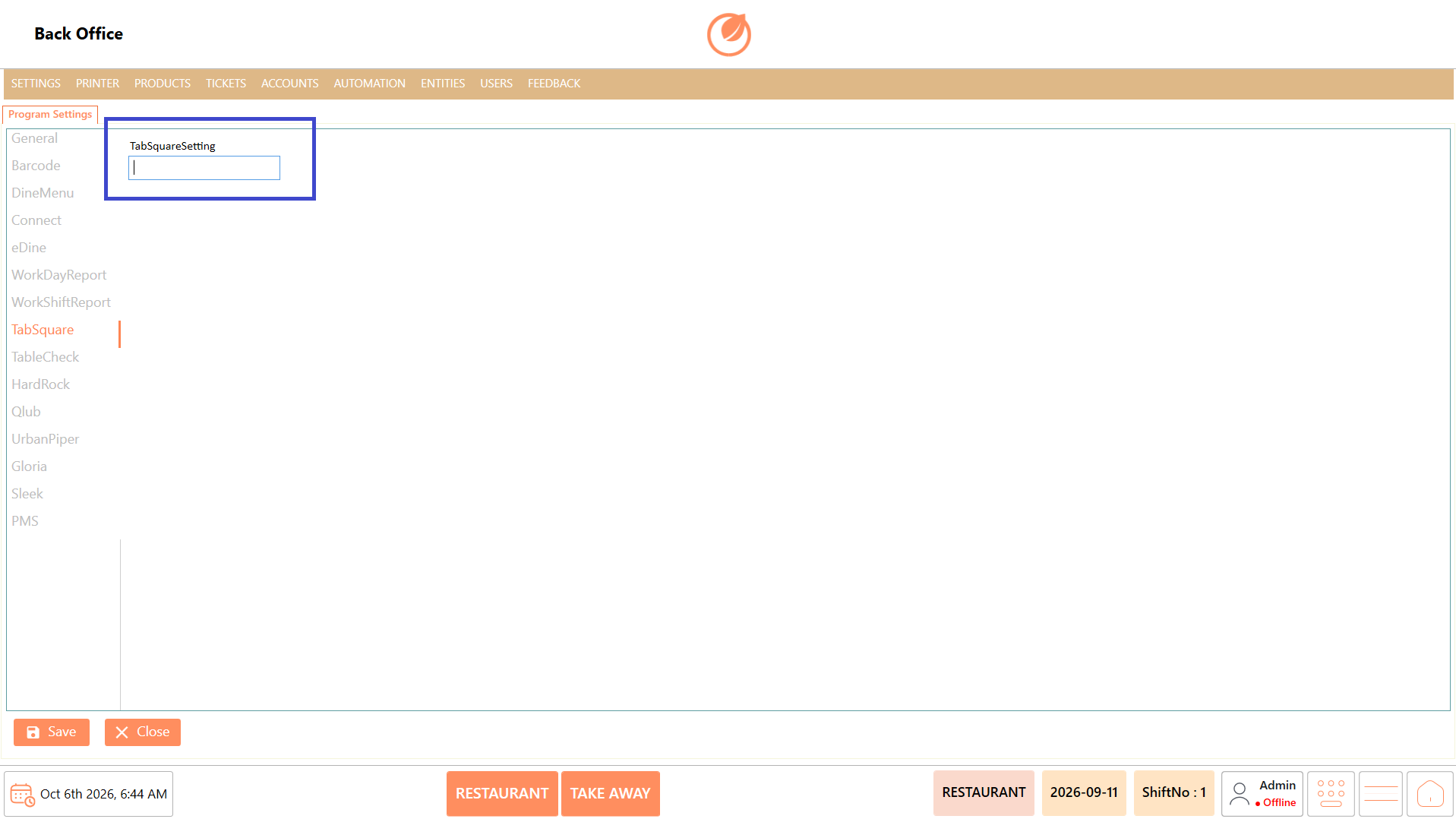
3. Enter the required TabSquare configuration details.
4. Review the entered details.

<figure><img src="https://3400173661-files.gitbook.io/~/files/v0/b/gitbook-x-prod.appspot.com/o/spaces%2F0EE0WqKESoD8hlEpFQQL%2Fuploads%2Fgit-blob-974e4fdbc6d1d9aba6ef1241d4a677a4de7248e3%2Fatt_25_for_3425272189.png?alt=media" alt=""><figcaption></figcaption></figure>

5. Click "Save" to save the configuration.

<figure><img src="https://3400173661-files.gitbook.io/~/files/v0/b/gitbook-x-prod.appspot.com/o/spaces%2F0EE0WqKESoD8hlEpFQQL%2Fuploads%2Fgit-blob-e8a808c3d4e1f747933da459a9f42d671a6baff4%2Fatt_26_for_3425272189.png?alt=media" alt=""><figcaption></figcaption></figure>

#### **Configure Table Check** <a href="#configure-table-check" id="configure-table-check"></a>

1. Open Program Settings.
2. Select "TableCheck" from the left panel.

<figure><img src="https://3400173661-files.gitbook.io/~/files/v0/b/gitbook-x-prod.appspot.com/o/spaces%2F0EE0WqKESoD8hlEpFQQL%2Fuploads%2Fgit-blob-929cc33a655cc41b65361190be7f3518eba32a5c%2Fatt_27_for_3425272189.png?alt=media" alt=""><figcaption></figcaption></figure>

3. Enter the required Table Check Api Url.
4. Enter the Table Check Authorize Key.

<figure><img src="https://3400173661-files.gitbook.io/~/files/v0/b/gitbook-x-prod.appspot.com/o/spaces%2F0EE0WqKESoD8hlEpFQQL%2Fuploads%2Fgit-blob-63067b7c1652531c6cf6d9902bdeb5ad68b3689c%2Fatt_28_for_3425272189.png?alt=media" alt=""><figcaption></figcaption></figure>

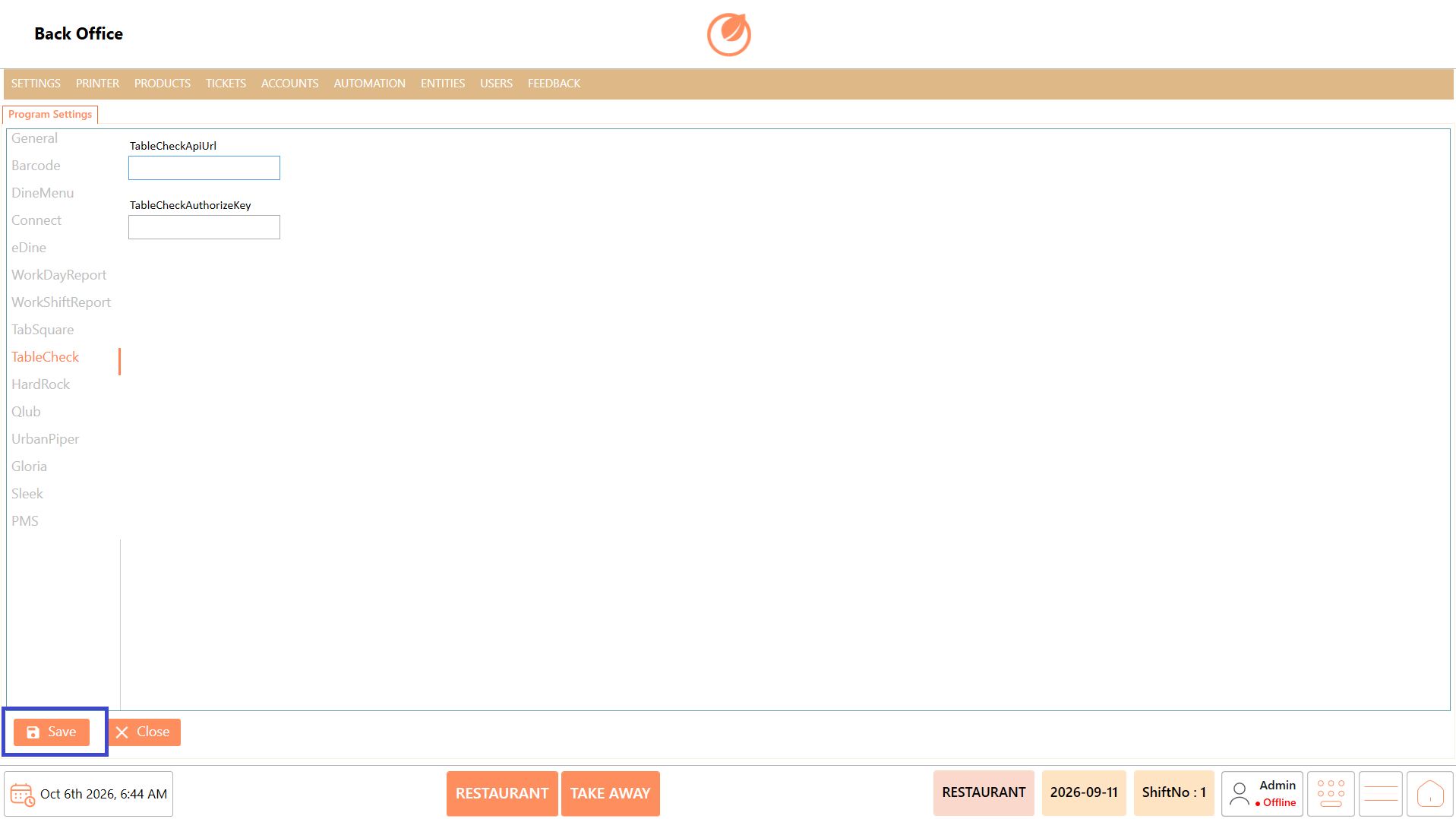
5. Click "Save" to save the configuration.

<figure><img src="https://3400173661-files.gitbook.io/~/files/v0/b/gitbook-x-prod.appspot.com/o/spaces%2F0EE0WqKESoD8hlEpFQQL%2Fuploads%2Fgit-blob-8935c1cab25fdc9b27c065376ab6a81a4c550df9%2Fatt_29_for_3425272189.png?alt=media" alt=""><figcaption></figcaption></figure>

#### **Configure HardRock** <a href="#configure-hardrock" id="configure-hardrock"></a>

1. Open Program Settings.
2. Select "HardRock" from the left panel.

<figure><img src="https://3400173661-files.gitbook.io/~/files/v0/b/gitbook-x-prod.appspot.com/o/spaces%2F0EE0WqKESoD8hlEpFQQL%2Fuploads%2Fgit-blob-57f607d3f61f933c9e03a0a074b63e449f1ea025%2Fatt_30_for_3425272189.png?alt=media" alt=""><figcaption></figcaption></figure>

3. Enter the required Hard Rock Location Code.
4. Enter the Hard Rock Amount.

<figure><img src="https://3400173661-files.gitbook.io/~/files/v0/b/gitbook-x-prod.appspot.com/o/spaces%2F0EE0WqKESoD8hlEpFQQL%2Fuploads%2Fgit-blob-b517bb9babb33dee2d3ac778e570636e0af27076%2Fatt_31_for_3425272189.png?alt=media" alt=""><figcaption></figcaption></figure>

5. Click "Save" to save the configuration.

<figure><img src="https://3400173661-files.gitbook.io/~/files/v0/b/gitbook-x-prod.appspot.com/o/spaces%2F0EE0WqKESoD8hlEpFQQL%2Fuploads%2Fgit-blob-421d6fdd46392e7a995c7151f39bee4f27779fd5%2Fatt_32_for_3425272189.png?alt=media" alt=""><figcaption></figcaption></figure>

#### **Configure Qlub** <a href="#configure-qlub" id="configure-qlub"></a>

1. Open Program Settings.
2. Select "Qlub" from the left panel.

<figure><img src="https://3400173661-files.gitbook.io/~/files/v0/b/gitbook-x-prod.appspot.com/o/spaces%2F0EE0WqKESoD8hlEpFQQL%2Fuploads%2Fgit-blob-796b036b4e709c4da95bda24325affa37474a54e%2Fatt_33_for_3425272189.png?alt=media" alt=""><figcaption></figcaption></figure>

3. Enter the QlubOutletId.
4. Enter the required URL.
5. Enter the Token.
6. Select the required Payment Type.

<figure><img src="https://3400173661-files.gitbook.io/~/files/v0/b/gitbook-x-prod.appspot.com/o/spaces%2F0EE0WqKESoD8hlEpFQQL%2Fuploads%2Fgit-blob-b1e81884210aa801adeca0d9557564b202a9ce23%2Fatt_34_for_3425272189.png?alt=media" alt=""><figcaption></figcaption></figure>

7. Click "Save" to save the configuration.

<figure><img src="https://3400173661-files.gitbook.io/~/files/v0/b/gitbook-x-prod.appspot.com/o/spaces%2F0EE0WqKESoD8hlEpFQQL%2Fuploads%2Fgit-blob-6eb2170cb7a85687cf25921732df55737fb9a30e%2Fatt_35_for_3425272189.png?alt=media" alt=""><figcaption></figcaption></figure>

#### **Configure Urban Piper** <a href="#configure-urban-piper" id="configure-urban-piper"></a>

1. Open Program Settings.
2. Select "Urban Piper" from the left panel.

<figure><img src="https://3400173661-files.gitbook.io/~/files/v0/b/gitbook-x-prod.appspot.com/o/spaces%2F0EE0WqKESoD8hlEpFQQL%2Fuploads%2Fgit-blob-99fac42bfafa647d6b0ecfbd67b8aa86df12ab7a%2Fatt_36_for_3425272189.png?alt=media" alt=""><figcaption></figcaption></figure>

3. Enter the required Menu and Price Tag.
4. Enter the Location and Platform details.
5. Enter the Name and Key.
6. Enter the Secret.

<figure><img src="https://3400173661-files.gitbook.io/~/files/v0/b/gitbook-x-prod.appspot.com/o/spaces%2F0EE0WqKESoD8hlEpFQQL%2Fuploads%2Fgit-blob-8602899ffc997617e7cec8a5402078d482277db9%2Fatt_37_for_3425272189.png?alt=media" alt=""><figcaption></figcaption></figure>

7. Click "Sync Server" to synchronize the configuration, if required.

<figure><img src="https://3400173661-files.gitbook.io/~/files/v0/b/gitbook-x-prod.appspot.com/o/spaces%2F0EE0WqKESoD8hlEpFQQL%2Fuploads%2Fgit-blob-ec5179ea2a3ff0516d6feaf2bebe3f0d0bcddf31%2Fatt_38_for_3425272189.png?alt=media" alt=""><figcaption></figcaption></figure>

8. Click "Save" to save the configuration.

<figure><img src="https://3400173661-files.gitbook.io/~/files/v0/b/gitbook-x-prod.appspot.com/o/spaces%2F0EE0WqKESoD8hlEpFQQL%2Fuploads%2Fgit-blob-9bc5f137831a1ed828ec9b759efddcd7d1ab1807%2Fatt_39_for_3425272189.png?alt=media" alt=""><figcaption></figcaption></figure>

#### **Configure Gloria** <a href="#configure-gloria" id="configure-gloria"></a>

1. Open Program Settings.
2. Select "Gloria" from the left panel.

<figure><img src="https://3400173661-files.gitbook.io/~/files/v0/b/gitbook-x-prod.appspot.com/o/spaces%2F0EE0WqKESoD8hlEpFQQL%2Fuploads%2Fgit-blob-7039e78e5d9bccd0e92af4f73b97714c19497bce%2Fatt_40_for_3425272189.png?alt=media" alt=""><figcaption></figcaption></figure>

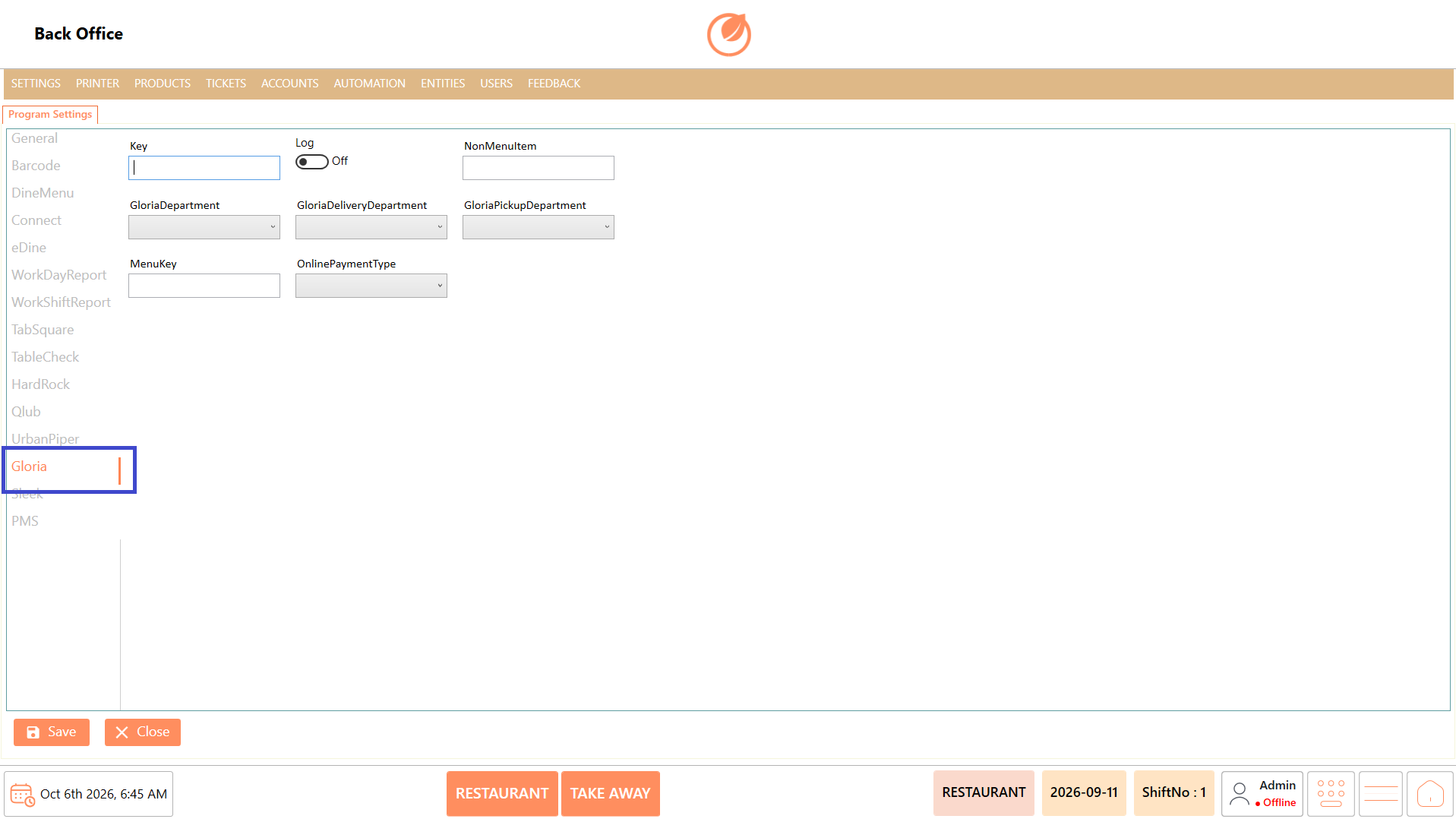
3. Enter the required Key and Non Menu Item details.
4. Configure Gloria Department, Gloria Delivery Department, and Gloria Pickup Department.
5. Enter the Menu Key.
6. Select the required Online Payment Type.

<figure><img src="https://3400173661-files.gitbook.io/~/files/v0/b/gitbook-x-prod.appspot.com/o/spaces%2F0EE0WqKESoD8hlEpFQQL%2Fuploads%2Fgit-blob-0b97419e9a81c5555884ef3e8ff8c46c9e9feeb0%2Fatt_41_for_3425272189.png?alt=media" alt=""><figcaption></figcaption></figure>

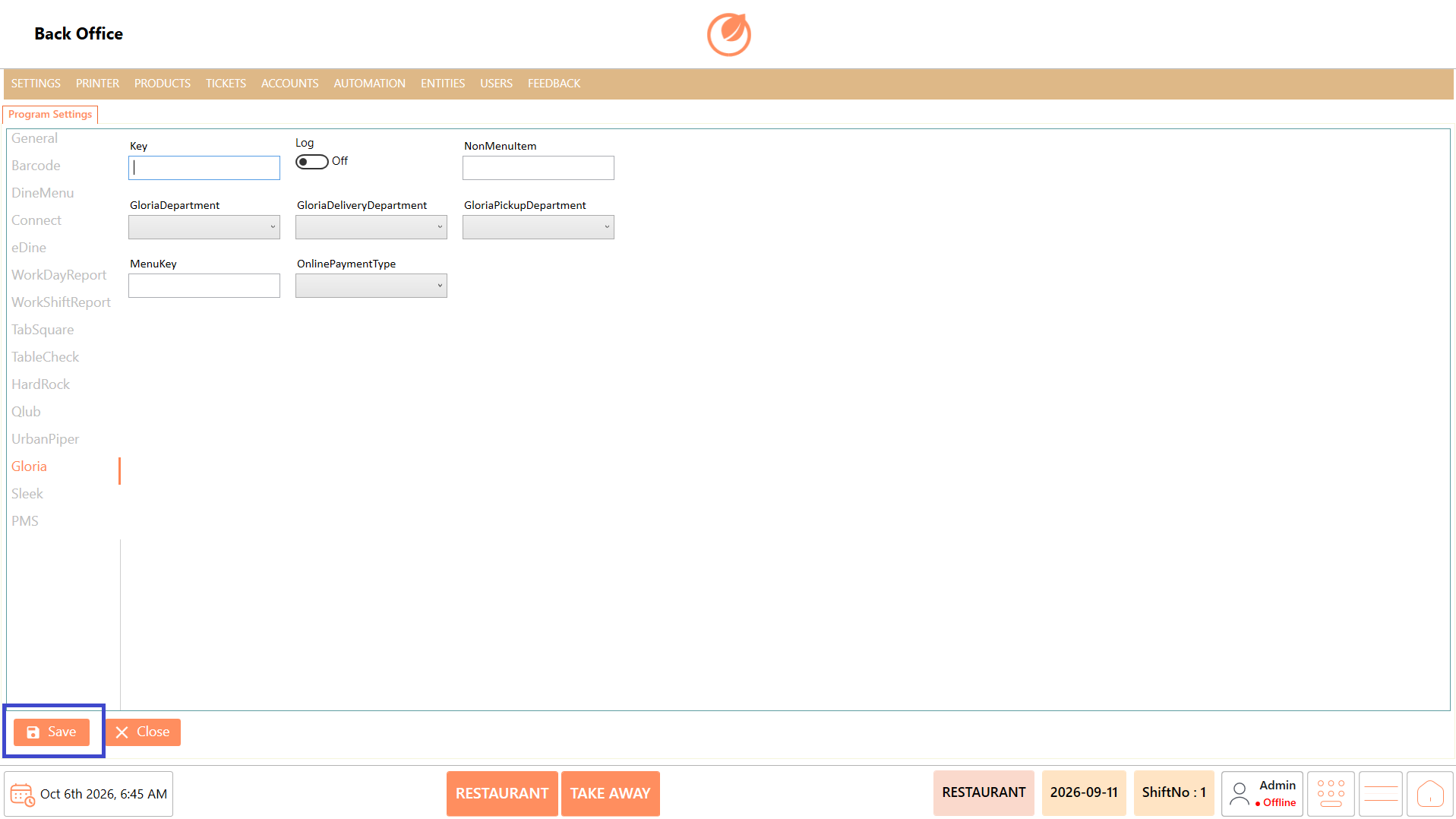
7. Click "Save" to save the configuration.

<figure><img src="https://3400173661-files.gitbook.io/~/files/v0/b/gitbook-x-prod.appspot.com/o/spaces%2F0EE0WqKESoD8hlEpFQQL%2Fuploads%2Fgit-blob-081f815b42cad12231c2080ffcc49043f271abc7%2Fatt_42_for_3425272189.png?alt=media" alt=""><figcaption></figcaption></figure>

#### **Configure Sleek** <a href="#configure-sleek" id="configure-sleek"></a>

1. Open Program Settings.
2. Select "Sleek" from the left panel.

<figure><img src="https://3400173661-files.gitbook.io/~/files/v0/b/gitbook-x-prod.appspot.com/o/spaces%2F0EE0WqKESoD8hlEpFQQL%2Fuploads%2Fgit-blob-14b8530d225facda7f5f2b09e2a43f0afd7e8edf%2Fatt_43_for_3425272189.png?alt=media" alt=""><figcaption></figcaption></figure>

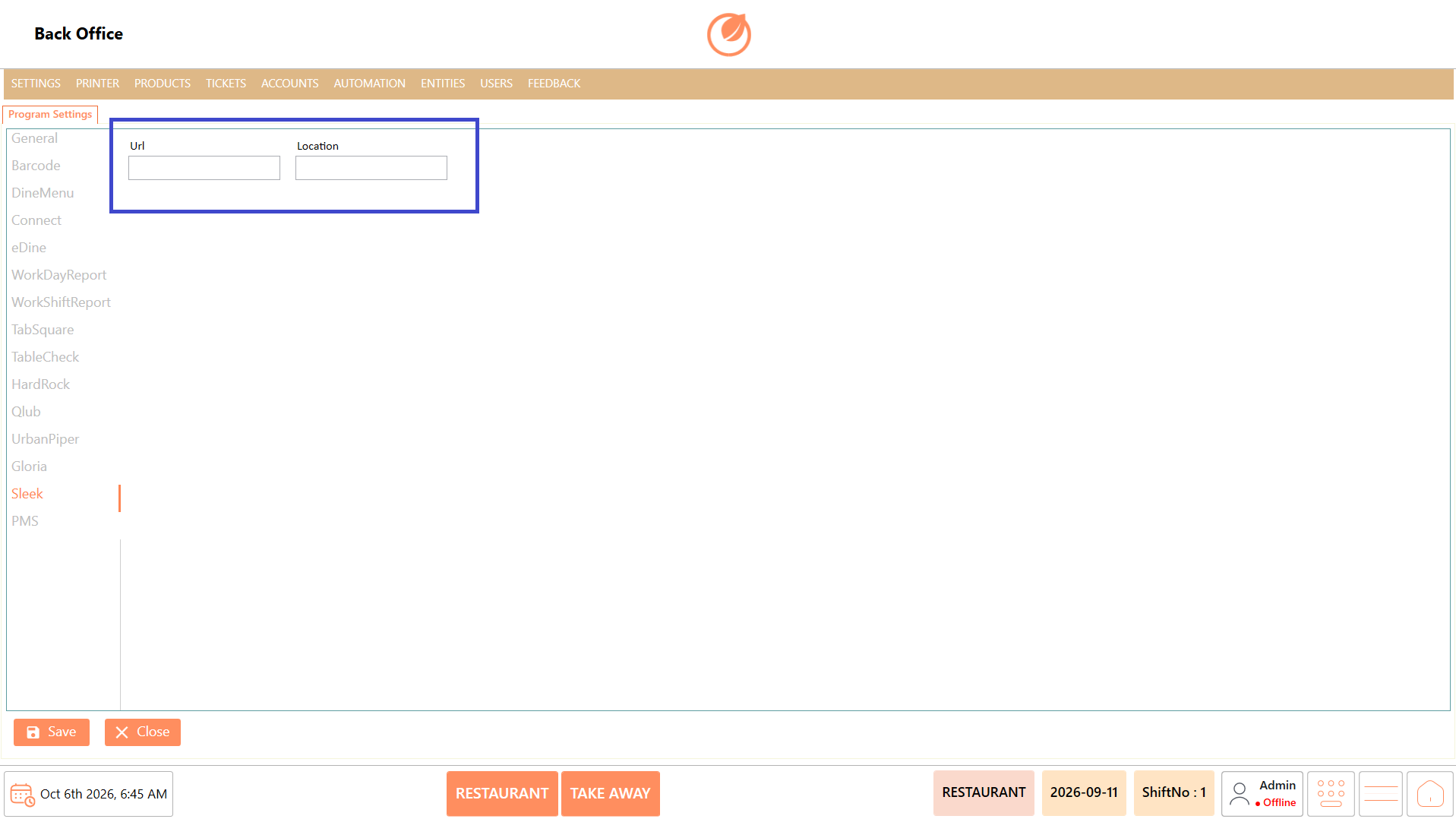
3. Enter the required Url.
4. Enter the Location.

<figure><img src="https://3400173661-files.gitbook.io/~/files/v0/b/gitbook-x-prod.appspot.com/o/spaces%2F0EE0WqKESoD8hlEpFQQL%2Fuploads%2Fgit-blob-7de2040f4a9caf977afa9d9d8bf350fe9206222c%2Fatt_44_for_3425272189.png?alt=media" alt=""><figcaption></figcaption></figure>

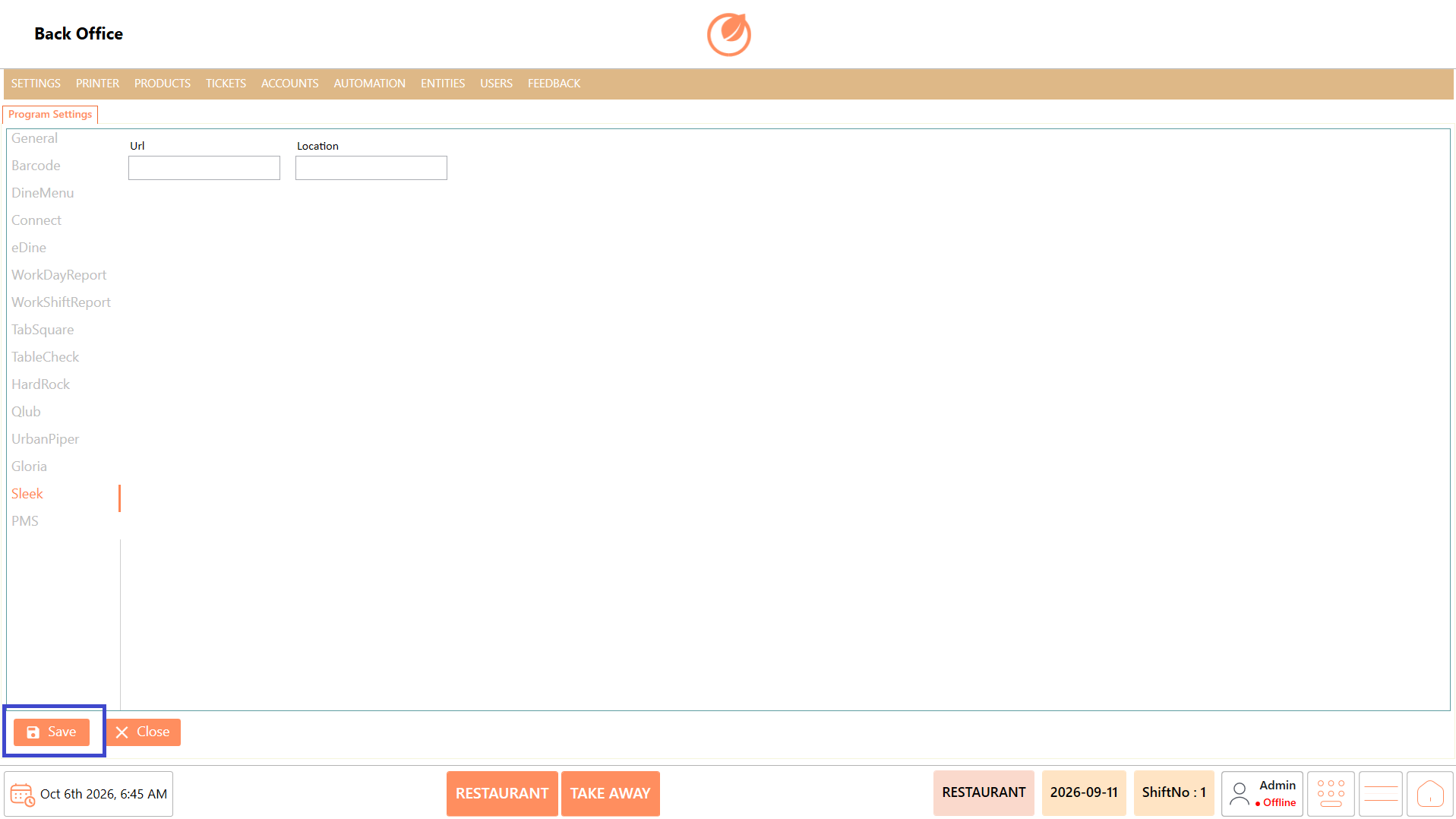
5. Click "Save" to save the configuration.

<figure><img src="https://3400173661-files.gitbook.io/~/files/v0/b/gitbook-x-prod.appspot.com/o/spaces%2F0EE0WqKESoD8hlEpFQQL%2Fuploads%2Fgit-blob-2aa866440a0ac6f9f6954ed3348ac3ac8d42d507%2Fatt_45_for_3425272189.png?alt=media" alt=""><figcaption></figcaption></figure>

#### Configure PMS <a href="#configure-pms" id="configure-pms"></a>

1. Open Program Settings.
2. Select "PMS" from the left panel.

<figure><img src="https://3400173661-files.gitbook.io/~/files/v0/b/gitbook-x-prod.appspot.com/o/spaces%2F0EE0WqKESoD8hlEpFQQL%2Fuploads%2Fgit-blob-1bae8079486526612639f2ceb1097e87e921694c%2Fimage%20(134).png?alt=media" alt=""><figcaption></figcaption></figure>

3. Select the required PMS Provider.
4. Enter the Url.

<figure><img src="https://3400173661-files.gitbook.io/~/files/v0/b/gitbook-x-prod.appspot.com/o/spaces%2F0EE0WqKESoD8hlEpFQQL%2Fuploads%2Fgit-blob-6ebc67d139f72a53af0c6c5459d00f5c5debf9c2%2Fimage%20(135).png?alt=media" alt=""><figcaption></figcaption></figure>

5. Enable "NightAudit" if required.
6. Enable "AutoSyncPmsTicketsOnDayEnd" if required.

<figure><img src="https://3400173661-files.gitbook.io/~/files/v0/b/gitbook-x-prod.appspot.com/o/spaces%2F0EE0WqKESoD8hlEpFQQL%2Fuploads%2Fgit-blob-4cc337f526909d59b117a9f1d151510216e6a6e0%2Fimage%20(136).png?alt=media" alt=""><figcaption></figcaption></figure>

7. Click "Save" to save the configuration.

### **Configure SSO** <a href="#configure-sso" id="configure-sso"></a>

1. Open Program Settings.
2. Select "SSO" from the left panel.

<figure><img src="https://3400173661-files.gitbook.io/~/files/v0/b/gitbook-x-prod.appspot.com/o/spaces%2F0EE0WqKESoD8hlEpFQQL%2Fuploads%2Fgit-blob-1a29d08f62794b401d0154455e60e67e29c6c561%2Fimage%20(137).png?alt=media" alt=""><figcaption></figcaption></figure>

3. Enable "SSO Enabled".
4. Enter the Tenant Id and Client Id.
5. Enter the required Cache Expiry Days and Retry Count.
6. Enter the Redirect URL and Authentication URL.

<figure><img src="https://3400173661-files.gitbook.io/~/files/v0/b/gitbook-x-prod.appspot.com/o/spaces%2F0EE0WqKESoD8hlEpFQQL%2Fuploads%2Fgit-blob-1a29d08f62794b401d0154455e60e67e29c6c561%2Fimage%20(137).png?alt=media" alt=""><figcaption></figcaption></figure>

7. Click "Save" to save the configuration.

**Note:** Configure an integration only when it is required for the customer's setup. The required fields and settings may vary depending on the integration.

### **Use Case** <a href="#use-case" id="use-case"></a>

1. Configure General settings according to the customer's operational requirements.
2. Enable or disable available options to control application behaviour.
3. Control which sections are displayed in Work Day and Work Shift reports.
4. Configure barcode-related parameters when required.
5. Add configuration details for supported third-party integrations required by the customer.
6. Configure payment-related details where supported by the selected integration.
7. Configure the PMS provider and related connection settings when PMS integration is required.
8. Configure Single Sign-On details when SSO is required for the customer.

### **Notes** <a href="#notes" id="notes"></a>

* Configure General settings based on the customer's requirements.
* In WorkDayReport and WorkShiftReport, set ISSHOW to True to display a section in the report and False to hide it.
* Integration sections should be configured only when the corresponding integration is required by the customer.
* Enter integration credentials, URLs, keys, tokens, and other values according to the details provided for the customer's integration.
* Review the configuration before clicking Save to ensure that the required settings are correctly entered.


---

# Agent Instructions
This documentation is published with GitBook. GitBook is the documentation platform designed so that both humans and AI agents can read, navigate, and reason over technical content effectively. Learn more at gitbook.com.

## Querying This Documentation
If you need additional information that is not directly available in this page, you can query the documentation by asking a question.

Perform an HTTP GET request on the following URL with the `ask` and `goal` query parameters:

```
GET https://help.rbsgo.com/dineplan/backoffice/settings/program-settings.md?ask=<question>&goal=<user_goal>
```

`ask` is the immediate question: it should be specific, self-contained, and written in natural language.
`goal` is what the user is ultimately trying to achieve, the reason they need the answer. Sharing it helps GitBook give you a better, more relevant answer. A goal is most helpful when it describes the outcome the user wants rather than restating the question. For example, with `ask=how do I create an API token`, a goal like `automate deployments from our CI pipeline` lets GitBook tailor the answer to that use case.

The response will contain a direct answer to the question and relevant excerpts and sources from the documentation.

Use this mechanism when the answer is not explicitly present in the current page, you need clarification or additional context, or you want to retrieve related documentation sections.