> For the complete documentation index, see [llms.txt](https://help.rbsgo.com/llms.txt). Markdown versions of documentation pages are available by appending `.md` to page URLs; this page is available as [Markdown](https://help.rbsgo.com/dineplan/front-desk/report/faqs.md).
# FAQ's
## **1. How do I open the main Report screen in DinePlan?**
To access operational, sales, and transaction reports in DinePlan, navigate from the main Dashboard:
1. Log in to DinePlan.
2. From the Dashboard, select Front Desk.
3. Select Report.
4. The Report screen will open, displaying the available Report Categories panel on the left.
Note: The available report categories are General, Day Shift, Item, Ticket, Group, Entity, Member, Summary, and Custom.
## 2. Why are my report action buttons disabled, and how do I activate them?
When you open the Report screen, all action buttons (such as export, print, and view controls) are disabled by default to prevent generating blank reports.
To enable the report action buttons:
1. Select a category under Report Categories (e.g., General or Day Shift).
2. Click the SELECT REPORT dropdown menu.
3. Choose the specific report you want to view.
4. Once selected, the report data will populate and the action options (such as View, Filter by Condition, Export to PDF, Export to Excel, and Print) will become active.
## 3. How do I switch between Compact, Full, and Free report layouts?
You can change how report data is displayed on screen by using the View dropdown menu:
1. Open and select your desired report from the SELECT REPORT dropdown.
2. Click the View dropdown menu.
3. Choose one of the following display modes:
4. Compact: Displays the report in a condensed format for quick scanning.
5. Full: Displays the complete report with all available fields and detailed columns.
6. Free: Displays the report without predefined formatting, allowing flexible viewing where applicable.
## 4. How do I filter report data by date range or specific operational conditions?
Before generating, printing, or exporting a report, you can refine the displayed results using built-in filters:
1. Select your report from the SELECT REPORT dropdown.
2. Use Filter by Date to specify a custom date or business date range.
3. Click Filter by Condition to open specific filtering criteria (such as terminal, cashier, product, department, ticket number, or user).
4. Apply the required criteria to update the generated report results.
## 5. How do I export a report as a Microsoft Excel spreadsheet or PDF document?
To save a copy of any generated report for offline auditing or management sharing:
1. Display the required report on the screen.
2. To export as a spreadsheet: Click Export to Excel (saves as a .xlsx file).
3. To export as a PDF document: Click Export to PDF (or Export as PDF depending on the report category).
4. To output directly to a printer: Click Print.
## 6. How do I verify POS product pricing, portions, and categories before opening for service?
Store managers and cashiers can cross-check POS menu configuration before operations begin using the Product List Report:
1. Go to Front Desk > Report.
2. Under Report Categories, select General.
3. Under SELECT REPORT, select Product List Report.
4. Review the displayed columns:
5. Category: Menu category assigned to the product.
6. Alias Code: Unique alias code assigned to the item.
7. Product: Name of the menu item.
8. Alias Name: Alternate or localized product name, if configured.
9. Portion: Serving size or portion configured for the item.
10. Price: Selling price configured in the POS.
## 7. How do I confirm that new or modified backend menu items have synchronized to the POS?
To verify that updates made in the backend system are available for customer billing:
1. Go to Front Desk > Report > General.
2. Select Menu Items Sync Report from the dropdown.
3. Review the Category, Alias Code, Product, Alias Name, Portion, and Price fields.
4. Confirm that newly added or updated items appear in the list before starting billing.
## 8. How do I audit system events and staff activities like "New Order" or "Ticket Entity Changed"?
Administrators and supervisors can track user activity and system operations using the Log Report:
1. Go to Front Desk > Report > General.
2. Select Log Report from the dropdown menu.
3. Review the audit fields:
4. Ticket No: Ticket number associated with the event (if applicable).
5. Amount: Transaction value linked to the event.
6. Event: Specific POS action performed (e.g., Module Clicked, New Order, or Ticket Entity Changed).
7. Event Time: Exact date and timestamp of the event.
8. Log: Detailed description of the affected module or item.
9. User: Name of the employee who performed the action.
## 9. How do I check active promotional offers, validity date ranges, and promotion rules?
To review currently active discounts and combos in the POS:
1. Go to Front Desk > Report > General.
2. Select Active Promotions Report.
3. Inspect the active promotion details:
4. Name: Name of the active promotion.
5. Alias Code: Assigned promotion alias code.
6. From & To: Start and end date range of the offer.
7. Type: Classification (such as Ticket Discount Promotion, Item Discount Promotion, or Combo Promotion).
8. Condition: Rules required for the promotion to trigger during billing.
9. Description: Offer details and discount percentages.
## 10. How do I check employee clock-in times, clock-out times, and total working hours?
To review staff attendance for payroll or shift verification:
1. Go to Front Desk > Report > General.
2. Select Time Attendance Report.
3. Locate the staff member by Employee ID or Employee Name.
4. Review their POS No, Designation, Date, Clock In, Clock Out, daily Working Hours, and accumulated Summary Working Hours.
## 11. How do I generate a complete operational summary for a completed business day?
To conduct an end-of-day operational review across all departments, categories, and payment types:
1. Go to Front Desk > Report.
2. Select Day Shift under Report Categories.
3. Select Work Day Report from the dropdown menu.
4. Specify the date range under Filter by Date.
5. Review the comprehensive report sections, including Business day details, Receipt number range, Sales summary, Department-wise sales, Payment summary, Ticket summary, Category sales, and Group sales.
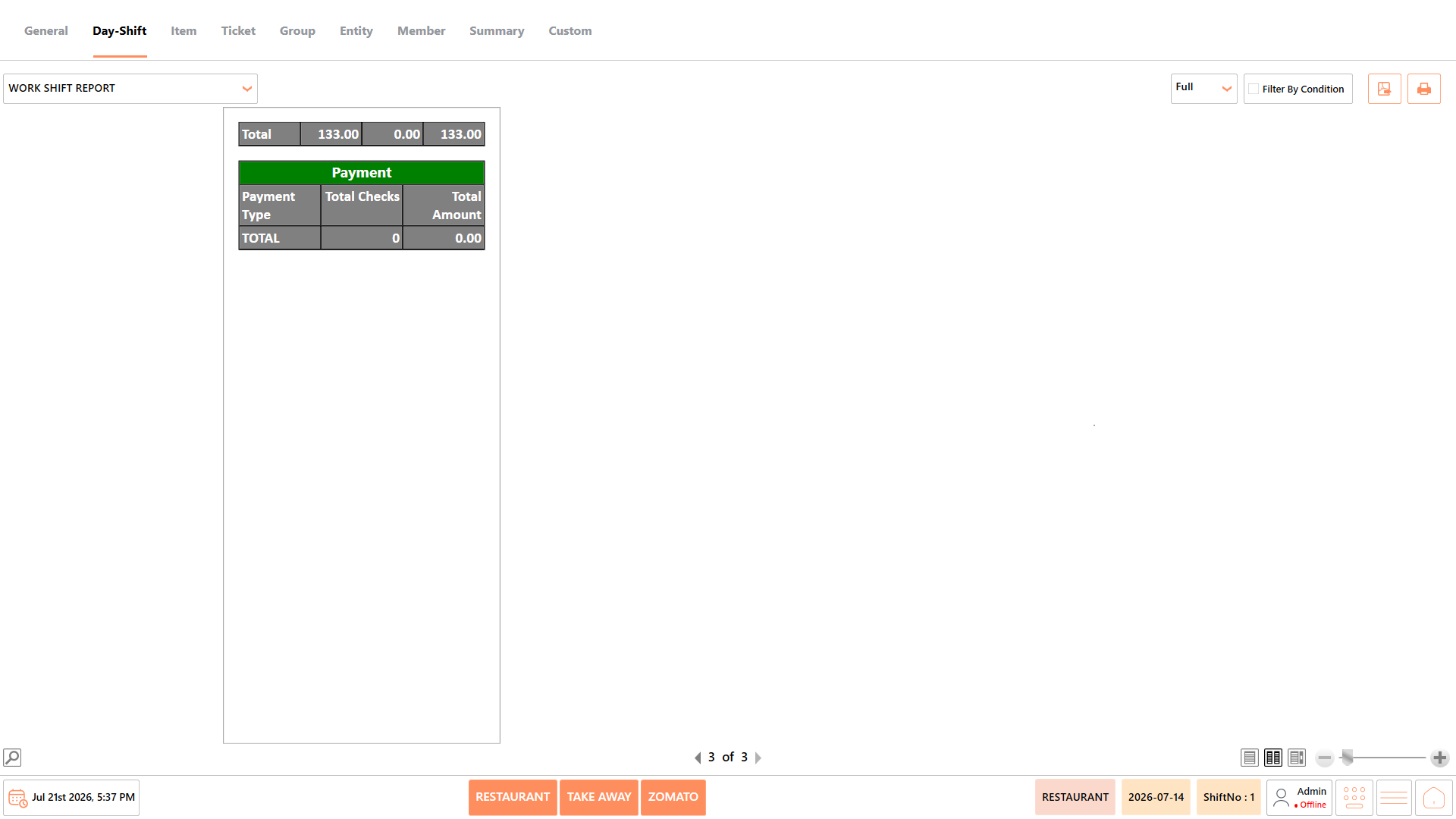
## 12. How do I review sales, float amounts, and till counts for an individual cashier shift?
Cashiers and store managers can verify shift-level performance before ending a shift using the Work Shift Report:
1. Go to Front Desk > Report > Day Shift.
2. Select Work Shift Report.
3. Review the shift-specific metrics: Shift details, Terminal information, Shift number, Float amount, Till count, Sales summary, Department summary, Payment information, and Payment totals.
## 13. How do I identify business days where the End Day process was missed or ended abnormally?
Administrators can detect incomplete closing operations using the Abnormal End Day Report:
1. Go to Front Desk > Report > Day Shift.
2. Select Abnormal End Day Report.
3. Review the records showing incomplete closings:
4. Business date: Affected business date.
5. Workday start date & User who started the workday.
6. Seller Name.
7. Workday end date & User who ended the workday.
## 14. How do I track cash audit activities, float amounts, and cash shortages or excess amounts?
To verify cash movements and audit records during a shift:
1. Go to Front Desk > Report > Day Shift.
2. Select Cash Audit Report.
3. Review the audit details: Audit ID, User, Audit time, Audit value, Cash sales, Float amount, Cash in, Cash out, and Cash difference.
## 15. How do I view a quick financial overview of net sales, taxes, discounts, and table averages?
For a high-level summary of restaurant performance without granular line items:
1. Go to Front Desk > Report > Day Shift.
2. Select Day Summary.
3. Review the high-level financial indicators: Total net sales, Total taxes, Total discounts, Total sales, Average sales per table, Division summary, Media summary, Tax summary, and Discount summary.
## 16. How do I review individual ticket billing details, guest counts, and payment status?
To inspect completed transactions for a specific business period:
1. Go to Front Desk > Report.
2. Select Ticket under Report Categories.
3. Select Tickets Report.
4. Review the ticket fields: Ticket Number, Invoice Number, Date and Time, User, Entity (branch), Guest Count, Subtotal, Tax, Discount, Grand Total, and Payment Status.
## 17. How do I track customized order tags and tagged item pricing on customer tickets?
To review order customizations and special requests placed on customer tickets:
1. Go to Front Desk > Report > Ticket.
2. Select Tickets Tag Detail Report.
3. Review the detailed order modification fields: Ticket Number, Order Tag Group, Order Tag, Tagged Item, Quantity, Price, and User.
Note: To view overall revenue generated by specific tags across all orders, select Ticket Tag Sales Report instead.
## 18. How do I audit voided menu items, void amounts, and void reasons?
To investigate removed items or cancelled sales for employee accountability:
1. Go to Front Desk > Report > Ticket.
2. Select Void Report.
3. Examine the void audit fields:
4. Ticket Number: Original sales ticket.
5. Menu Item: Item removed from the order.
6. Quantity: Number of items voided.
7. Void Amount: Value of the voided items.
8. Void Reason: Explanation entered during the void operation.
9. User: Staff member who performed the void.
## 19. How do I track refunded ticket transactions, refund numbers, and refund reasons?
To audit customer refunds and verify financial accuracy:
1. Go to Front Desk > Report > Ticket.
2. Select Refund Report.
3. Inspect the refund columns: Refund Number, Ticket Number, Invoice Number, Refund Amount, Refund Reason, and User.
## 20. How do I audit item-level or ticket-level discounts applied during billing?
To verify discount authorizations and review promotional usage:
1. Go to Front Desk > Report > Ticket.
2. Select Detail Discount Report.
3. Review the fields: Ticket Number, Invoice Number, Discount Name, Discount Amount, Date and Time, and User.
## 21. How do I reconcile sales collections across Cash, Card, and Digital Wallet payment methods?
To review payment method distribution and verify tender collections:
1. Go to Front Desk > Report > Ticket.
2. Select Tender Report.
3. Review the breakdown:
4. Payment Method: Cash, Card, Digital Wallet, etc.
5. Transaction Count: Total orders paid via the method.
6. Amount Received: Total currency collected.
7. User: Cashier who processed the collection.
## 22. How do I verify exchanged menu items and price difference amounts?
To inspect transactions where orders were modified or items were exchanged:
1. Go to Front Desk > Report > Ticket.
2. Select Exchange Report.
3. Review the transaction fields: Ticket Number, Original Item, Exchanged Item, Difference Amount (additional payment or refund required), and User.
## 23. How do I view graphical charts for the Top 10 Profitable Items and Top 10 Sold Items?
To generate visual charts showing top-performing products:
1. Go to Front Desk > Report.
2. Select Item under Report Categories.
3. Select Items Sales Report.
4. Click the Chart icon/screen element.
5. Choose between:
6. Top 10 Profitable Items: Displays menu items generating the highest profit.
7. Top 10 Sold Items: Displays menu items with the highest sales volume.
## 24. How do I compare sales performance and profitability across different item portion sizes?
To evaluate whether small, medium, or large portion sizes drive higher profits:
1. Go to Front Desk > Report > Item.
2. Select Items Portion Sales Report.
3. Review portion metrics: Alias code, Menu item name, Portion, Quantity sold, Price excluding tax, Sales amount excluding tax, Tax amount, Sales amount including tax, Cost, Total cost, Profit, and User.
## 25. How do I analyze item sales and profitability grouped by menu category?
To evaluate the revenue and cost structure of individual menu sections (such as Appetizers or Beverages):
1. Go to Front Desk > Report > Item.
2. Select Item Sales by Category Report.
3. Review the fields: Category, Alias code, Menu item name, Portion, Quantity sold, Sales amount excluding tax, Tax amount, Sales amount including tax, Cost, Total cost, and Profit.
## 26. How do I identify peak business hours based on hourly item sales activity?
To optimize kitchen prep and staff scheduling based on customer demand throughout the day:
1. Go to Front Desk > Report > Item.
2. Select Items Hourly Sales Report.
3. Set the business date under Filter by Date.
4. Review hourly sales trends and transaction volumes across operating hours.
## 27. How do I evaluate employee sales performance and profitability by user?
To review sales volume and profit margins generated by individual servers or cashiers:
1. Go to Front Desk > Report > Item.
2. Select Items User Sales Report.
3. Review the fields grouped by user: User, Alias code, Menu item name, Portion, Quantity sold, Sales amount excluding tax, Tax amount, Sales amount including tax, Cost, Total cost, and Profit.
## 28. How do I monitor the sales performance of bundled combo items and sub-items?
To analyze popular meal combos and track individual items sold inside combo packages:
1. Go to Front Desk > Report > Item.
2. Select Combo Sales Report.
3. Review the combo breakdown fields: Combo name, Combo group, Sub-item name, Quantity, Sub-item quantity, Price, and Total.
## 29. How do I compare total sales quantity and revenue across menu categories?
To evaluate high-level category performance using Group reports:
1. Go to Front Desk > Report.
2. Select Group under Report Categories.
3. Select Items Category Sales Report.
4. Review the category fields:
5. Product (Category): Menu category or product group.
6. Quantity: Total units sold in the category.
7. Amount: Total revenue generated by the category.
## 30. How do I monitor sales generated through tagged menu items?
To track sales performance for products classified under specific custom tags:
1. Go to Front Desk > Report > Group.
2. Select Items Tag Sales Report.
3. Review the tagged item fields: Product (tagged item name), Quantity (units sold), and Amount (total sales value).
## 31. How do I track ticket activity, invoice numbers, and payment status for specific tables?
To monitor table utilization and order settlement in dine-in service:
1. Go to Front Desk > Report.
2. Select Entity under Report Categories.
3. Select Ticket Table Report.
4. Review table transaction details: ID, Ticket Number, Invoice No, Total, Table, Paid (indicates settled vs. pending status), User, Created Date, and Time.
## 32. How do I review individual member purchase history, tax, and transaction times?
To verify member transactions or support customer service inquiries:
1. Go to Front Desk > Report.
2. Select Member under Report Categories.
3. Select Member Report.
4. Review the transaction fields: Member (code), Name (member name), ID, Ticket Number, Date, Time, Tax, and Amount.
## 33. How do I track unpaid or partially settled member tickets and remaining balances?
To monitor outstanding customer dues and follow up on pending payments:
1. Go to Front Desk > Report > Member.
2. To view ticket-by-ticket details: Select Member Open Tickets Report and review Member, Name, Ticket Number, Date, Time, Tax, Amount, and Remaining.
3. To view consolidated balances per member: Select Member Summary Open Report and review Entity, Name, Ticket Count, Total, and Remaining.
## 34. How do I compare payment collections and digital payment trends across POS terminals?
To compare collection totals between different billing counters or hardware terminals:
1. Go to Front Desk > Report.
2. Select Summary under Report Categories.
3. Select Payment Summary by Terminal Report.
4. Review terminal collections: Terminal, Cash, Card, Digital Payment (UPI/wallets), and Total.
## 35. How do I monitor kitchen preparation time, packing speed, and overall service duration?
To analyze service efficiency and evaluate if orders meet service-level time targets:
1. Go to Front Desk > Report.
2. Select Custom under Report Categories.
3. Select Speed of Service Report.
4. Review operational speed metrics:
5. Department & POS: Processing area and terminal.
6. Staff & Ticket Number: Responsible employee and order ticket.
7. Date/Time: Order creation timestamp.
8. Order Time: Kitchen preparation duration.
9. Packing Time: Order packaging duration.
10. Total Time: Total service duration from order to completion.
11. Avg Server & Total Avg: Individual and overall service averages.
12. Met %: Percentage of orders completed within target timeframes.
## 36. How do I track returned menu items, refund methods, and cashier details?
Audit customer returns, verify refund amounts, and check return reasons using the Return Product Report:
1. Go to Front Desk > Report.
2. Under Report Categories, select Custom.
3. Under SELECT REPORT, select Return Product Report.
4. Set the date range under Filter by Date.
5. Review the return fields:
6. Date/Time & Return Product Date: Timestamps of the return.
7. Cashier & Return Product By: Staff who processed the return.
8. Ticket Number: Original sales ticket.
9. Customer Name: Customer requesting the return.
10. Menu Code & Menu Name: Item returned.
11. Quantity & Amount: Returned quantity and total refunded value.
12. Payment Type & Refund Type: Original payment method and refund method used.
13. Reason & Detail: Explanation for the product return.
## 37. How do I review menu items that were marked as sold out during a shift?
Track stock shortages and monitor inventory depletion using the Sold Out History Report:
1. Go to Front Desk > Report > Custom.
2. Select Sold Out History Report.
3. Specify the reporting period under Filter by Date.
4. Inspect the inventory update fields:
5. Date & Time: When the item was marked sold out.
6. Product & Portion: Menu item and serving size that became unavailable.
7. Balance Qty: Remaining stock level before depletion.
8. User: Employee who updated the product status.
9. Action: Specific activity performed (such as marking or restoring product availability).
.png?alt=media)
## 38. How do I track unpaid ticket balances consolidated by customer name across entities?
Review consolidated open balances and total pending dues per customer using the Member Summary Open Report:
1. Go to Front Desk > Report > Member.
2. Select Member Summary Open Report.
3. Review the open summary fields:
4. Entity: Business location or outlet.
5. Name: Member's name.
6. Ticket Count: Total open tickets pending for the member.
7. Total: Combined original value of all open tickets.
8. emaining: Unpaid balance requiring collection.
## 39. How do I analyze sales performance for items categorized by specific tag groups?
Evaluate sales generated by custom item classifications using the Items Tag Sales Report:
1. Go to Front Desk > Report.
2. Select Group under Report Categories.
3. Select Items Tag Sales Report.
4. Product: Tagged menu item name.
5. Quantity: Total units sold for the tagged item.
6. Amount: Total revenue generated by the tagged item.
## 40. How do I evaluate item sales and profit margins grouped by restaurant department?
Compare revenue and cost structures across departments (e.g., Kitchen vs. Bar) using the Items Department Sales Report:
1. Go to Front Desk > Report.
2. Select Item under Report Categories.
3. Select Items Department Sales Report.
4. Review the departmental metrics: Department, Alias code, Menu item name, Portion, Quantity sold, Price excluding tax, Sales amount excluding tax, Tax amount, Sales amount including tax, Cost, Total cost, and Profit.
## 41. How do I verify discounts applied at the item level versus order tag discount prices?
Audit individual menu item discounts and order tag adjustments using the Items Discount Report:
1. Go to Front Desk > Report > Item.
2. Select Items Discount Report.
3. Inspect discount details: Ticket number, Invoice number, Menu item name, Portion, Quantity, Unit price, Order tag price, Order tag discount price, Discount price, Price after discount, Entity, Date, and User.
## 42. How do I check sales trends across custom time intervals like weekly or monthly periods?
Track long-term revenue trends over flexible time intervals using the Sales by Period Report:
1. Go to Front Desk > Report > Summary.
2. Select Sales by Period Report.
3. Under Filter by Condition, choose your interval (such as hourly, daily, weekly, or monthly).
4. Review period metrics: Period, Ticket Count, Pre Tax Total, Tax Total, Post Tax Total, and Total.
## 43. How do I evaluate sales generated through specific marketing promotions or campaigns?
Measure promotional effectiveness and sales driven by active campaigns using the Sales Promotion Report:
1. Go to Front Desk > Report.
2. Select Ticket under Report Categories.
3. Select Sales Promotion Report.
4. Review campaign fields:
5. Promotion Name: Applied promotional campaign.
6. Ticket Number: Order utilizing the promotion.
7. Discount Value: Value discounted by the offer.
8. Sales Amount: Final bill total after applying the promotion.
9. User: Staff member who processed the promotional order.
## 44. How do I check terminal-wise daily sales totals, pre-tax amounts, and tax totals?
Compare daily financial performance across individual billing stations using the Daily Terminal Sales Summary Report:
1. Go to Front Desk > Report > Summary.
2. Select Daily Terminal Sales Summary Report.
3. Review terminal metrics per business date:
4. Date: Reporting date.
5. Ticket Count: Orders processed through the terminal.
6. Pre Tax Total: Sales value before taxes.
7. Tax Total: Total tax collected at the workstation.
8. Post Tax Total: Billed amount after tax calculations.
9. Total: Final sales total recorded for the terminal.
---
# Agent Instructions
This documentation is published with GitBook. GitBook is the documentation platform designed so that both humans and AI agents can read, navigate, and reason over technical content effectively. Learn more at gitbook.com.
## Querying This Documentation
If you need additional information that is not directly available in this page, you can query the documentation by asking a question.
Perform an HTTP GET request on the following URL with the `ask` and `goal` query parameters:
```
GET https://help.rbsgo.com/dineplan/front-desk/report/faqs.md?ask=&goal=
```
`ask` is the immediate question: it should be specific, self-contained, and written in natural language.
`goal` is what the user is ultimately trying to achieve, the reason they need the answer. Sharing it helps GitBook give you a better, more relevant answer. A goal is most helpful when it describes the outcome the user wants rather than restating the question. For example, with `ask=how do I create an API token`, a goal like `automate deployments from our CI pipeline` lets GitBook tailor the answer to that use case.
The response will contain a direct answer to the question and relevant excerpts and sources from the documentation.
Use this mechanism when the answer is not explicitly present in the current page, you need clarification or additional context, or you want to retrieve related documentation sections.
.png?alt=media)
.png?alt=media)
.png?alt=media)
.png?alt=media)
.png?alt=media)
.png?alt=media)
.png?alt=media)
.png?alt=media)
.png?alt=media)
.png?alt=media)
.png?alt=media)
.png?alt=media)

.png?alt=media)
.png?alt=media)
.png?alt=media)
.png?alt=media)
.png?alt=media)
.png?alt=media)
.png?alt=media)
.png?alt=media)
.png?alt=media)
.png?alt=media)
.png?alt=media)
.png?alt=media)
.png?alt=media)
.png?alt=media)
.png?alt=media)
.png?alt=media)
.png?alt=media)
.png?alt=media)
.png?alt=media)
.png?alt=media)
.png?alt=media)
.png?alt=media)
.png?alt=media)
.png?alt=media)
.png?alt=media)
.png?alt=media)