> For the complete documentation index, see [llms.txt](https://help.rbsgo.com/llms.txt). Markdown versions of documentation pages are available by appending `.md` to page URLs; this page is available as [Markdown](https://help.rbsgo.com/front-office-module/fo-cashier/faq-on-cashier/how-do-i-void-or-delete-a-guest-charge.md).
# How do I void or delete a guest charge?
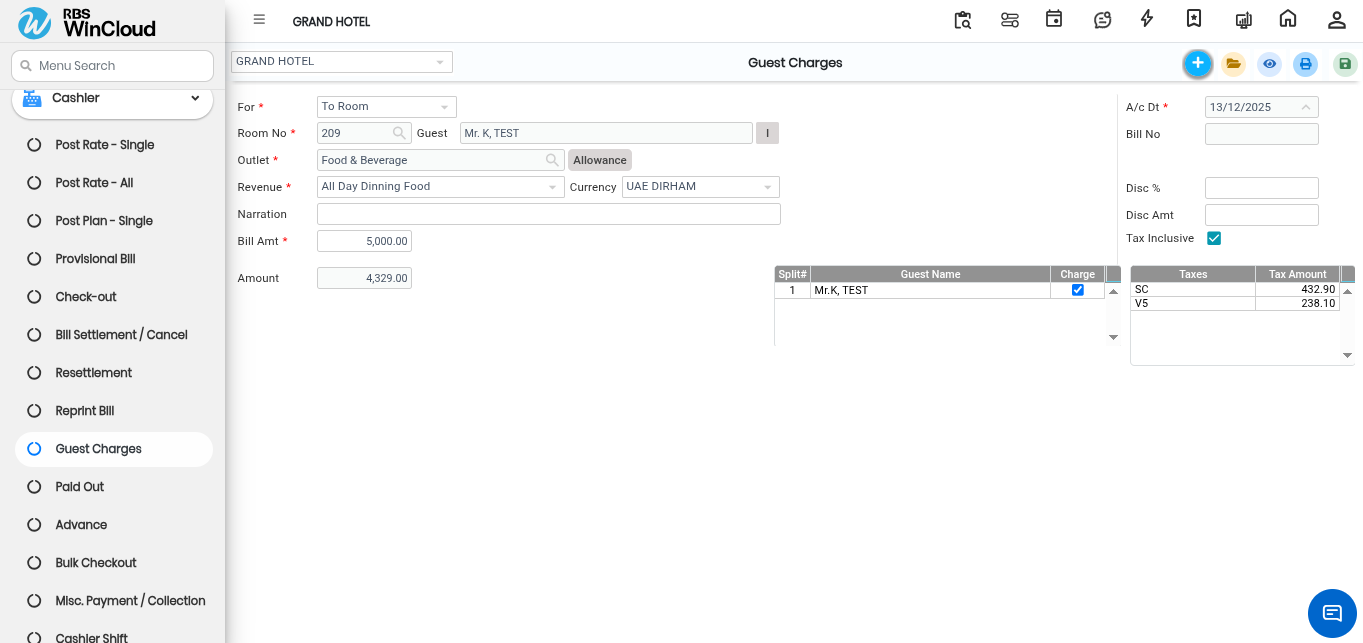
To delete or void a guest charge that has already been posted to the ledger, you must use the Guest Charges tool within the Cashier module.
**Steps to Delete Guest Charges**
1. **Navigate to the Menu:** Go to the **Cashier Main Menu** and click on **Cashier > Guest Charges.**
2. **View Posted Charges:** Click on the View button to see a comprehensive list of all guest charges that have already been posted.
3. **Select the Guest:** From the list that appears, select the specific guest whose charge needs to be removed.
4. **Execute Deletion:** Click on the **Delete** button to remove the specific charge.
5. **Provide a Reason:** The system will prompt you for a reason for deleting the record. Enter the explanation and click **OK** to finalize the deletion.
**Important Constraints and Related Deletions**
* **Account Date Restriction:** For certain transactions like Paid Out vouchers, the system only allows you to modify or void records that were created on the current account date.
* **Tariff Cancellation:** If you need to cancel a room tariff that was posted via the Post Tariff-Single option, you can select the room number, click Cancel, and provide a reason to delete the record.
* **Bill Cancellation:** If a final checkout bill has already been created, you must use the Bill Cancellation option under Cashier > Bill Settlement / Bill Cancellation. This process is often restricted by user permissions and requires a valid cancellation reason.
* **Miscellaneous Sales:** To delete charges made for outsiders (non-guests), navigate to **Cashier > Guest Charges**, select **Miscellaneous,** and use the View and Delete buttons to remove the bill after providing a reason.
---
# Agent Instructions
This documentation is published with GitBook. GitBook is the documentation platform designed so that both humans and AI agents can read, navigate, and reason over technical content effectively. Learn more at gitbook.com.
## Querying This Documentation
If you need additional information that is not directly available in this page, you can query the documentation by asking a question.
Perform an HTTP GET request on the following URL with the `ask` and `goal` query parameters:
```
GET https://help.rbsgo.com/front-office-module/fo-cashier/faq-on-cashier/how-do-i-void-or-delete-a-guest-charge.md?ask=&goal=
```
`ask` is the immediate question: it should be specific, self-contained, and written in natural language.
`goal` is what the user is ultimately trying to achieve, the reason they need the answer. Sharing it helps GitBook give you a better, more relevant answer. A goal is most helpful when it describes the outcome the user wants rather than restating the question. For example, with `ask=how do I create an API token`, a goal like `automate deployments from our CI pipeline` lets GitBook tailor the answer to that use case.
The response will contain a direct answer to the question and relevant excerpts and sources from the documentation.
Use this mechanism when the answer is not explicitly present in the current page, you need clarification or additional context, or you want to retrieve related documentation sections.