> For the complete documentation index, see [llms.txt](https://help.rbsgo.com/llms.txt). Markdown versions of documentation pages are available by appending `.md` to page URLs; this page is available as [Markdown](https://help.rbsgo.com/front-office-module/fo-masters/booker-profile.md).
# BOOKER PROFILE
A Group can be created from the Booker Search Screen. Creating a Booker Profile from Masters
**Creating a Booker from the Booker search screen.**
· Click on the new button at the bottom of the Booker Search screen.
· Add a new Booker name, Title, Company, Telephone, Email, and Mobile.
· Click the OK button to save.
**Modifying the Booker**
Navigate to the Booker Search Screen.
Select the specific group and click the ‘Amend’ button to modify the booker profile.
Click the OK button to save the changes.
The rates are displayed in the rate box in the WinCloud reservation screen based on the plan, room, and guest specifications.
· Click on the new button at the bottom of the Group Search screen.
· Add a new Group name, contact, company, Travel agent, and Country.
· Click the OK button to save.
**Modifying the Group**
· Navigate to the Group Search Screen.
· Select the specific group and click the ‘Open’ button to modify the group.
· Click the OK button to save the changes.
2.The rates are displayed in the rate box in the WinCloud reservation screen based on the plan, room, and guest specifications.
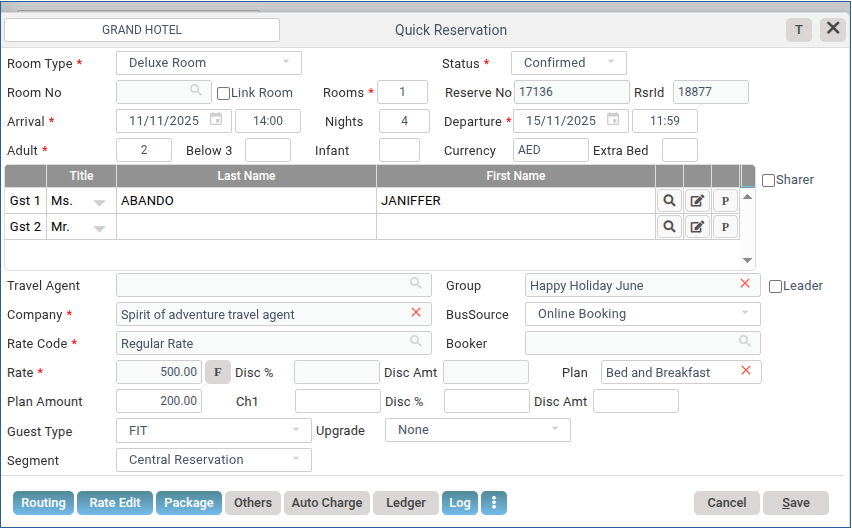
Routing: If the bill needs to be split among guests while creating a reservation, this button can be applied. In Wincloud, routing can be applied at four junctures.
1\. While creating the reservation.
2\. While Checking in.
3\. After Check in.
4\. While checking out.
The routing button enables advanced bill splitting during reservation creation. This saves the effort of manual bill splitting.
**To create a routing:**
· Click on the routing button after the guest and room creation is over. This takes you to the routing wind
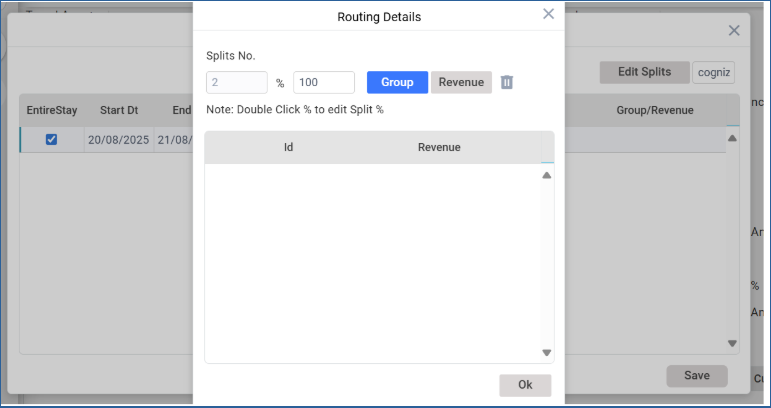
· ‘Assign to’ field tells WinCloud the number of splits assigned to the reservation.
· Name will be automatically selected based on the number of splits.
· In the Edit split button, we specify the Guest name or Company Name. Payments/collections and Tips.
Next, click on the group/ Revenue field to select the group and revenues to be split
· Double-click on the Group button to enter the group name and click OK.
· Double-click on the revenue button to select the revenues to be split and click OK.
· Save the routing preferences.
**Rate Edit**
The Rate Edit button allows for modifying rates if they need to be amended after a reservation is created or while creating a reservation.
**To edit a rate:**
1.While a reservation is in progress, immediately **click the Rate Edit button.**
2.If the reservation is already created, then click the **Open icon** from the reservation screen.
a.Select the reservation from the list.
b.Click the **Rate Edit button** to edit rates.
3.Clicking the **‘Restore to standard rate’** button restores the room rate to the standard rate allocated for the room.
4.The **Log button displays** all the **rate changes** that have been applied to the reservation.
5.Save the screen.
**o edit/amend the defined daily rate for a particular In-house Guest.**
· Go to Front Office>>Reservation >> Reservation (Open Mode)
· Select the reservation to be amended.
**Package**
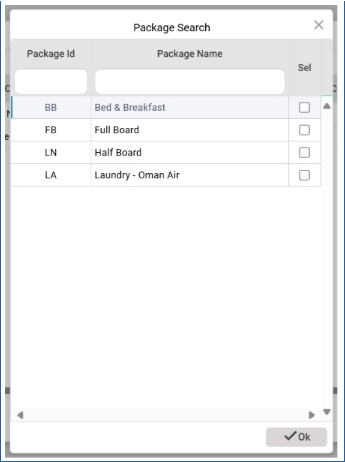
The **Packages button** can be used to allocate a package to a guest. The packages are pre-created in Guest Specialities >> Packages.
· Click on the package button to open the Package allotment window
pon clicking the **package button** on the top right corner, a list of packages appears.
· Select the package that you intend to apply to the reservation and click the OK button.
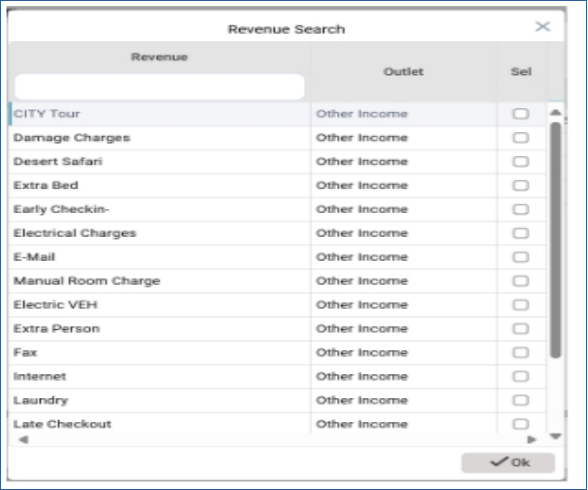
· If the guest requests additional services—such as an extra bed, a city tour, or taxi service—click the Revenue button next to the package.
· From the Revenue Search list, select the services. And click OK.
· This action will add the selected services to the guest’s package and close the list.
· Save the package.
Click the OK button to save the information.
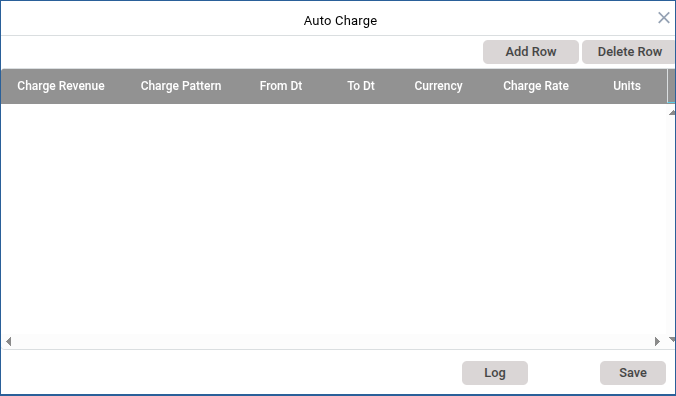
**Auto Charge.**
Any additional charges can be charged using the Auto charges section.
· Click on the add row button to select the other revenues to be added to the reservation.
· Select revenue rows.
· Click OK.
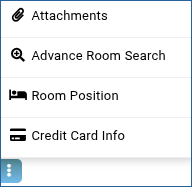
**Advance Room Search and Room Position.**
---
# Agent Instructions
This documentation is published with GitBook. GitBook is the documentation platform designed so that both humans and AI agents can read, navigate, and reason over technical content effectively. Learn more at gitbook.com.
## Querying This Documentation
If you need additional information that is not directly available in this page, you can query the documentation by asking a question.
Perform an HTTP GET request on the following URL with the `ask` and `goal` query parameters:
```
GET https://help.rbsgo.com/front-office-module/fo-masters/booker-profile.md?ask=&goal=
```
`ask` is the immediate question: it should be specific, self-contained, and written in natural language.
`goal` is what the user is ultimately trying to achieve, the reason they need the answer. Sharing it helps GitBook give you a better, more relevant answer. A goal is most helpful when it describes the outcome the user wants rather than restating the question. For example, with `ask=how do I create an API token`, a goal like `automate deployments from our CI pipeline` lets GitBook tailor the answer to that use case.
The response will contain a direct answer to the question and relevant excerpts and sources from the documentation.
Use this mechanism when the answer is not explicitly present in the current page, you need clarification or additional context, or you want to retrieve related documentation sections.



.png?alt=media)