> For the complete documentation index, see [llms.txt](https://help.rbsgo.com/llms.txt). Markdown versions of documentation pages are available by appending `.md` to page URLs; this page is available as [Markdown](https://help.rbsgo.com/general-ledger/general-ledger-module/gl-transaction/gl-transaction-gl-transaction.md).
# GL Transaction
The **GL Transaction** option is used to generate various accounting vouchers for financial transactions such as receipts, payments, journal entries, contra entries and other accounting vouchers.
* This guide explains how to create a **Payment Voucher**. The process for other voucher types is similar, although different accounting knowledge may be required depending on the transaction type.
## Steps to Create Payment Voucher
Step 1: Navigate to the **General Ledger** module.
1. Click **Transaction** from the menu.
2. Select **GL Transaction**.
* The GL Transaction screen will open.
Step 2: Click the **New** icon/button.
1. A new transaction entry screen will appear.
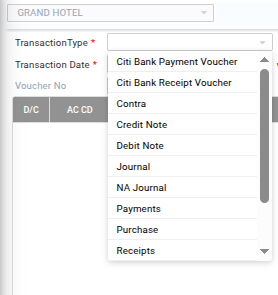
Step 3: Select the **Transaction Type**.
1. Select the required **Transaction Date**.
Step 4: Click the **Account Name** field.
1. Select the required Supplier/Customer or Party Account from the **Chart of Accounts**.
* The selected account will be displayed in the transaction entry.
Step 5: Enter Credit/Debit Information
1. After selecting the account, enter the appropriate **Credit Name** as required.
2. Verify that the selected account and transaction type are correct before proceeding.
Step 6: Enter the payment amount in the **Amount** field.
1. Press the **B** key on your keyboard.
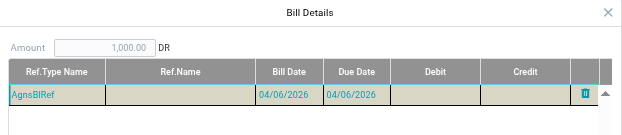
* The system will open the bill selection window.
**Note:** The **B** key is used to link the payment against a bill or reference.
Step 7: Select Bill Reference Details
1. In the bill reference window, enter or select the following details such as **Reference Type, Reference Name (Bill Number), Bill Date, Due Date** and **Amount.**
2. After entering the required information, click **Done**.
Step 8: If you select **Reference Type** as **Against Bill Reference**, the system will display all pending bills for the selected party.
1. To make a payment, select the bill(s) against which the payment is being made.
1. Enter the payment amount.
2. You can pay the bill in full or make a partial payment. The outstanding balance will remain pending against the same bill until it is fully settled.
Step 9: The system provides options to:
* **Add Row** – Create additional debit or credit entries.
* **Delete Row** – Remove unwanted entries.
Use these options whenever multiple ledger accounts are involved in the same transaction.
Step 10: For a Payment Voucher:
* The party account is generally entered on the Debit side.
* The corresponding Credit side should be the **Bank Account** or **Cash Account** from which the payment is made.
Step 11: Review all entered information and click **Save**.
Step 12: After saving the transaction:
* The system automatically generates a **Voucher Number**.
* Voucher numbers are generated based on the selected **Transaction Type**.
---
# Agent Instructions
This documentation is published with GitBook. GitBook is the documentation platform designed so that both humans and AI agents can read, navigate, and reason over technical content effectively. Learn more at gitbook.com.
## Querying This Documentation
If you need additional information that is not directly available in this page, you can query the documentation by asking a question.
Perform an HTTP GET request on the following URL with the `ask` and `goal` query parameters:
```
GET https://help.rbsgo.com/general-ledger/general-ledger-module/gl-transaction/gl-transaction-gl-transaction.md?ask=&goal=
```
`ask` is the immediate question: it should be specific, self-contained, and written in natural language.
`goal` is what the user is ultimately trying to achieve, the reason they need the answer. Sharing it helps GitBook give you a better, more relevant answer. A goal is most helpful when it describes the outcome the user wants rather than restating the question. For example, with `ask=how do I create an API token`, a goal like `automate deployments from our CI pipeline` lets GitBook tailor the answer to that use case.
The response will contain a direct answer to the question and relevant excerpts and sources from the documentation.
Use this mechanism when the answer is not explicitly present in the current page, you need clarification or additional context, or you want to retrieve related documentation sections.




.png?alt=media)
