> For the complete documentation index, see [llms.txt](https://help.rbsgo.com/llms.txt). Markdown versions of documentation pages are available by appending `.md` to page URLs; this page is available as [Markdown](https://help.rbsgo.com/point-of-sale/point-of-sale-module/masters-1/nc-kot-applicable-charge.md).
# NC KOT Applicable Charge
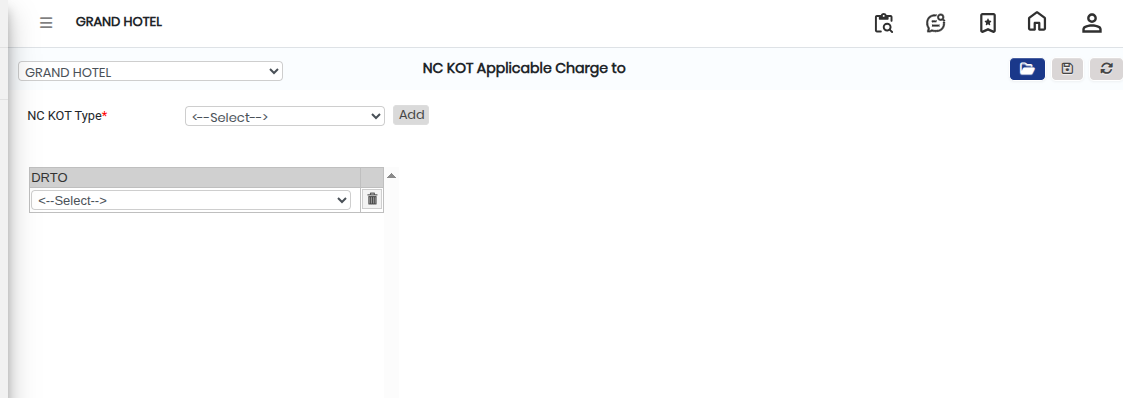
The **NC KOT Applicable Charge** screen is used to define and manage applicable charges for NC KOT (Non-Chargeable Kitchen Order Ticket) types.\
Using this screen, users can select an NC KOT Type and assign applicable DRTO (Delivery/Service charge options or defined charge types) based on business requirements.
## Steps to Open NC KOT Applicable Charge
Step 1: Go to **Master1** from the main menu.
1. Click on **NC KOT Applicable Charge**.
* The NC KOT Applicable Charge screen will open.
Step 2: In the NC KOT Applicable Charge screen, click on the **Open** button.
* The configuration window will appear.
Step 3: Click on the **NC KOT Type** field.
1. Select the required NC KOT Type from the available list.
* This selection defines the type of NC KOT for which charges will be configured.
* Ensure the correct NC KOT Type is selected before proceeding.
Step 4: Click on the **Add** button.
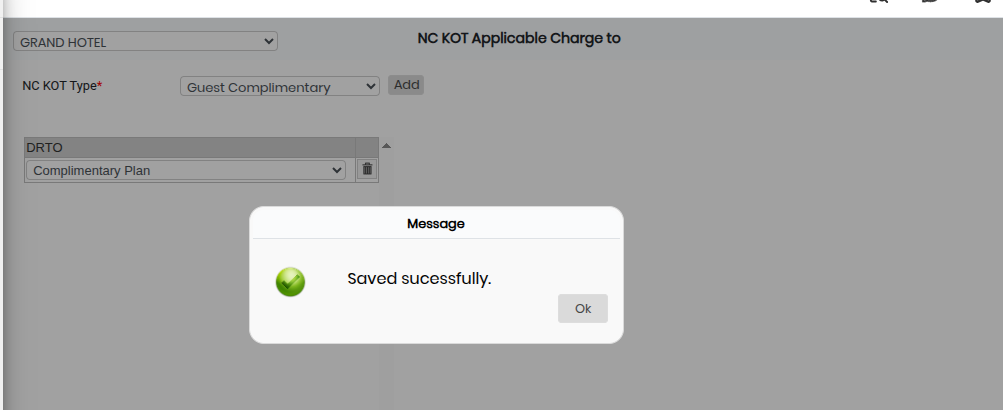
1. From the list, select the required **DRTO** option(s).
* The selected DRTO options will be linked as applicable charges for the chosen NC KOT Type.
* Verify all selections carefully before saving.
Step 5: Save the Settings
1. After completing all selections, click on the **Save** button.
* The NC KOT applicable charge configuration will be successfully saved in the system.
---
# Agent Instructions
This documentation is published with GitBook. GitBook is the documentation platform designed so that both humans and AI agents can read, navigate, and reason over technical content effectively. Learn more at gitbook.com.
## Querying This Documentation
If you need additional information that is not directly available in this page, you can query the documentation by asking a question.
Perform an HTTP GET request on the following URL with the `ask` and `goal` query parameters:
```
GET https://help.rbsgo.com/point-of-sale/point-of-sale-module/masters-1/nc-kot-applicable-charge.md?ask=&goal=
```
`ask` is the immediate question: it should be specific, self-contained, and written in natural language.
`goal` is what the user is ultimately trying to achieve, the reason they need the answer. Sharing it helps GitBook give you a better, more relevant answer. A goal is most helpful when it describes the outcome the user wants rather than restating the question. For example, with `ask=how do I create an API token`, a goal like `automate deployments from our CI pipeline` lets GitBook tailor the answer to that use case.
The response will contain a direct answer to the question and relevant excerpts and sources from the documentation.
Use this mechanism when the answer is not explicitly present in the current page, you need clarification or additional context, or you want to retrieve related documentation sections.