> For the complete documentation index, see [llms.txt](https://help.rbsgo.com/llms.txt). Markdown versions of documentation pages are available by appending `.md` to page URLs; this page is available as [Markdown](https://help.rbsgo.com/point-of-sale/point-of-sale-module/pos-transactions/pos-transactions-bill-split.md).
# Bill Split & Advanced Billing Options
Steps to perform bill split
The **Bill Split** feature is used to divide a customer’s bill into multiple checks before printing the final bill. This option is useful when guests want to share the payment separately.
There are two major types of bill splitting:
1. **Auto Split**
2. **Manual Split (Split Option)**
Additional billing options such as **To Room**, **To Group**, **To Company**, **Temp Folio**, **Advance**, **Item Discount**, **Bill Narration**, **Bill Preview**, and **Guest Name & GST Number** are also available on the billing screen.
#### BILL SPLIT
Before printing the bill, the split must be performed from the billing screen.
1\. **AUTO SPLIT**
The **Auto Split** option is used to divide the bill automatically based on quantity or amount.
**Steps to Perform Quantity-Based Auto Split**
Step 1: Open the **Billing Screen**.
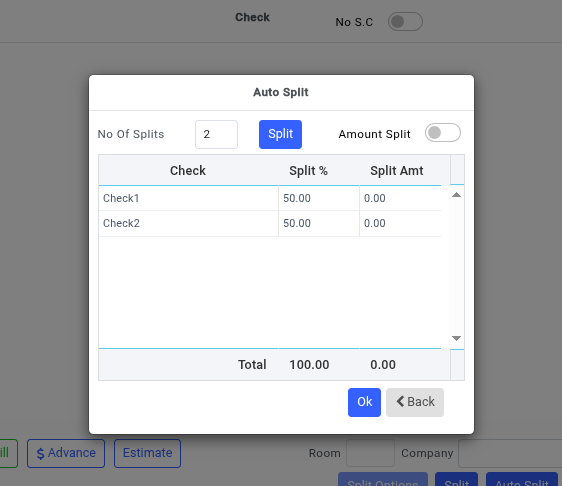
Step 2: Click on the **Auto Split** option.
Step 3: Enter the following details:
* Number of Check Splits Required
* Percentage or Quantity of Items to be Split
* After entering the required values, the system automatically creates separate checks.
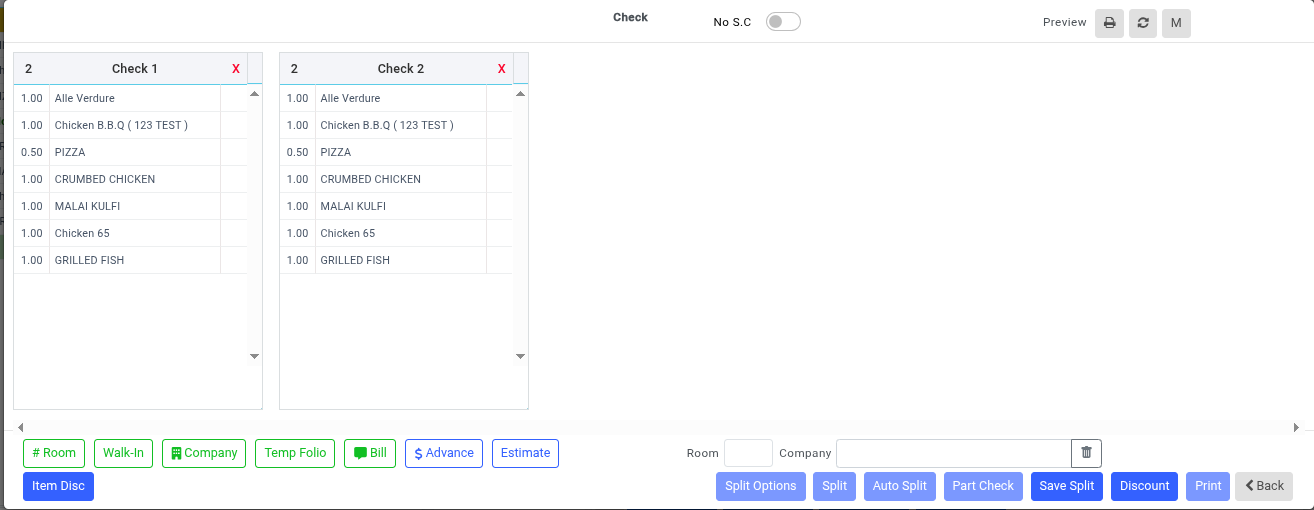
**Example**
* If each item has a quantity of **2** in the original KOT (Kitchen Order Ticket),
* The system automatically divides them into **two separate checks**.
This creates balanced split bills automatically without manual item transfer.
2. **AMOUNT-WISE SPLIT**
The **Amount Split** option is used when the bill must be divided based on a specific amount instead of quantity.
**Steps to Perform Amount-Wise Split**
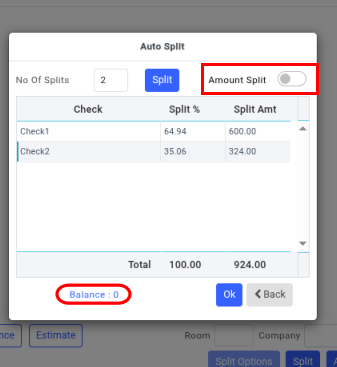
Step 1: Open the **Auto Split** option.
1. Enable the checkbox named **AMOUNT SPLIT**.
2. Enter the required amount for each split individually.
Step 2: After entering the values, click **OK** to complete the process.
**Important Note**
* Once Amount Split is enabled, the system displays the remaining amount in the **BALANCE** column.
* The entered split amounts must completely match the total bill amount.
* The **Balance value must become ZERO**.
* If the balance is not zero, the split will not be accepted.
3. **MANUAL SPLIT** (SPLIT OPTION)
The **Split** option is also called **Manual Split**.
In this method:
* Items can be transferred manually between checks.
* Items can be transferred:
* Quantity-wise
* Completely item-wise
### Steps to Perform Manual Split
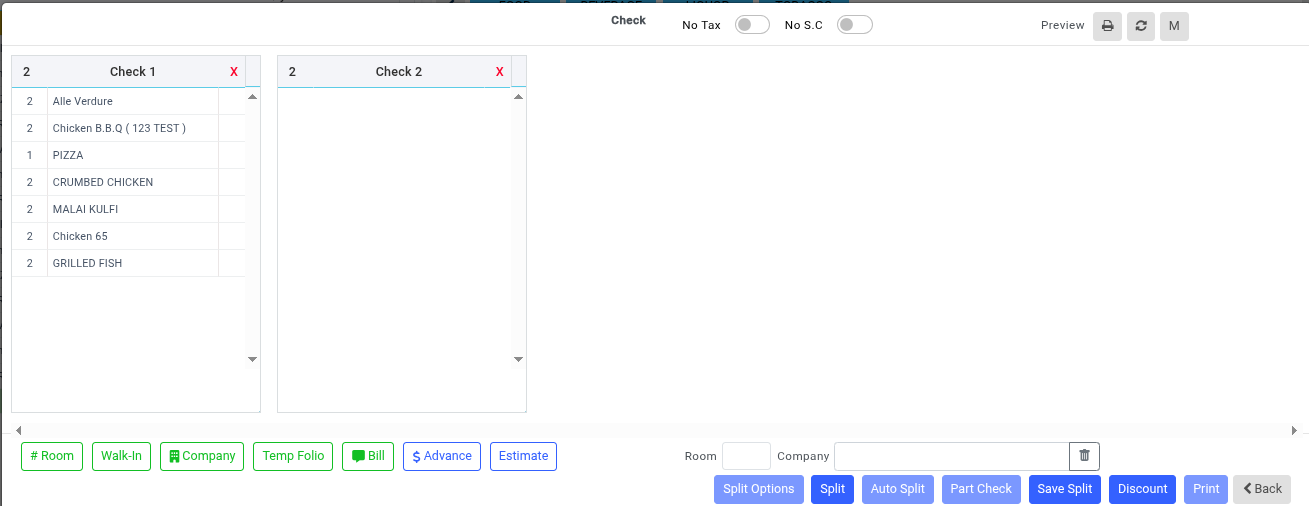
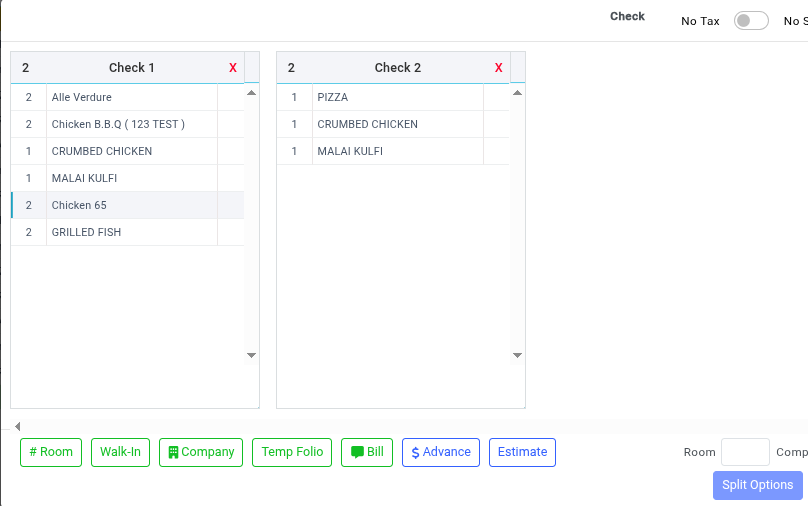
Step 1: Open the billing screen and click **Split** button.
Step 2: Select the check from which the item should be transferred.
**Example**
1. To transfer items from **Check 1 to Check 2**:
* First click **Check 1**.
2. To transfer items from **Check 2 to Check 1**:
* First click **Check 2**.
The selected check will become active for item transfer.
**QUANTITY-WISE SPLIT**
This option is used when only a specific quantity of an item must be transferred to another check.
**Steps to Perform Quantity-Wise Split**
1. Select the source check.
2. Click the item to be transferred.
3. The selected item will be highlighted.
4. Click the blank space under the destination check.
5. The selected quantity will be transferred to the new check.
Repeat the process until the required quantity is transferred.
**ITEM-WISE SPLIT**
This option is used to transfer the complete item from one check to another.
**Steps to Perform Item-Wise Split**
1. Select the source check.
2. Click the item that must be transferred.
3. Click the blank space under the destination check.
4. The entire item will move to the new check.
#### Important Note
If the item quantity is greater than 1:
* Continue clicking the blank space in the destination check until all quantities are transferred.
* Once all quantities are moved, the item disappears from the original check.
#### **Additional Billing Options**
**1.TO ROOM**
The **To Room** option is used to transfer the KOT charge directly to a guest room
**Steps to Transfer KOT Charge to Room**
1. Click the **Room** button on the left-side corner of the billing screen.
2. Select the required room.
3. Click **OK**.
* The KOT charge will be transferred successfully to the selected room.
**2.TO GROUP**
The **To Group** option is used to transfer the KOT charge to a group reservation.
**Steps to Transfer KOT Charge to Group**
1. Click the **Walk-in** button on the left-side corner.
2. Select Guest Search.
3. Choose the required group reservation and click **OK.**
* The charge will be transferred to the selected group reservation.
**3.TO COMPANY**
The To Company option is used to transfer the KOT charge to a company account.
**Steps to Transfer KOT Charge to Company**
1. Click the **Company** button on the left-side corner.
2. Select the required company account and click **OK.**
* The charge will be transferred successfully.
**4.TEMP FOLIO**
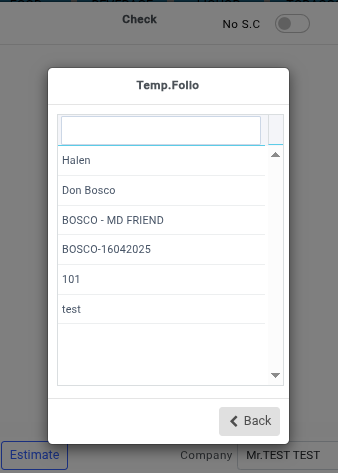
The **Temp Folio** option is used to transfer charges temporarily into a folio account.
**Steps to Transfer to Temp Folio**
1. Click the Temp Folio button on the left-side corner.
2. Select the required folio and click **OK**.
* The KOT charge will be transferred to the selected temporary folio.
**5.BILL NARRATION**
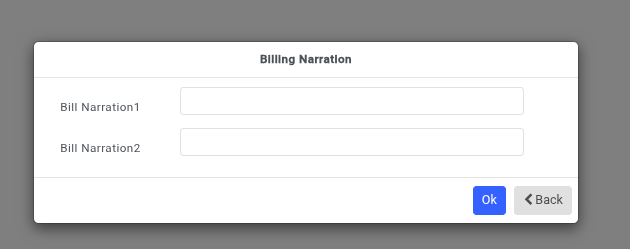
The **Bill** option is used to add remarks or descriptions to the bill.
**Steps to Add Bill Narration**
1. Click the Bill button.
2. Enter the required narration or remarks and save the narration.
* The entered description will appear on the bill.
**6.ADVANCE**
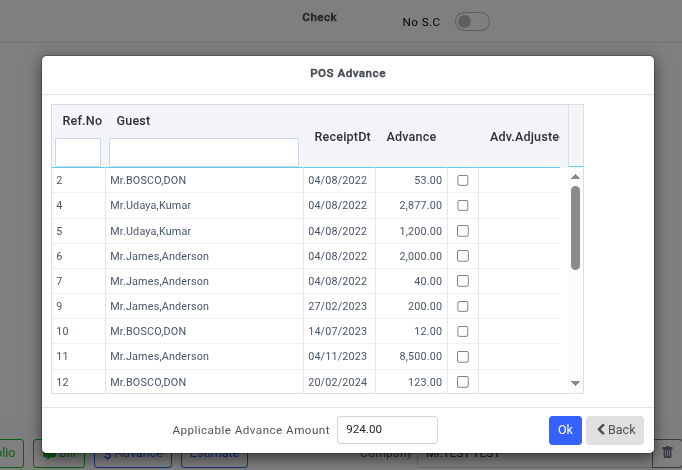
The **Advance** option is used to post advance payments against the KOT.
**Steps to Post Advance**
1. Click the Advance button.
2. Enter the advance amount and save the details.
* The advance amount will be adjusted in the final bill.
**7.ITEM DISCOUNT**
The **Item Disc** option is used to apply discounts to individual items.
**Steps to Apply Item Discount**
1. Click **Item Disc** button  on the left side of the screen.
2. Select the required item.
3. Enter the discount percentage or amount and save the discount.
* The discount will be applied to the selected item.
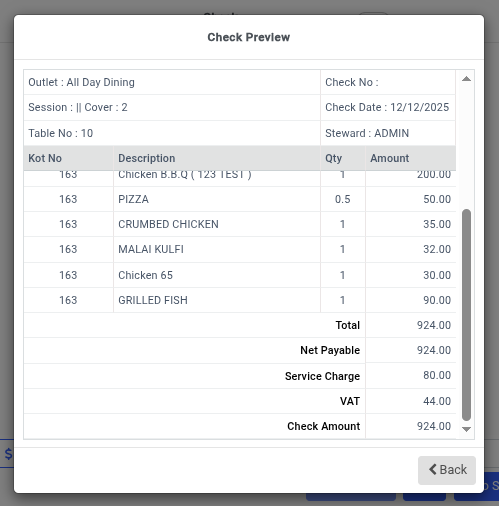
**8.BILL PREVIEW**
The **Bill Preview** option is used to preview the final bill before printing.
**Steps to Preview a Bill**
1. Click the **Bill Preview** option.
2. Review Item details, Taxes, Discounts, Final amount and Confirm the details before printing the bill.
**9.Guest Name and GST Number**
This option is used to enter customer billing details such as guest name and GST number.
**Steps to Enter Guest Name and GST Number**
1. Open the Guest Details screen.
2. Enter Guest Name, GST Number and save the details.
* The entered information will appear on the printed bill.
---
# Agent Instructions
This documentation is published with GitBook. GitBook is the documentation platform designed so that both humans and AI agents can read, navigate, and reason over technical content effectively. Learn more at gitbook.com.
## Querying This Documentation
If you need additional information that is not directly available in this page, you can query the documentation by asking a question.
Perform an HTTP GET request on the following URL with the `ask` and `goal` query parameters:
```
GET https://help.rbsgo.com/point-of-sale/point-of-sale-module/pos-transactions/pos-transactions-bill-split.md?ask=&goal=
```
`ask` is the immediate question: it should be specific, self-contained, and written in natural language.
`goal` is what the user is ultimately trying to achieve, the reason they need the answer. Sharing it helps GitBook give you a better, more relevant answer. A goal is most helpful when it describes the outcome the user wants rather than restating the question. For example, with `ask=how do I create an API token`, a goal like `automate deployments from our CI pipeline` lets GitBook tailor the answer to that use case.
The response will contain a direct answer to the question and relevant excerpts and sources from the documentation.
Use this mechanism when the answer is not explicitly present in the current page, you need clarification or additional context, or you want to retrieve related documentation sections.
.png?alt=media)



.png?alt=media)