> For the complete documentation index, see [llms.txt](https://help.rbsgo.com/llms.txt). Markdown versions of documentation pages are available by appending `.md` to page URLs; this page is available as [Markdown](https://help.rbsgo.com/point-of-sale/point-of-sale-module/pos-transactions/pos-transactions-kot.md).

# KOT (Kitchen Order Ticket)

Steps to create a kot

**KOT** stands for **Kitchen Order Ticket**. It is one of the most important procedures in the restaurant billing process. A KOT contains the list of food and beverage items ordered by the guest. Once the KOT is created, it is sent directly to the kitchen for preparation and is also used for billing purposes.

* The KOT can be modified before the final bill is generated, based on the guest’s requests or order changes.

## Steps to Create a KOT

Step 1: Go to the **Transactions** menu.

1. Click on **KOT**.

* This will redirect you to the KOT login screen.

<figure><img src="https://4060887901-files.gitbook.io/~/files/v0/b/gitbook-x-prod.appspot.com/o/spaces%2F2ktZUs9CJyincVDXEmrM%2Fuploads%2Fgit-blob-4d612ea0c8e590800c5c61ebe5f78eeeeefcc8df%2FScreenshot%20From%202026-05-22%2010-24-40.png?alt=media" alt=""><figcaption></figcaption></figure>

Step 2: On the login screen:

1. Select the preferred **Outlet**.
2. Select the **Table Server** or waiter.
3. Click **Login** to continue.

* This will open the table selection screen.

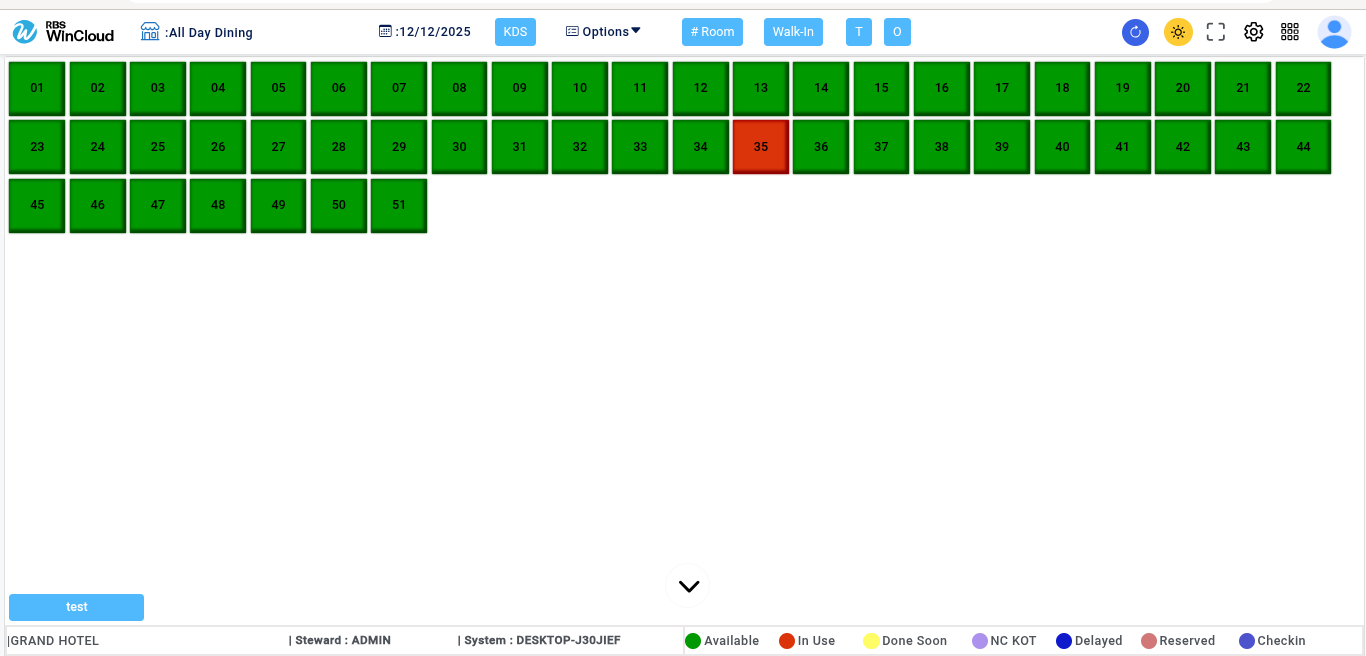
Step 3: From the displayed list of tables, select the required **Table Number**.

1. The selected table will open for order entry.

<figure><img src="https://4060887901-files.gitbook.io/~/files/v0/b/gitbook-x-prod.appspot.com/o/spaces%2F2ktZUs9CJyincVDXEmrM%2Fuploads%2Fgit-blob-dd880ff42ab0e55370b859b0c13263433eee913a%2FScreenshot%20From%202026-05-22%2010-27-41.png?alt=media" alt=""><figcaption></figcaption></figure>

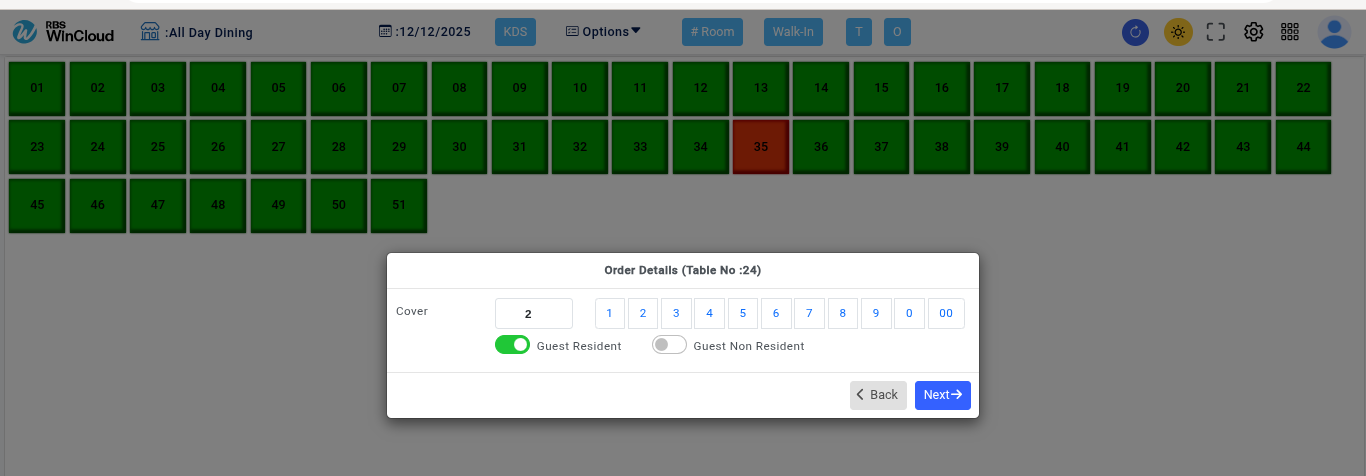
Step 4: Enter the number of **covers** (number of guests seated at the table).

1. Confirm the entry to proceed.

<figure><img src="https://4060887901-files.gitbook.io/~/files/v0/b/gitbook-x-prod.appspot.com/o/spaces%2F2ktZUs9CJyincVDXEmrM%2Fuploads%2Fgit-blob-69305a0f9c1993dc0202746f5f4c0da2e8005bb8%2FScreenshot%20From%202026-05-22%2010-28-52.png?alt=media" alt=""><figcaption></figcaption></figure>

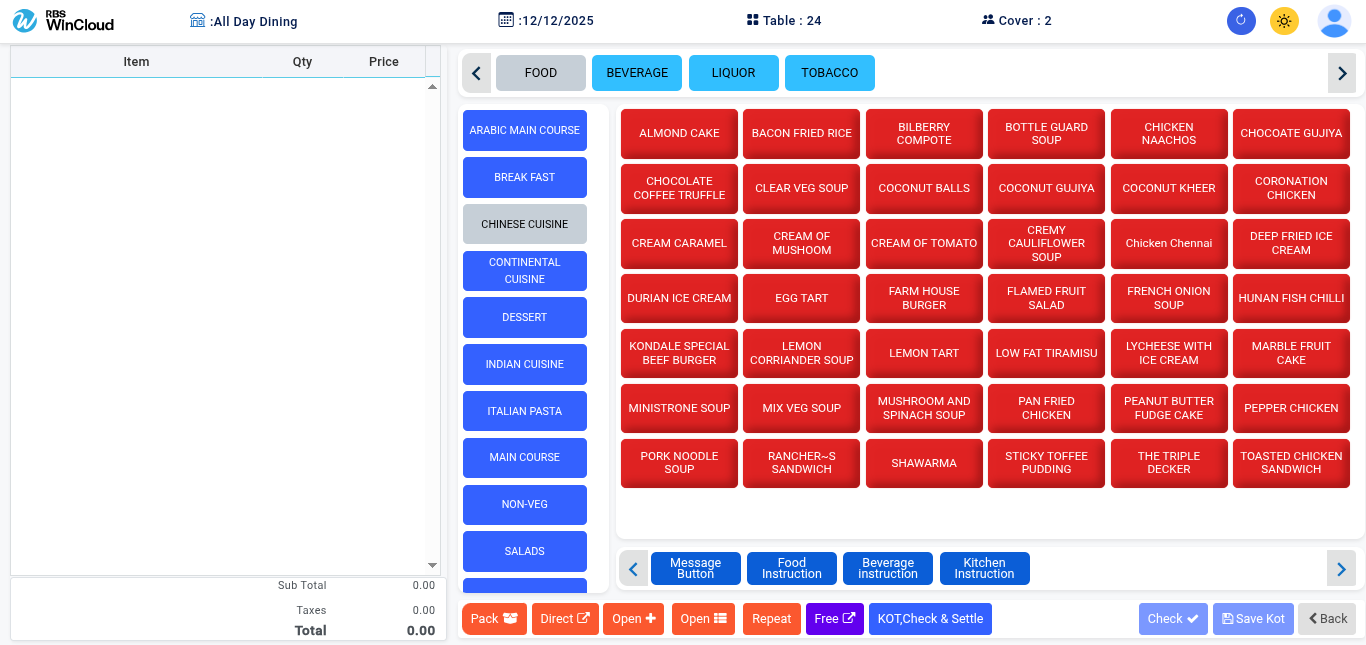
Step 5: Add Food Items to the KOT.

1. The order entry window allows you to add the food and beverage items ordered by the guest.

<figure><img src="https://4060887901-files.gitbook.io/~/files/v0/b/gitbook-x-prod.appspot.com/o/spaces%2F2ktZUs9CJyincVDXEmrM%2Fuploads%2Fgit-blob-dd7bb1fbe168afbe97e4d27ff274ef6916e79913%2FScreenshot%20From%202026-05-22%2010-31-00.png?alt=media" alt=""><figcaption></figcaption></figure>

Step 6: Menu Navigation. The menu is organized into:

* **Group**
* **Sub-Group**
* **Items**

Example:

* Chinese → Non-Veg → Chicken Fried Rice

This categorization helps in quickly locating menu items.

<figure><img src="https://4060887901-files.gitbook.io/~/files/v0/b/gitbook-x-prod.appspot.com/o/spaces%2F2ktZUs9CJyincVDXEmrM%2Fuploads%2Fgit-blob-60e8dd597ad575abe92bf5a33ba04649d3f7119f%2FScreenshot%20From%202026-05-22%2010-32-41.png?alt=media" alt=""><figcaption></figcaption></figure>

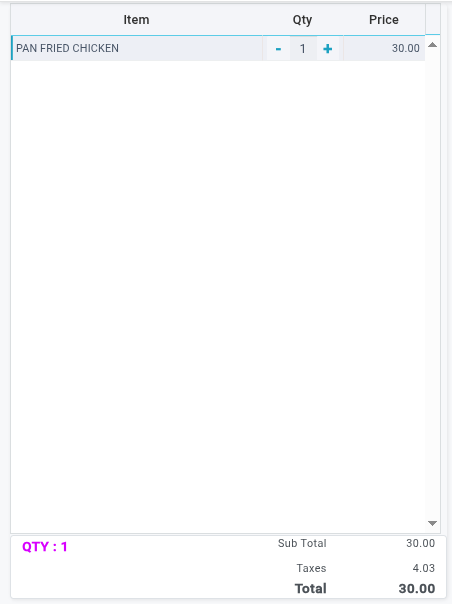
Step 6: Select the required quantity from the **Quantity Column**.

1. Then select the food item.

**Important Notes:**

* Always select the quantity first and then the item.
* If the item is selected first, the system automatically assigns the default quantity as 1.

<figure><img src="https://4060887901-files.gitbook.io/~/files/v0/b/gitbook-x-prod.appspot.com/o/spaces%2F2ktZUs9CJyincVDXEmrM%2Fuploads%2Fgit-blob-3e1ffefc1d1346b2f9e728e856a47edd7474d6d4%2FScreenshot%20From%202026-05-22%2010-34-13.png?alt=media" alt=""><figcaption></figcaption></figure>

**Functional Buttons and Their Usage**

* The following buttons and options are available while creating a KOT.

Step 7: The **MESSAGE** button![](https://4060887901-files.gitbook.io/~/files/v0/b/gitbook-x-prod.appspot.com/o/spaces%2F2ktZUs9CJyincVDXEmrM%2Fuploads%2Fgit-blob-739d06a9ad8ae75ef1ea82055dae7dabdeca5a1a%2Fimage%20\(1339\).png?alt=media) is used to add special instructions for a specific item (Examples: Less Oil, No Onion, With Ice Cubes, Extra Cheese).

* These instructions are sent directly to the kitchen.

<figure><img src="https://4060887901-files.gitbook.io/~/files/v0/b/gitbook-x-prod.appspot.com/o/spaces%2F2ktZUs9CJyincVDXEmrM%2Fuploads%2Fgit-blob-58f7df86074144b15e236264c7df24f4499df8fb%2FScreenshot%20From%202026-05-22%2010-40-03.png?alt=media" alt=""><figcaption></figcaption></figure>

Step 8: The **INSTRUCTION** button ![](https://4060887901-files.gitbook.io/~/files/v0/b/gitbook-x-prod.appspot.com/o/spaces%2F2ktZUs9CJyincVDXEmrM%2Fuploads%2Fgit-blob-6146bd22ce421629941647b4d862731faf3887d1%2Fimage%20\(1342\).png?alt=media)is used to add predefined instructions available in the system (Examples: Medium Spicy, Sharing 1/2, No Sugar).

* This helps maintain consistency in order preparation.

<figure><img src="https://4060887901-files.gitbook.io/~/files/v0/b/gitbook-x-prod.appspot.com/o/spaces%2F2ktZUs9CJyincVDXEmrM%2Fuploads%2Fgit-blob-927594f4fe8131713d7ca049a438c5ac96b72bcd%2FScreenshot%20From%202026-05-22%2010-43-05.png?alt=media" alt=""><figcaption></figcaption></figure>

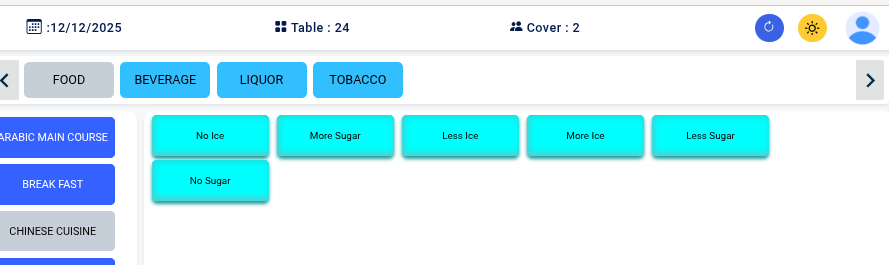
Step 9: The **BEVERAGE INSTRUCTION** option ![](https://4060887901-files.gitbook.io/~/files/v0/b/gitbook-x-prod.appspot.com/o/spaces%2F2ktZUs9CJyincVDXEmrM%2Fuploads%2Fgit-blob-c4f1ffa0b9e8c83e9b5ef7e02c22ae971f43c798%2Fimage%20\(1345\).png?alt=media)is used to add serving instructions for beverages (Examples: Serve Chilled, Without Ice, Serve Later).

<figure><img src="https://4060887901-files.gitbook.io/~/files/v0/b/gitbook-x-prod.appspot.com/o/spaces%2F2ktZUs9CJyincVDXEmrM%2Fuploads%2Fgit-blob-6ce731eda9c26ce8b966646d9ddbe50b82f5f06d%2FScreenshot%20From%202026-05-22%2010-53-19.png?alt=media" alt=""><figcaption></figcaption></figure>

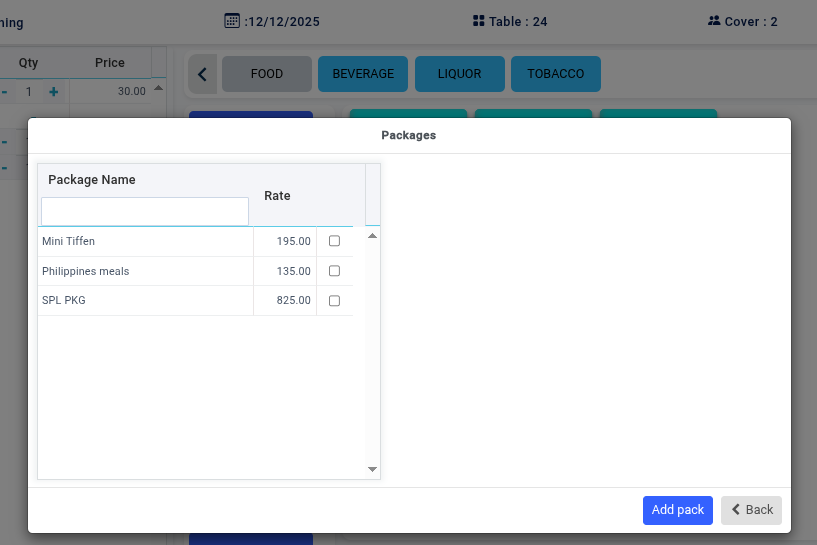
Step 10: The **PACK** button ![](https://4060887901-files.gitbook.io/~/files/v0/b/gitbook-x-prod.appspot.com/o/spaces%2F2ktZUs9CJyincVDXEmrM%2Fuploads%2Fgit-blob-1382a9aed6967be704c2f08dea4b1996d2e4afef%2FScreenshot%20From%202026-05-22%2011-01-49.png?alt=media)is used to select package or combo options available for the item.

* This is mainly used for Combo meals, Meal packages and Special offers.

<figure><img src="https://4060887901-files.gitbook.io/~/files/v0/b/gitbook-x-prod.appspot.com/o/spaces%2F2ktZUs9CJyincVDXEmrM%2Fuploads%2Fgit-blob-2d64e0d5e8608b284a452ade63834f02b1ae46ce%2FScreenshot%20From%202026-05-22%2010-59-07.png?alt=media" alt=""><figcaption></figcaption></figure>

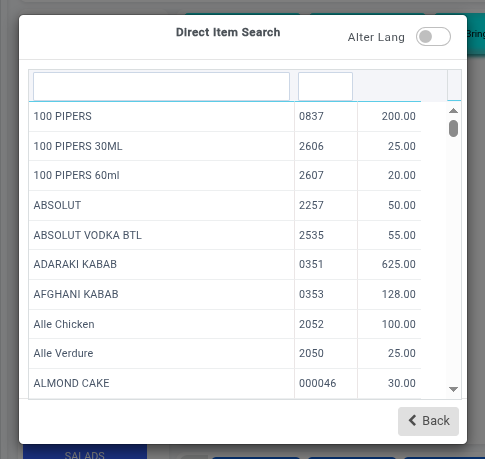
Step 11: The **DIRECT** button![](https://4060887901-files.gitbook.io/~/files/v0/b/gitbook-x-prod.appspot.com/o/spaces%2F2ktZUs9CJyincVDXEmrM%2Fuploads%2Fgit-blob-e89b320a740fec613ff8eca7a5db7513b0b39e1f%2FScreenshot%20From%202026-05-22%2011-04-39.png?alt=media)allows you to directly search and select menu items without navigating through groups and sub-groups.

* This option helps save time during busy restaurant operations.

<figure><img src="https://4060887901-files.gitbook.io/~/files/v0/b/gitbook-x-prod.appspot.com/o/spaces%2F2ktZUs9CJyincVDXEmrM%2Fuploads%2Fgit-blob-d7c4f82c13fee134d1f8b1539fc799be1b591ec2%2FScreenshot%20From%202026-05-22%2011-05-48.png?alt=media" alt=""><figcaption></figcaption></figure>

Step 12:The **OPEN +** button ![](https://4060887901-files.gitbook.io/~/files/v0/b/gitbook-x-prod.appspot.com/o/spaces%2F2ktZUs9CJyincVDXEmrM%2Fuploads%2Fgit-blob-30192e595adbf4143889c38745b601bd87e29701%2FScreenshot%20From%202026-05-22%2011-16-57.png?alt=media)is used to create an open item with a custom sales rate.

<figure><img src="https://4060887901-files.gitbook.io/~/files/v0/b/gitbook-x-prod.appspot.com/o/spaces%2F2ktZUs9CJyincVDXEmrM%2Fuploads%2Fgit-blob-ad6b91c0a5c89d6a6d926c81bfa72423060988bd%2FScreenshot%20From%202026-05-22%2011-10-04.png?alt=media" alt=""><figcaption></figcaption></figure>

Step 13:The **REPEAT** button![](https://4060887901-files.gitbook.io/~/files/v0/b/gitbook-x-prod.appspot.com/o/spaces%2F2ktZUs9CJyincVDXEmrM%2Fuploads%2Fgit-blob-27745a19dba76ecb917e151b848aef86eeb78609%2FScreenshot%20From%202026-05-22%2011-18-07.png?alt=media) is used to repeat previously selected items in the KOT.

* This helps quickly duplicate orders without selecting the items again.

<figure><img src="https://4060887901-files.gitbook.io/~/files/v0/b/gitbook-x-prod.appspot.com/o/spaces%2F2ktZUs9CJyincVDXEmrM%2Fuploads%2Fgit-blob-d9104043976249c9001b1fd08e0ea6664fbbf3b5%2FScreenshot%20From%202026-05-22%2011-11-59.png?alt=media" alt=""><figcaption></figcaption></figure>

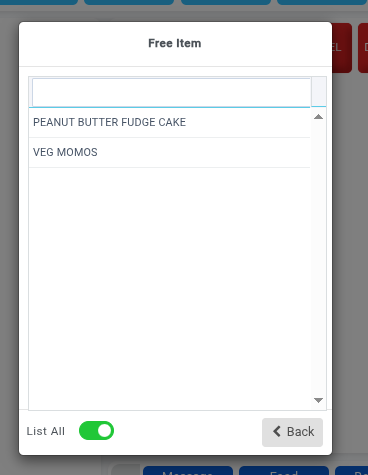
Step 14: The **FREE** button![](https://4060887901-files.gitbook.io/~/files/v0/b/gitbook-x-prod.appspot.com/o/spaces%2F2ktZUs9CJyincVDXEmrM%2Fuploads%2Fgit-blob-22323e2e99750178c0447a8a84d4eeae6318d786%2FScreenshot%20From%202026-05-22%2011-18-56.png?alt=media) is used to mark an item as complimentary or free of charge (Example: Complimentary Dessert, Free Soft Drink).

* The selected item will not be charged in the bill.

<figure><img src="https://4060887901-files.gitbook.io/~/files/v0/b/gitbook-x-prod.appspot.com/o/spaces%2F2ktZUs9CJyincVDXEmrM%2Fuploads%2Fgit-blob-e73ae35d6664beeb7afce4dc8024a52559cc5920%2FScreenshot%20From%202026-05-22%2011-14-46.png?alt=media" alt=""><figcaption></figcaption></figure>

Step 15: After adding all food and beverage items, click on **Save KOT**.![](https://4060887901-files.gitbook.io/~/files/v0/b/gitbook-x-prod.appspot.com/o/spaces%2F2ktZUs9CJyincVDXEmrM%2Fuploads%2Fgit-blob-17c56c044f6e3f65a7ca76d41effaa2c932683d8%2FScreenshot%20From%202026-05-22%2011-38-22.png?alt=media)

* The KOT will be sent to the kitchen for preparation.

<figure><img src="https://4060887901-files.gitbook.io/~/files/v0/b/gitbook-x-prod.appspot.com/o/spaces%2F2ktZUs9CJyincVDXEmrM%2Fuploads%2Fgit-blob-9e3c7d332d92ba4c467d5189224a7003faba140d%2FScreenshot%20From%202026-05-22%2011-21-28.png?alt=media" alt=""><figcaption></figcaption></figure>

Step 16: The **CHECK & SETTLE** button ![](https://4060887901-files.gitbook.io/~/files/v0/b/gitbook-x-prod.appspot.com/o/spaces%2F2ktZUs9CJyincVDXEmrM%2Fuploads%2Fgit-blob-36c07e260a191b6173689be5099d8287def450a5%2FScreenshot%20From%202026-05-22%2011-36-49.png?alt=media)is used to directly move the KOT to settlement mode without printing the KOT bill.

<figure><img src="https://4060887901-files.gitbook.io/~/files/v0/b/gitbook-x-prod.appspot.com/o/spaces%2F2ktZUs9CJyincVDXEmrM%2Fuploads%2Fgit-blob-4ee01afe3ba2d825890f9b667046a0d422825e40%2FScreenshot%20From%202026-05-22%2011-26-25.png?alt=media" alt=""><figcaption></figcaption></figure>

Step 17: If the **E-Invoice** option is enabled:

* The KOT bill can be sent directly to the guest through **WhatsApp**.
* This provides a quick and paperless billing experience.

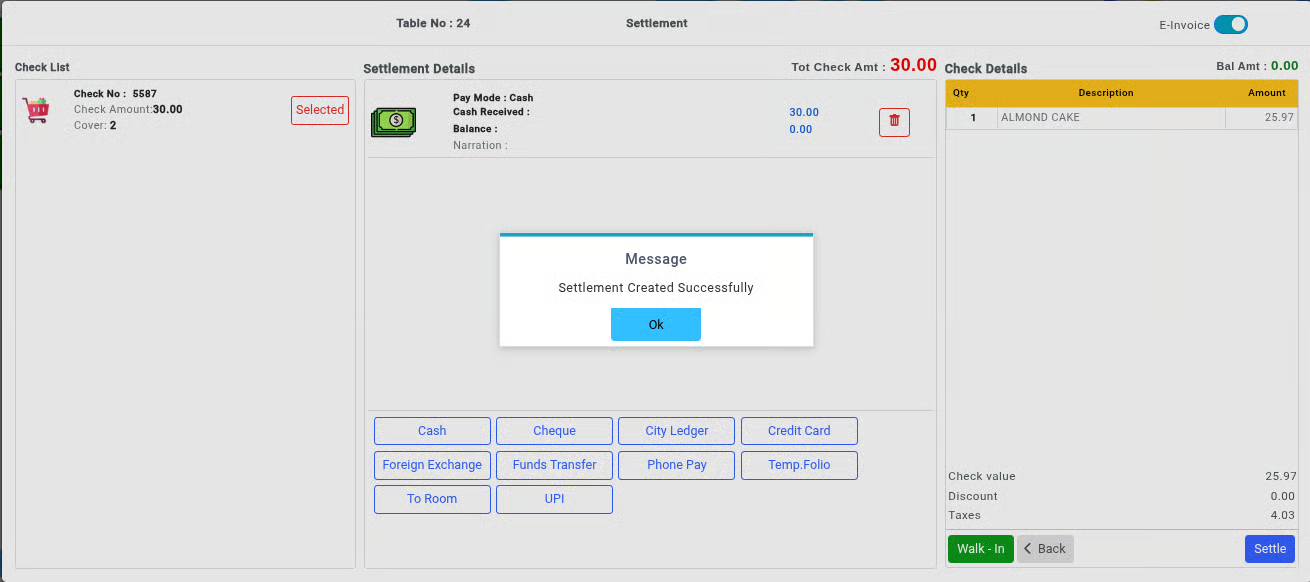
Step 18: After selecting the settlement mode, click on the **Settle** button.![](https://4060887901-files.gitbook.io/~/files/v0/b/gitbook-x-prod.appspot.com/o/spaces%2F2ktZUs9CJyincVDXEmrM%2Fuploads%2Fgit-blob-31abc6338a583c0c745818b16ada8fd40517f436%2FScreenshot%20From%202026-05-22%2011-40-05.png?alt=media)

1. The billing process will be completed successfully.

<figure><img src="https://4060887901-files.gitbook.io/~/files/v0/b/gitbook-x-prod.appspot.com/o/spaces%2F2ktZUs9CJyincVDXEmrM%2Fuploads%2Fgit-blob-a4ca4299d4b01634139363dc8d42476ede9f0514%2Fimage.png?alt=media" alt=""><figcaption></figcaption></figure>


---

# Agent Instructions
This documentation is published with GitBook. GitBook is the documentation platform designed so that both humans and AI agents can read, navigate, and reason over technical content effectively. Learn more at gitbook.com.

## Querying This Documentation
If you need additional information that is not directly available in this page, you can query the documentation by asking a question.

Perform an HTTP GET request on the following URL with the `ask` and `goal` query parameters:

```
GET https://help.rbsgo.com/point-of-sale/point-of-sale-module/pos-transactions/pos-transactions-kot.md?ask=<question>&goal=<user_goal>
```

`ask` is the immediate question: it should be specific, self-contained, and written in natural language.
`goal` is what the user is ultimately trying to achieve, the reason they need the answer. Sharing it helps GitBook give you a better, more relevant answer. A goal is most helpful when it describes the outcome the user wants rather than restating the question. For example, with `ask=how do I create an API token`, a goal like `automate deployments from our CI pipeline` lets GitBook tailor the answer to that use case.

The response will contain a direct answer to the question and relevant excerpts and sources from the documentation.

Use this mechanism when the answer is not explicitly present in the current page, you need clarification or additional context, or you want to retrieve related documentation sections.