> For the complete documentation index, see [llms.txt](https://help.rbsgo.com/llms.txt). Markdown versions of documentation pages are available by appending `.md` to page URLs; this page is available as [Markdown](https://help.rbsgo.com/point-of-sale/point-of-sale-module/pos-transactions/settlement-mode.md).
# Settlement Mode
**Settlement Mode** appears after the KOT bill has been generated. It is used to complete the payment process for the customer bill.
## Steps to Perform Settlement
Step 1: Generate the KOT bill.
Step 2: Select the required **Settlement Mode** (Cash, Card, UPI, etc.).
1. The settlement screen will appear.
2. Enter the payment details if required.
Step 3: Click the **Settle** button.
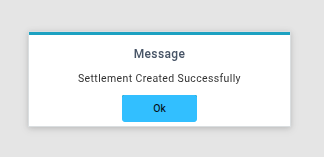
* Once the settlement is completed successfully, a confirmation popup message will appear.
#### OPTIONS
The Options menu contains the following modules:
* KOT
* Check
* Admin
* Reports
### KOT OPTIONS
1\. **KOT Reprint**
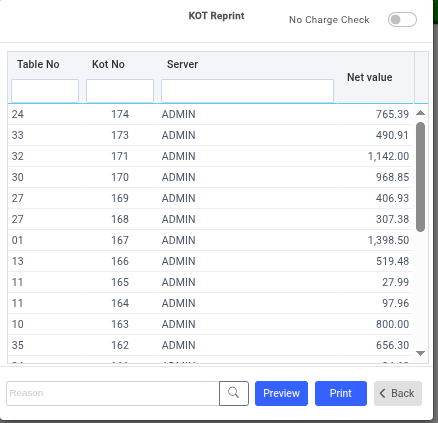
KOT Reprint is used to print a duplicate copy of the Kitchen Order Ticket (KOT).
**Steps to Reprint KOT**
1. Open the **KOT Reprint** option.
2. Select the required **Table Number**.
3. Enter the reason for reprinting.
4. Click the **print** button.
5. The KOT will be printed again.
2\. **KOT Cancellation**
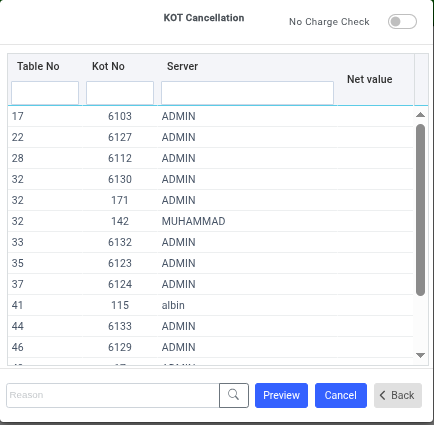
KOT Cancellation is used to cancel an existing KOT.
**Steps to Cancel KOT**
1. Open the **KOT Cancellation** option.
2. Select the KOT **Table Number**.
3. Enter the cancellation reason.
4. Click the **Cancel** button.
5. The selected KOT will be cancelled successfully.
3\. **KOT Date Transfer**
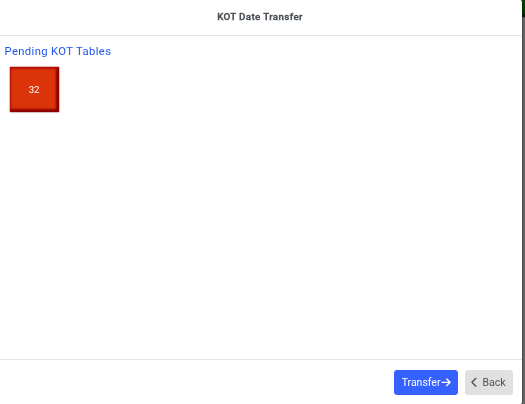
KOT Date Transfer is used to transfer a KOT from one business date to another.
**Steps for KOT Date Transfer**
1. Open the **KOT Date Transfer** option.
2. Select the KOT details.
3. Choose the current date and the new transfer date.
4. Click the **Transfer** button.
5. The KOT will be transferred to the selected date.
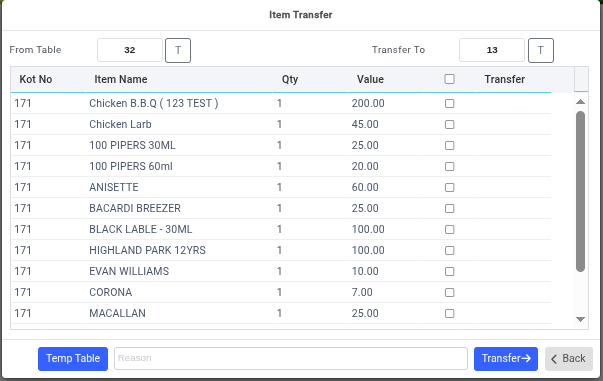
4**. KOT Item Transfer**
KOT Item Transfer is used to transfer selected items from one table to another table.
**Steps for KOT Item Transfer**
1. Open the **KOT Item Transfer** option.
2. Select the source table.
3. Select the items to transfer.
4. Choose the destination table.
5. Click the **Transfer** button.
6. The selected items will move to the new table.
5\. **No Charge KOT to Charge KOT**
This option converts a non-chargeable KOT into a chargeable KOT.
**Steps to Convert No Charge KOT to Charge KOT**
1. Open the **No Charge KOT to Charge KOT** option.
2. Select the required KOT.
3. Confirm the conversion.
4. Click the **Save** button.
5. The KOT will become chargeable.
6\. **KOT to No Charge KOT**
This option converts a chargeable KOT into a non-chargeable KOT.
**Steps to Convert Charge KOT to No Charge KOT**
1. Open the **KOT to No Charge KOT** option.
2. Select the required KOT.
3. Confirm the conversion.
4. Click the **Save** button.
5. The KOT will become non-chargeable.
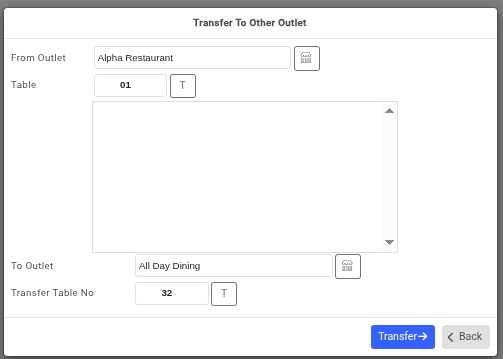
7\. **KOT Table Transfer to Other Outlet**
This option transfers a KOT from the current outlet to another outlet.
**Steps for KOT Transfer to Another Outlet**
1. Open the **KOT Table Transfer to Other Outlet** option.
2. Select the source table/KOT.
3. Choose the destination outlet.
4. Click the **Transfer** button.
5. The KOT will move to the selected outlet.
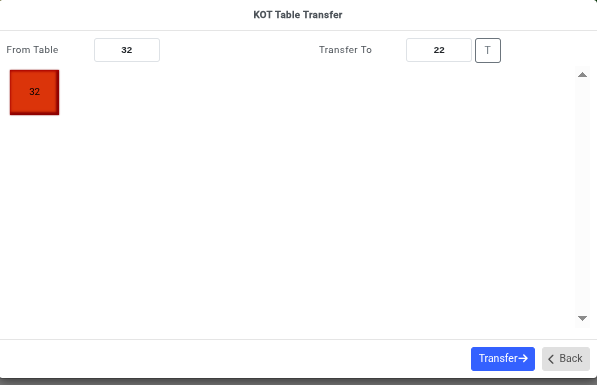
8\. **KOT Table Transfer**
KOT Table Transfer is used to move an active KOT from one table to another table within the same outlet.
**Steps for KOT Table Transfer**
1. Open the **KOT Table Transfer** option.
2. Select the current table number.
3. Choose the new table number.
4. Click the **Transfer** button.
5. The KOT will be moved successfully.
#### **CHECK OPTIONS**
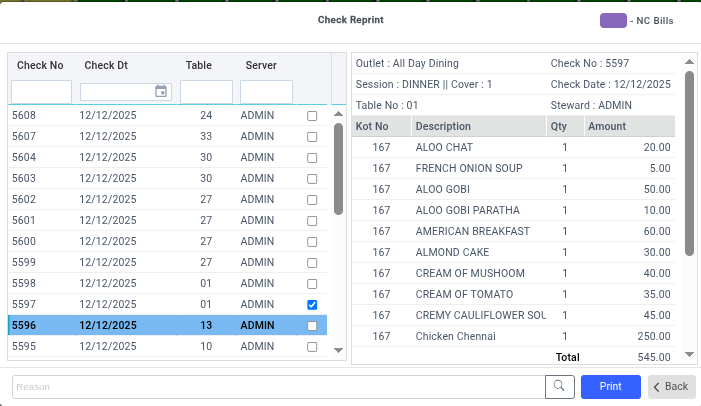
1\. **Check Reprint**
Check Reprint is used to print a duplicate copy of a previously generated bill.
**Steps for Check Reprint**
1. Open the **Check Reprint** option.
2. Select the required bill/check.
3. Enter the reason for reprinting.
4. Click the **Print** button.
5. The bill will be printed again.
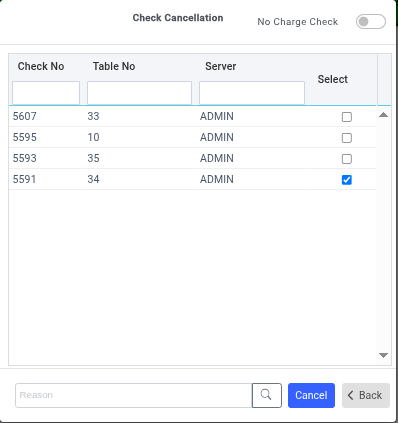
2. **Check Cancellation**
Check Cancellation is used to void or cancel a generated bill.
**Steps for Check Cancellation**
1. Open the **Check Cancellation** option.
2. Select the required check.
3. Enter the cancellation reason.
4. Click the **Cancel** button.
5. The bill will be cancelled successfully.
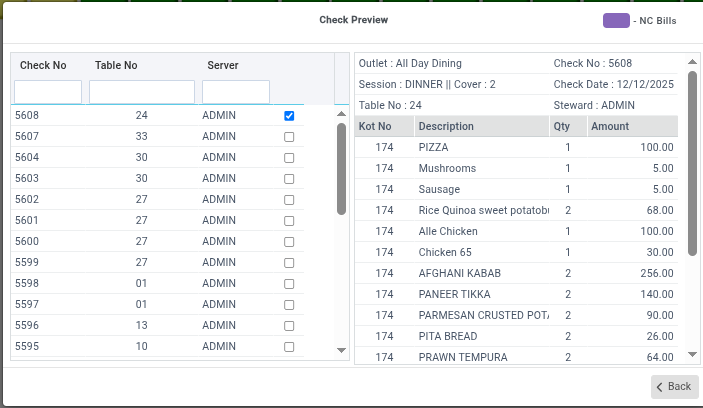
3. **Check Preview**
Check Preview is used to view the bill before printing or settlement.
**Steps for Check Preview**
1. Open the **Check Preview** option.
2. Select the required check.
3. Click the **Preview** button.
4. The bill preview will appear on the screen.
4. **Service Charge**
Service Charge is an additional amount added to the customer bill for services provided.
**Steps to Apply Service Charge**
1. Open the **Service Charge** option.
2. Select the required check.
3. Click the **No S.C** button.
4. The service charge will be added to the bill.
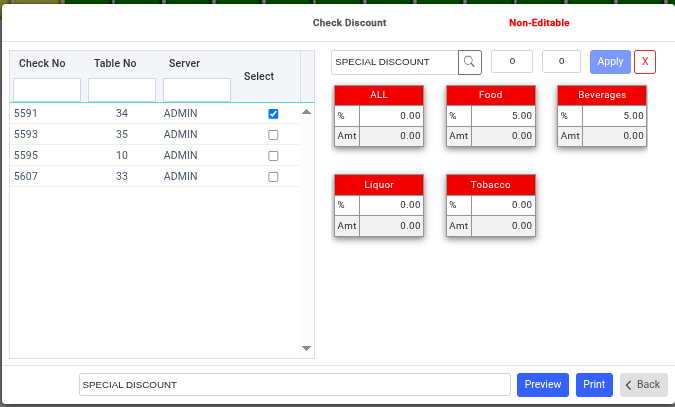
5. **Check Discount**
Check Discount is used to apply a discount to the entire bill during billing or settlement.
**Steps to Apply Check Discount**
1. Open the **Check Discount** option.
2. Select the required bill/check.
3. Enter the discount amount or percentage.
4. Click the **Print** button.
5. The discount will be applied to the bill.
6. **Check Amend**
Check Amend is used to modify or correct a generated bill before final settlement.
**Steps for Check Amendment**
1. Open the **Check Amend** option.
2. Select the required check.
3. Make the necessary changes.
4. Click the **Amend** button.
5. The updated bill details will be saved.
7. **Check Split**
Check Split is used to divide one bill into multiple bills.
**Steps for Check Split**
1. Open the **Check Split** option.
2. Select the required bill/check.
3. Click the **Split** button.
8. **Cancel Settlement**
Cancel Settlement is used to reverse a completed payment settlement.
**Steps to Cancel Settlement**
1. Open the **Cancel Settlement** option.
2. Select the settled bill.
3. Enter the cancellation reason if required.
4. Click the **Cancel** button.
5. The payment settlement will be reversed.
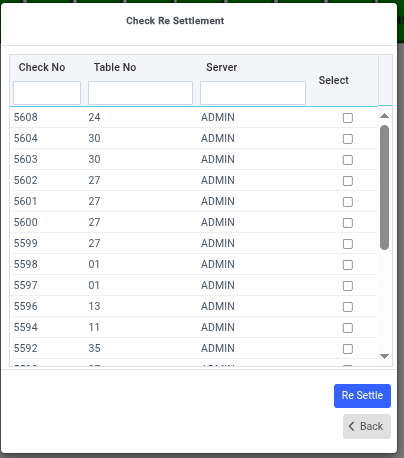
9. **Check Resettlement**
Check Resettlement is used to make changes to a settled bill and settle it again.
**Steps for Check Resettlement**
1. Open the **Check Resettlement** option.
2. Select the settled check.
3. Modify the required details.
4. Perform the settlement again.
5. Click the **Save** button.
6. The bill will be resettled successfully.
#### ADMIN
**1. Change Password**
Change Password allows users to update their login password.
**Steps to Change Password**
1. Open the **Change Password** option.
2. Enter the current password.
3. Enter the new password.
4. Confirm the new password.
5. Click the **Update** button.
6. The password will be updated successfully.
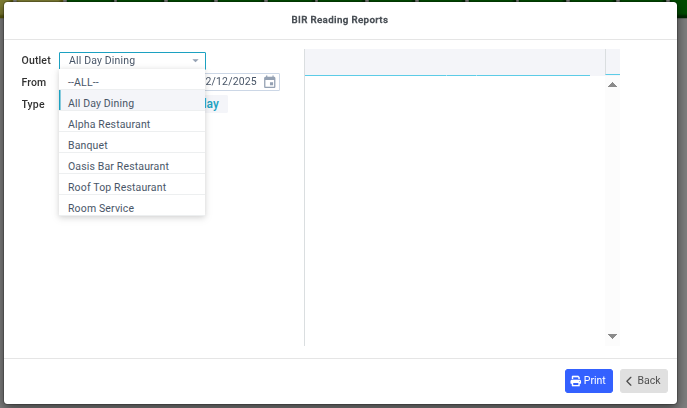
2. **BIR Reading Reports**
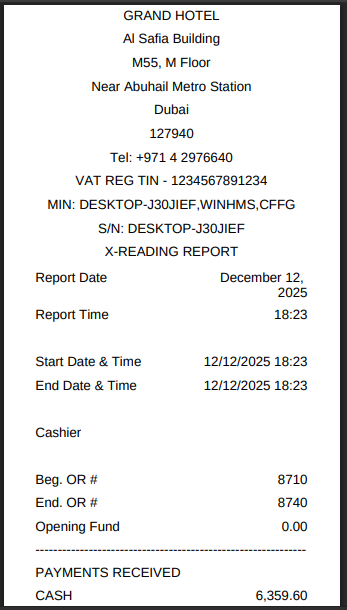
BIR Reading Reports display billing and sales reading details used for transaction tracking and auditing.
#### Steps to View BIR Reading Reports
1. Open the **BIR Reading Reports** option.
2. Select the required **Outlet Name**.
3. Click the **Print** button.
4. The report will be generated and printed.
#### REPORTS
1\. **Guest Plan Register**
Guest Plan Register shows details of guest plans, packages, or booked services.
**Steps to View Guest Plan Register**
1. Open the **Guest Plan Register** report.
2. Select the required session from the **Session** button.
3. View the report details.
4. To download the report, click the **Excel** button available at the top-right corner.
2. **Session Sales**
Session Sales displays the total sales made during a particular session or shift.
**Steps to View Session Sales**
1. Open the **Session Sales** report.
2. Select the required session/date.
3. Click the **Print** button.
4. The session-wise sales report will appear.
3. **Day Summary List**
Day Summary List provides a summary of all daily transactions and sales activities.
**Steps to View Day Summary List**
1. Open the **Day Summary List** report.
2. Select the required date.
3. Click the **Print** button.
4. The day summary report will be displayed.
4\. **Item Sale Report**
Item Sale Report displays sales details for individual menu items.
**Steps to View Item Sale Report**
1. Open the **Item Sale Report**.
2. Select the required date range.
3. Click the **Print** button.
4. The item-wise sales report will appear.
5. **Expected Arrivals**
Expected Arrivals displays the list of guests scheduled to check in on a specific date.
**Steps to View Expected Arrivals**
1. Open the **Expected Arrivals** report.
2. Select the required date.
3. Click the **Print** button.
4. The expected guest arrivals list will be displayed.
6. **Cashier Settlement**
Cashier Settlement is used to reconcile sales, payments, and cash handled by a cashier during a shift.
**Steps for Cashier Settlement**
1. Open the **Cashier Settlement** option.
2. Select the cashier.
3. Click the **Print** button.
4. The cashier settlement process will be completed.
7. **Order Approval Report**
Order Approval Report displays orders that require approval before processing or billing.
**Steps to View Order Approval Report**
1. Open the **Order Approval Report**.
2. Select the required date or filter.
3. Click the **Display** button.
4. The approval report will appear.
5. To download the report, click the **Excel** button available at the top-right corner.
---
# Agent Instructions
This documentation is published with GitBook. GitBook is the documentation platform designed so that both humans and AI agents can read, navigate, and reason over technical content effectively. Learn more at gitbook.com.
## Querying This Documentation
If you need additional information that is not directly available in this page, you can query the documentation by asking a question.
Perform an HTTP GET request on the following URL with the `ask` and `goal` query parameters:
```
GET https://help.rbsgo.com/point-of-sale/point-of-sale-module/pos-transactions/settlement-mode.md?ask=&goal=
```
`ask` is the immediate question: it should be specific, self-contained, and written in natural language.
`goal` is what the user is ultimately trying to achieve, the reason they need the answer. Sharing it helps GitBook give you a better, more relevant answer. A goal is most helpful when it describes the outcome the user wants rather than restating the question. For example, with `ask=how do I create an API token`, a goal like `automate deployments from our CI pipeline` lets GitBook tailor the answer to that use case.
The response will contain a direct answer to the question and relevant excerpts and sources from the documentation.
Use this mechanism when the answer is not explicitly present in the current page, you need clarification or additional context, or you want to retrieve related documentation sections.
.png?alt=media)